Version v3.2.0
Security administration views
Use these AdminApp views to review security work, investigate an account, and perform controlled policy or migration changes. Start with the destination that matches the scope of the task. The passkey security operations guide explains the underlying recovery, trust, approval and migration procedures.
| Task | Open | Scope |
|---|---|---|
| Review pending approvals or recovery cases | User Store → Security Operations | Selected UserStore |
| Prepare a store upgrade or change its RP ID | User Store → Migrations | Selected UserStore |
| Inspect or change passkey requirements | Idp Instances → Edit → Passkey policy | Current UserStore identity provider |
| Investigate one user's sign-in readiness | User Store → Users → Edit → Passkey security | Current user in the selected UserStore |
| Review identity replacement or convert legacy invitations | Identity Operations | Authorized management records; invitations require a subscription |
| Diagnose authenticator metadata freshness | Admin Settings → FIDO metadata trust | Global trust store |
Scope, filters and permissions
For UserStore workspaces, select the subscription and UserStore in the application header. Check the resolved store name before approving or changing anything. Changing the subscription clears the selected store. A shared UserStore can contain accounts used by multiple tenants.
Identity Operations does not inherit the UserStore filter. Its replacement queue contains the management records you are authorized to access. Its invitation tab has a separate subscription selector. FIDO metadata trust is global and works without selecting a UserStore.
Queue pages initially contain 50 records; the page-size control supports up to 200. Use the available status, date, subject or operation filters to narrow the complete authorized result set. User lookups search beyond the visible page. An empty grid means no records match the current scope and filters; it does not mean a service error occurred. Clear filters and verify scope before concluding that no work remains.
Open a record's details to review its identifiers and evidence. Row actions depend on permissions and current state. Confirmation dialogs identify the target and consequence. The server checks authorization and concurrency again when the command runs. A disabled command may require more approvals, a different independent operator, or completion of a prerequisite.
Refresh reloads the workspace and visited tabs. Successful commands also refresh related security projections. If a proposal changed or expired, obtain a fresh preview and approvals instead of repeatedly submitting the old request. Changing scope clears open dialogs and one-time results.
Recommended way to work
For a planned change, agree on the outcome and the affected population before opening a command dialog. Record the UserStore, case/change reference, intended policy and independent reviewers. A shared store means a policy change can affect accounts used by more than one tenant.
Use this sequence for operations that support preview and approval:
- Inspect: read current policy, readiness and relevant queue details.
- Prepare: select the desired change and generate a preview. A preview is a review step, not a saved policy change.
- Review: resolve validation errors, assess warnings and obtain the required independent approvals for that exact proposal.
- Execute: submit the approved proposal from its originating workflow.
- Verify: refresh the resulting state and relevant account/event views. Record the outcome before closing the case.
We recommend separating the requester and reviewer roles even when one administrator has permission to perform both kinds of action. Permission to approve does not make the requester an independent actor. Keep policy changes small enough that the approver can explain their effect on sign-in, enrollment and recovery.
Unsaved form values and one-time results are not a durable case record. Complete the current workflow before reloading the browser or changing scope. Record request identifiers and fingerprints in the change record, but do not put TAP secrets or DNS challenge plaintext into ordinary tickets or screenshots.
Security Operations
Use this workspace for the selected store's operational queues. It does not change policy or perform store migrations.
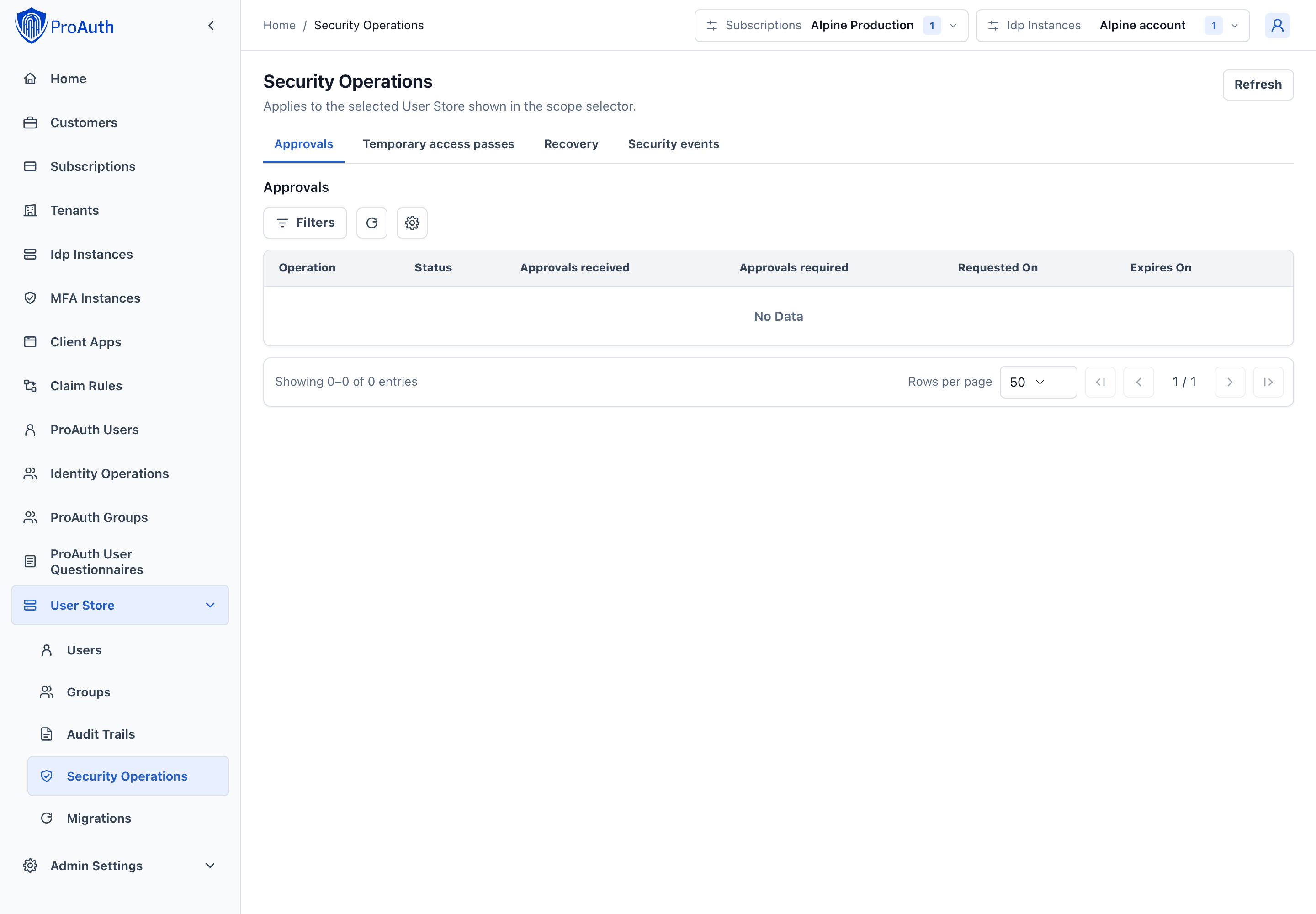
Approvals
Use Approvals when an operator requests a controlled policy change or RP retirement. Filter by status, operation, requester or date. Approval progress shows how many independent decisions the request needs.
- Open the request's details and inspect the exact option writes/resets or RP retirement target and consequence.
- Check the proposal fingerprint, expiry and requester. Policy proposals can be re-previewed to detect a change since the request was created.
- Approve or reject only after reviewing the evidence. The requester cannot approve their own proposal; the same actor cannot count twice.
- After enough approvals, the requester returns to the policy or migration view to execute the exact approved operation. Approval alone does not apply it.
Cancellation withdraws a request. Rejected, cancelled, expired or stale requests cannot authorize a later change.
Decide whether to approve, reject or cancel
| What you find | Recommended action |
|---|---|
| Correct target, justified impact, current proposal, and sufficient remaining lifetime | Approve as an independent reviewer. If more approvals are required, another independent actor must review it too. |
| The proposal is incorrect or the risk is unacceptable | Reject it and explain the decision through your change-management process. The requester must prepare a new proposal. |
| The business need has been withdrawn or the requester submitted the wrong proposal | Cancel the request if authorized. Cancellation withdraws the authorization request; it does not undo an already executed change. |
| Approved, but not yet executed | Ask the requester to refresh approval state in the originating workflow and execute there. Do not create a second request merely because the first has not been applied. |
| Expired or the preview no longer matches | Stop and create a current preview. Earlier approvals are not approval of the new state. |
For example, a request to reset an RP-related override deserves the same scrutiny as entering a new value: removing an override can change the inherited effective policy. Compare the resulting value, not only the list of fields being removed.
Verification: approval progress should reflect each independent actor once. After execution, check both the request state and the resulting effective policy or migration state; an approved request alone is not evidence that the change took effect.
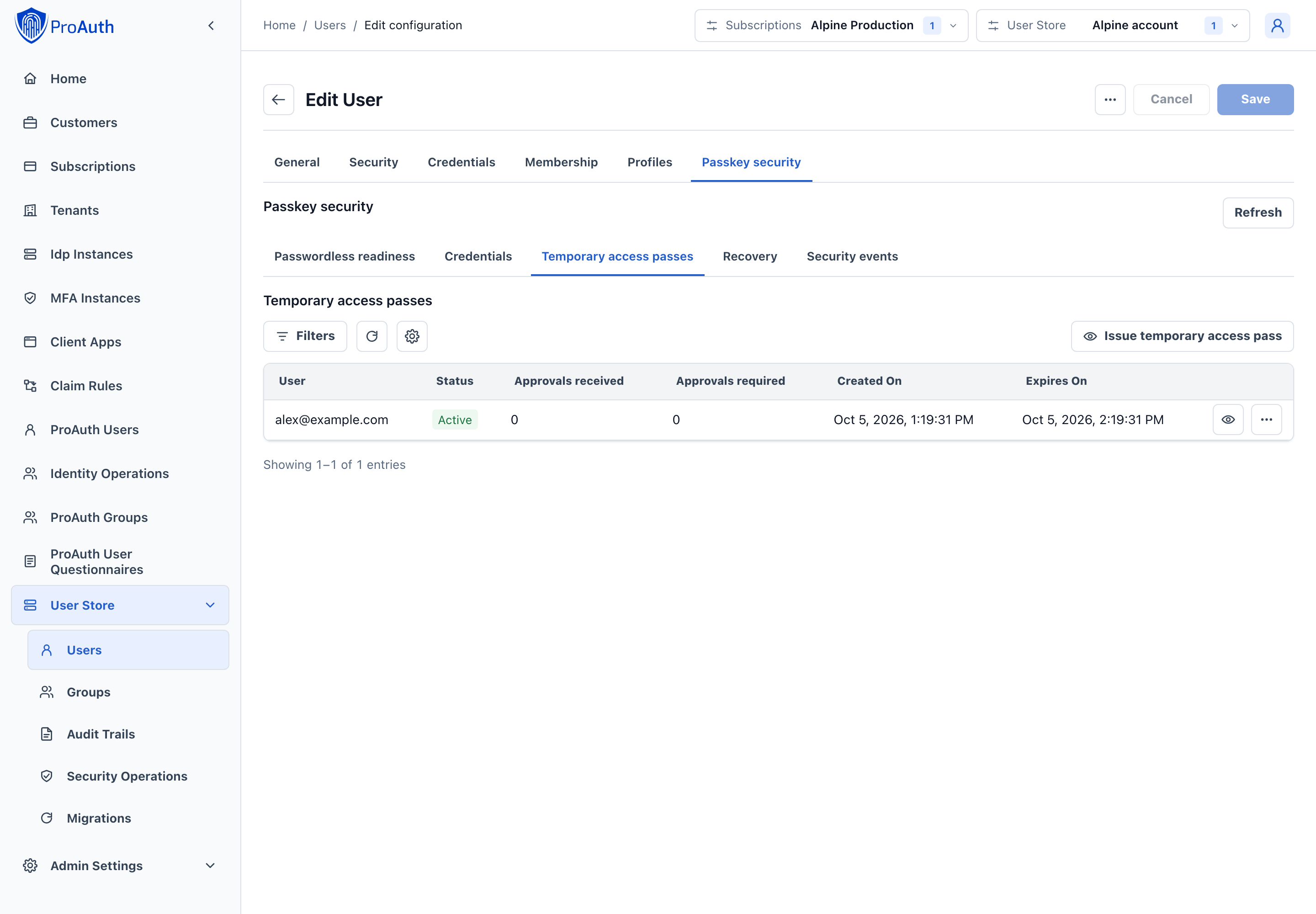
Temporary access passes
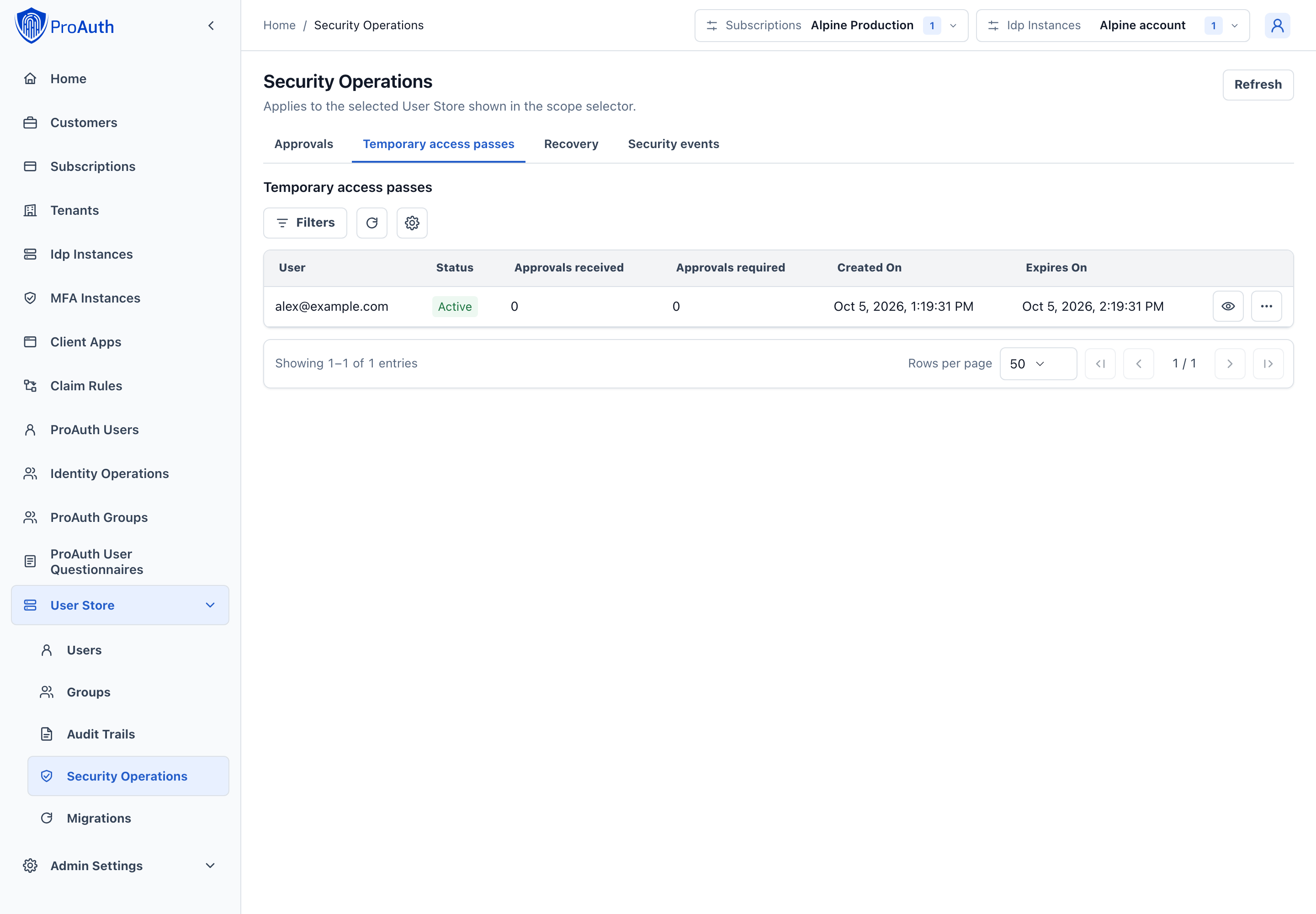
Use Temporary access passes to review requests across the store, check approval progress and identify expired or consumed passes. Open details for the reason, requester and lifecycle evidence. An eligible independent operator can approve a pending request from its row menu.
To issue a pass for a particular account, open that user's Passkey security → Temporary access passes tab. Queue and detail reads never reveal the secret. Approval does not extend the pass's original lifetime.
Review a TAP request
- Find the user and verify the request's reason against your support case. Use the user details to disambiguate similar names.
- Check the issuer, expiry, approvals received and approvals required. An Active pass is not necessarily usable: its required approvals must also be satisfied.
- If you are an eligible independent approver, select Approve from the row menu and confirm the target.
- Refresh the row and coordinate with the issuer. The user redeems the pass through the configured enrollment or recovery journey, not in this administration grid.
- Check the user's recovery transaction and event history to confirm the intended journey completed.
We recommend approving only after your organization's identity-verification procedure is complete, and coordinating issuance and approval while the user is available. The expiry clock starts when the pass is issued; waiting for approval consumes part of its useful lifetime. Use the per-user issuance procedure when a new pass is needed.
Recovery
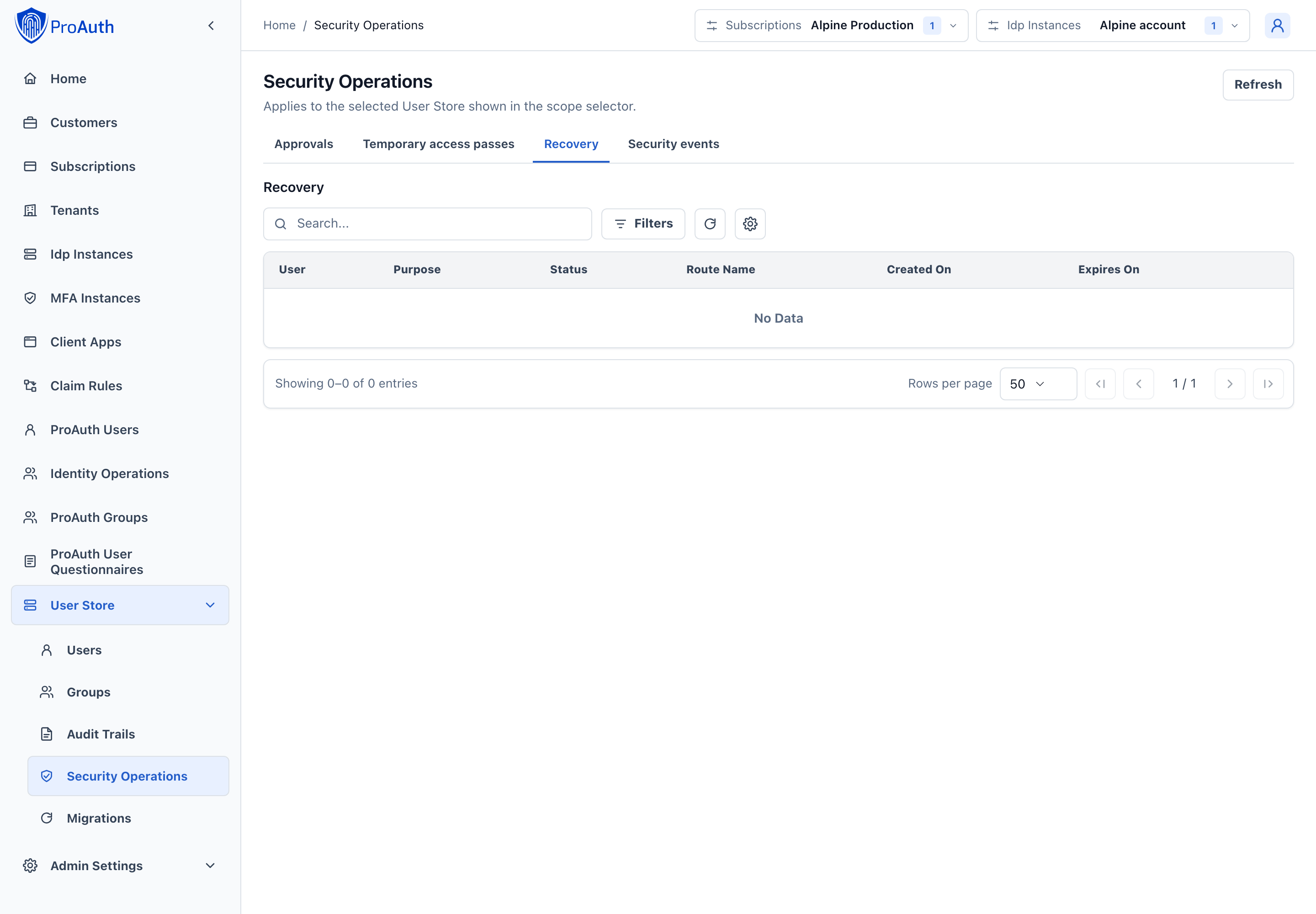
Use Recovery to investigate enrollment or recovery transactions that have not completed, failed or expired. Filter by purpose, status, subject and date, then inspect the route and evidence in details. This is an investigation view; it does not bypass the route's proof requirements or complete recovery on behalf of the user.
For a stuck case, check the configured proof channel/provider, expiry and the user's readiness before starting a new recovery attempt. See the recovery model.
Investigate a stalled recovery
Start with the transaction's purpose, route, creation time and expiry. A recovery transaction can require several proofs; one successful proof need not make the account ready for normal sign-in.
| Situation | What to do next |
|---|---|
| Proof is still pending and the transaction has not expired | Ask the user to complete the configured proof step. Check channel delivery or provider availability if it is not progressing. |
| The user has a TAP but redemption fails | Check that it belongs to this user/store, has enough approvals, is unexpired and has not already been redeemed. |
| A proof succeeded but the user still cannot reach the application | Check whether the user must finish passkey enrollment. A restricted recovery session cannot complete ordinary application authorization. |
| The transaction expired or failed | Investigate the cause, then have the user start a fresh journey through the supported recovery entry point. The queue has no “extend expiry” or “mark proof successful” action. |
| Several users fail on the same route | Investigate the shared provider/channel and policy before issuing individual exceptions. |
Recommended approach: repair the failed dependency or guide the user through an already approved alternative route. Do not weaken the store's recovery policy merely to resolve one case. Any policy change belongs in the reviewed policy workflow.
Security events
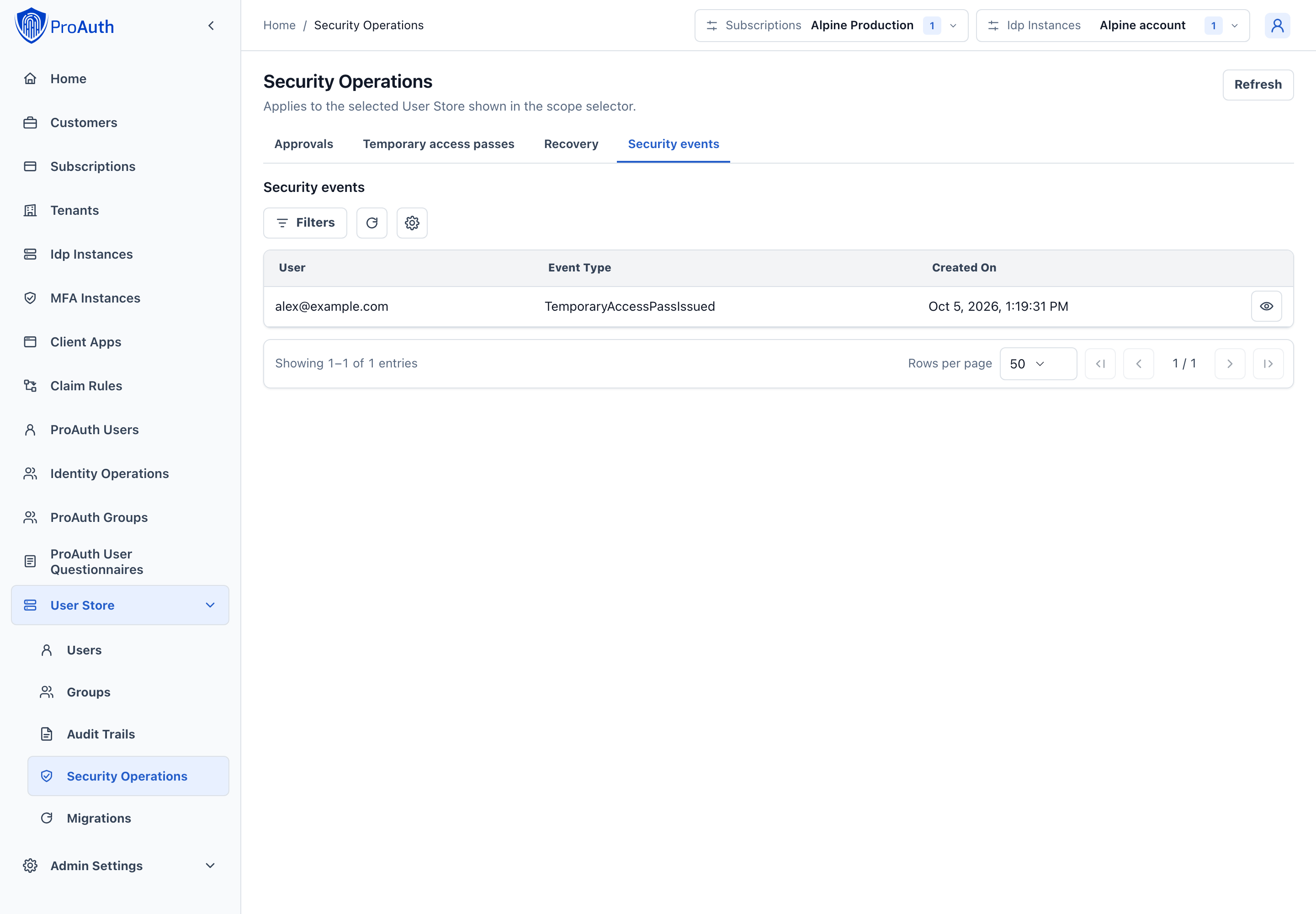
Use Security events to reconstruct a credential, TAP or recovery incident. Filter by user, event type and date. Details expose the recorded actor, reason and correlation identifiers when available. Correlate related events with the account's history and your retained audit evidence; this queue is not a replacement for your audit retention policy.
Build an incident timeline
Filter to the affected account and a date range beginning before the reported problem. Read events in time order, using details to connect the actor, reason and correlation identifiers. Distinguish an administrative action such as TAP issuance from its subsequent use, and a credential revocation from the user's later recovery.
For a wider incident, remove the user filter and narrow by event type and time. This helps identify whether the same operation affected several accounts. We recommend recording the relevant event identifiers and comparing them with your application/audit records rather than treating a single event as proof of a completed end-to-end journey.
Migrations
Use this workspace during upgrades and planned security transitions. Its tabs retain visible prerequisites, current progress, next action and results. Running a migration is separate from selecting a passkey policy recommendation.
Legacy credentials
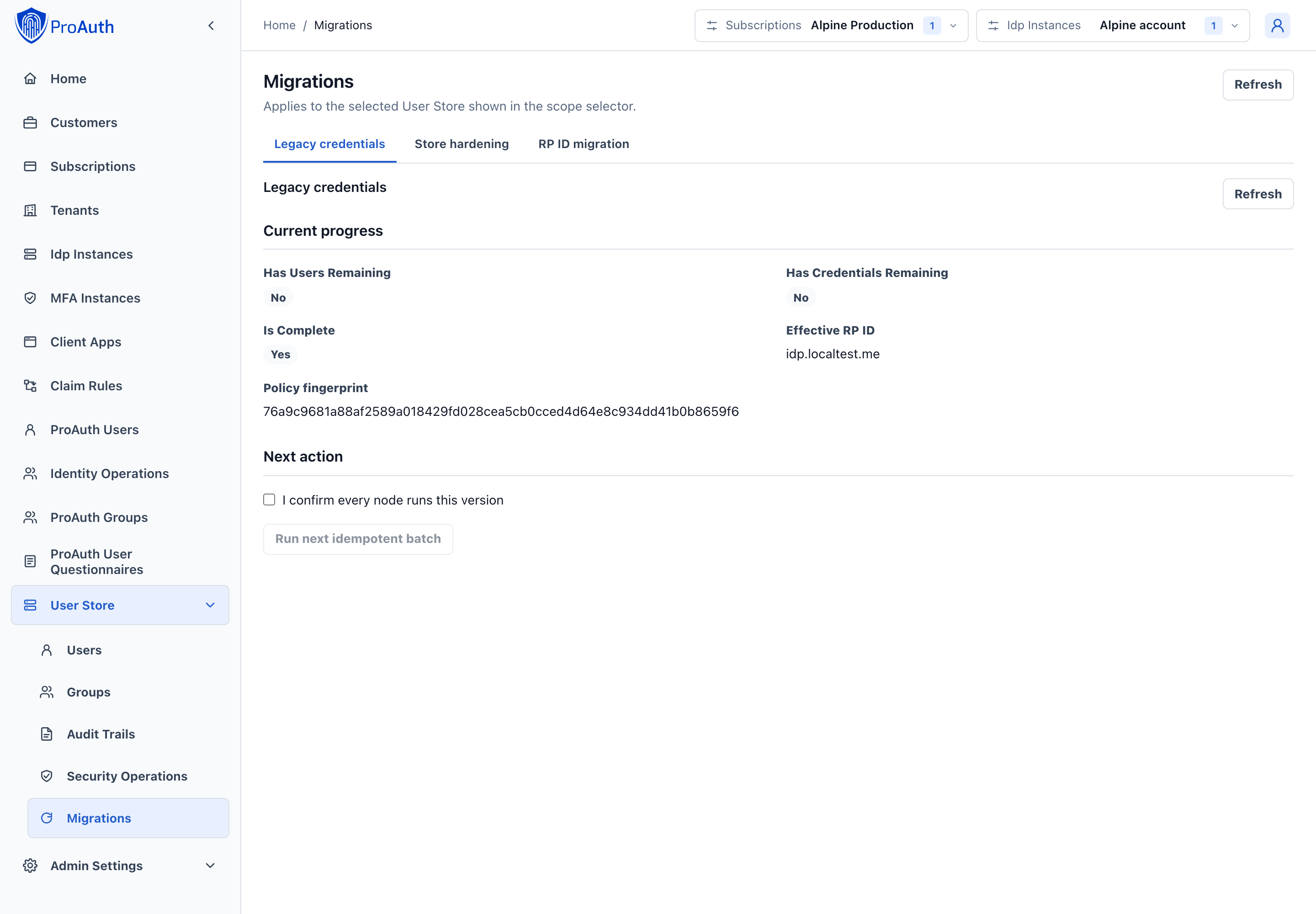
Use Legacy credentials after upgrading an existing store to prepare old user and credential records. Review remaining users/credentials and the effective RP ID. Confirm that every serving node runs the current version before starting an idempotent batch. Repeat batches until progress is complete, and investigate credentials whose metadata cannot be derived.
Backfill preserves unknown legacy evidence; it does not invent attestation, remove passwords or enable a stricter policy. See legacy backfill.
Run the backfill
- Confirm with your deployment owner that every serving node runs the coordinated release. Do not use the checkbox as a substitute for that check.
- Select the correct store and review Has users remaining, Has credentials remaining, Is complete and the effective RP ID.
- Select the all-nodes confirmation and Run next idempotent batch. The UI uses a batch size of 200, processing up to 200 users and up to 200 credentials per invocation; it does not offer a batch-size field.
- Review the result, refresh progress and repeat while work remains. After an interrupted request, refresh before retrying; the operation is designed to be resumed.
- When complete, inspect representative users' readiness and credentials, especially accounts with unknown legacy evidence.
We recommend finishing this preparation before tightening passkey requirements. “Backfill complete” means the migration processed its inventory; it does not mean every existing credential satisfies a hardware-bound or metadata-required policy. Those decisions come from effective policy and account readiness.
Store hardening
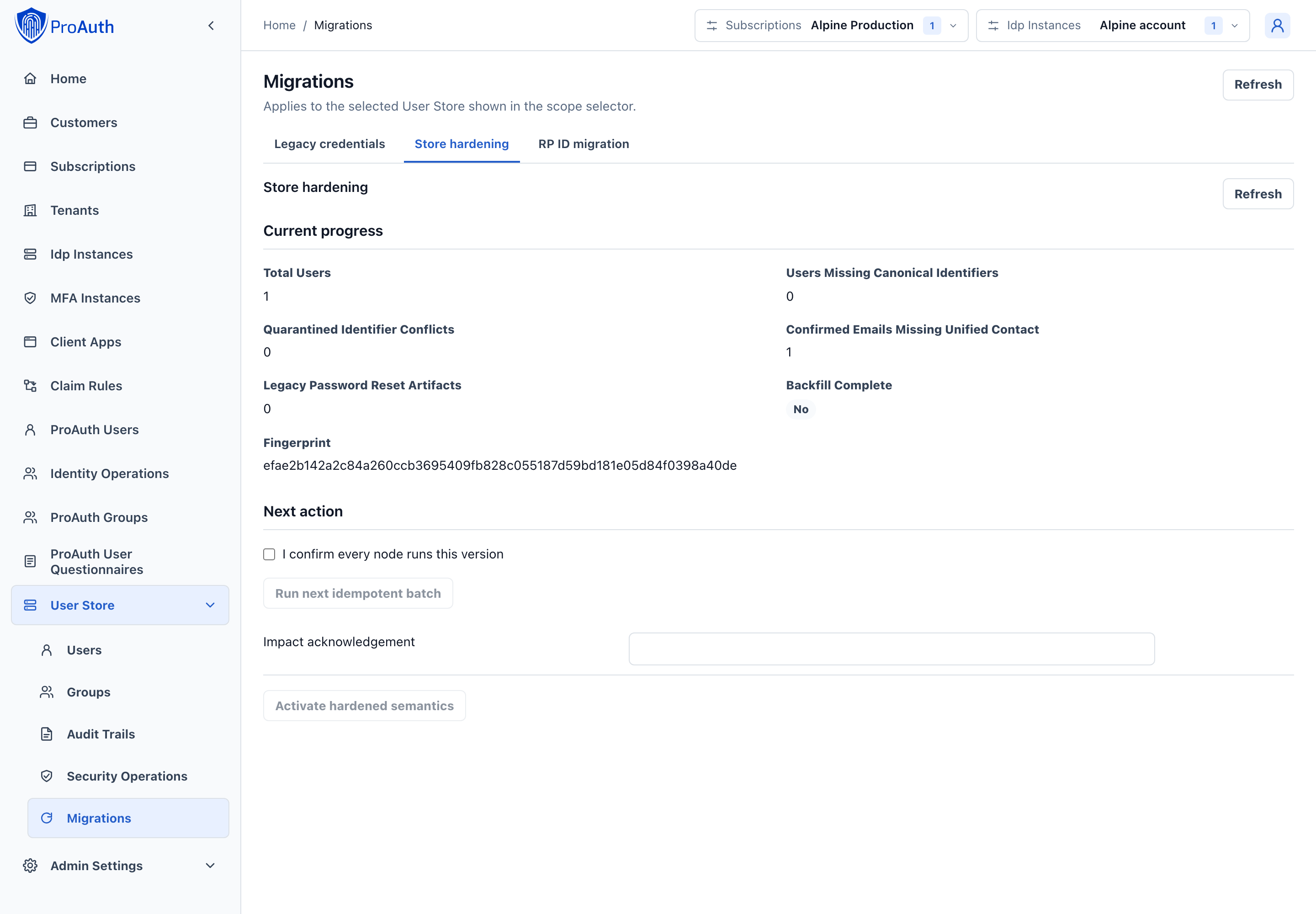
Use Store hardening to prepare and activate the store's hardening transition. Inspect readiness and blockers first, run preparation batches where required, and refresh progress. Activation uses the current readiness fingerprint and an explicit acknowledgement of its impact. Resolve blockers and preview again if the fingerprint changes.
Plan this transition before enforcing the hardened operating model. Follow the enterprise hardening procedures for rollout prerequisites and operational consequences.
Prepare, then activate
- Review total users, missing canonical identifiers, quarantined conflicts, confirmed emails missing unified contacts and legacy reset artifacts.
- Confirm the serving-node version and run preparation batches. The UI processes up to 250 users per batch. Repeat until backfill is complete.
- Investigate canonical-identifier conflicts using the migration runbook. After reviewing ownership and assigning distinct login names in the user editor, run another hardening batch. It rechecks the entire store for each remaining quarantined name and clears quarantine only when that name is unambiguous. Do not keep rerunning batches expecting an unresolved identity conflict to resolve itself.
- Separately inspect Identity Operations → Legacy invitations for every affected subscription/tenant. Store readiness does not inventory or reissue those invitations for you.
- Complete your rollout checks, refresh the hardening view, and enter an impact acknowledgement. A useful acknowledgement is:
Approved change CHG-12345; all serving nodes upgraded; pre-hardening rollback prohibited. - Select Activate hardened semantics, review the confirmation and execute. If the fingerprint has changed, inspect the new inventory before attempting activation again.
- Verify the activation result and monitor authentication, recovery and notifications after the transition.
Recommendation: schedule activation as a controlled change with the deployment and identity owners present. Treat the all-nodes attestation, resolved conflicts and acknowledgement as operational prerequisites, not boxes to bypass. Activation is separate from backfill and is not reversed by installing an older binary; follow the documented rollback boundaries.
RP ID migration
Use RP ID migration when moving passkeys to a new WebAuthn RP ID. Do not directly change the RP ID while active credentials depend on it.
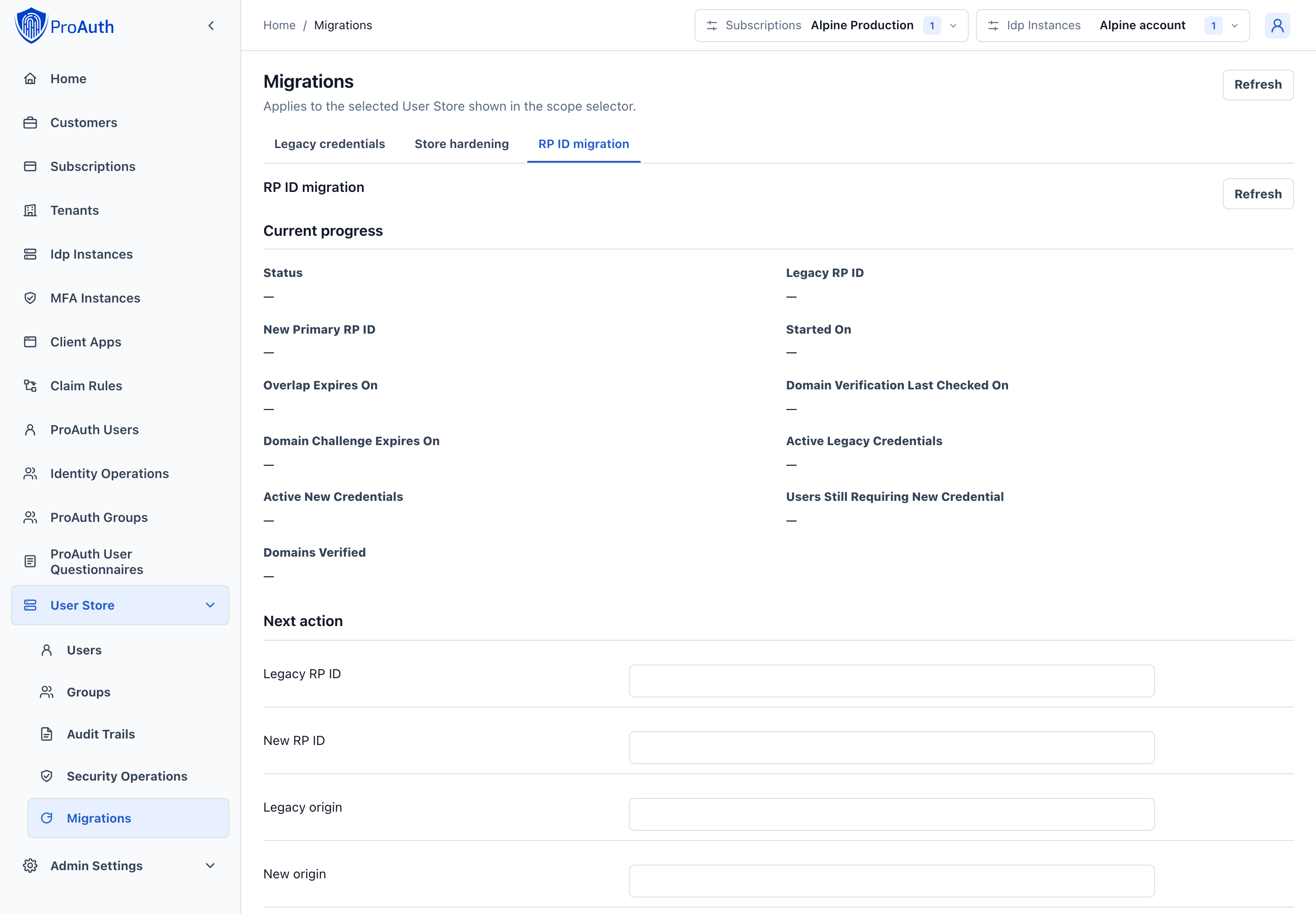
Start with the old/new RP IDs and exact origins. The UI starts a 30-day overlap; it has no overlap-duration field. If the approved plan needs another duration, use the documented v2 migration API through your controlled automation process. Copy the DNS TXT challenges returned by the start operation, publish them, then verify domain control. During overlap, monitor old/new credential counts and users still needing enrollment. Rotate challenges if their plaintext was lost or they expire.
Retirement is a separate controlled action. Review remaining users, request any required independent approval, select the approved request and retire only when the target and current fingerprint match. Forced recovery is an explicit exception for remaining users, not routine completion. Follow the RP migration procedure.
Plan the domain transition
| Input or choice | Meaning and recommendation |
|---|---|
| Legacy RP ID | The hostname to which existing credentials are bound. Confirm it from current configuration and credential evidence. |
| New RP ID | The intended new binding hostname. An RP ID is a hostname, not a URL with a scheme or path. |
| Legacy and new origins | Exact browser origins, including scheme and any non-default port. Confirm that each origin is valid for its RP ID. |
| DNS challenge rotation | Issues replacement proof values. Replace the published records with the returned values and verify again; old challenge values must not be reused. |
| Force recovery | Allows an explicitly governed retirement with users still lacking a new credential. Prefer completing enrollment instead. Changing this choice changes the retirement proposal and requires a matching review. |
We recommend arranging access to both DNS zones, the new authentication origin and user communications before starting. An overlap window is time to enroll credentials for the new RP ID; it does not convert existing credentials to a new binding.
Complete the migration
- Start the migration and securely transfer both returned TXT record names and values to the DNS operator. The UI cannot retrieve their plaintext later.
- Publish the records and use the domain-verification action. If verification fails, check the exact names/values and DNS propagation before retrying.
- During verified overlap, guide users through enrollment under the new primary RP ID. Refresh progress and track users who still have no new credential.
- Follow the RP migration procedure to align the authoritative RP ID policy at the correct stage. Starting migration alone is not a replacement for the policy change.
- Leave Force recovery off for normal completion. Obtain the required retirement approval, select it and refresh its status after independent review.
- Confirm retirement, then verify the result and sign-in behavior at the new origin. Investigate remaining users individually; do not restore a retired RP by editing a status field.
For example, if most users have enrolled but a few remain, our recommendation is to finish their enrollment while the migration permits it. Use forced recovery only when the approved cutover plan explicitly accepts the impact and a working recovery route is available for those users.
Identity-provider Passkey policy
This tab is available for UserStore identity providers. Use it before a rollout, when investigating policy-driven readiness failures, or when reviewing a planned exception.
Effective policy
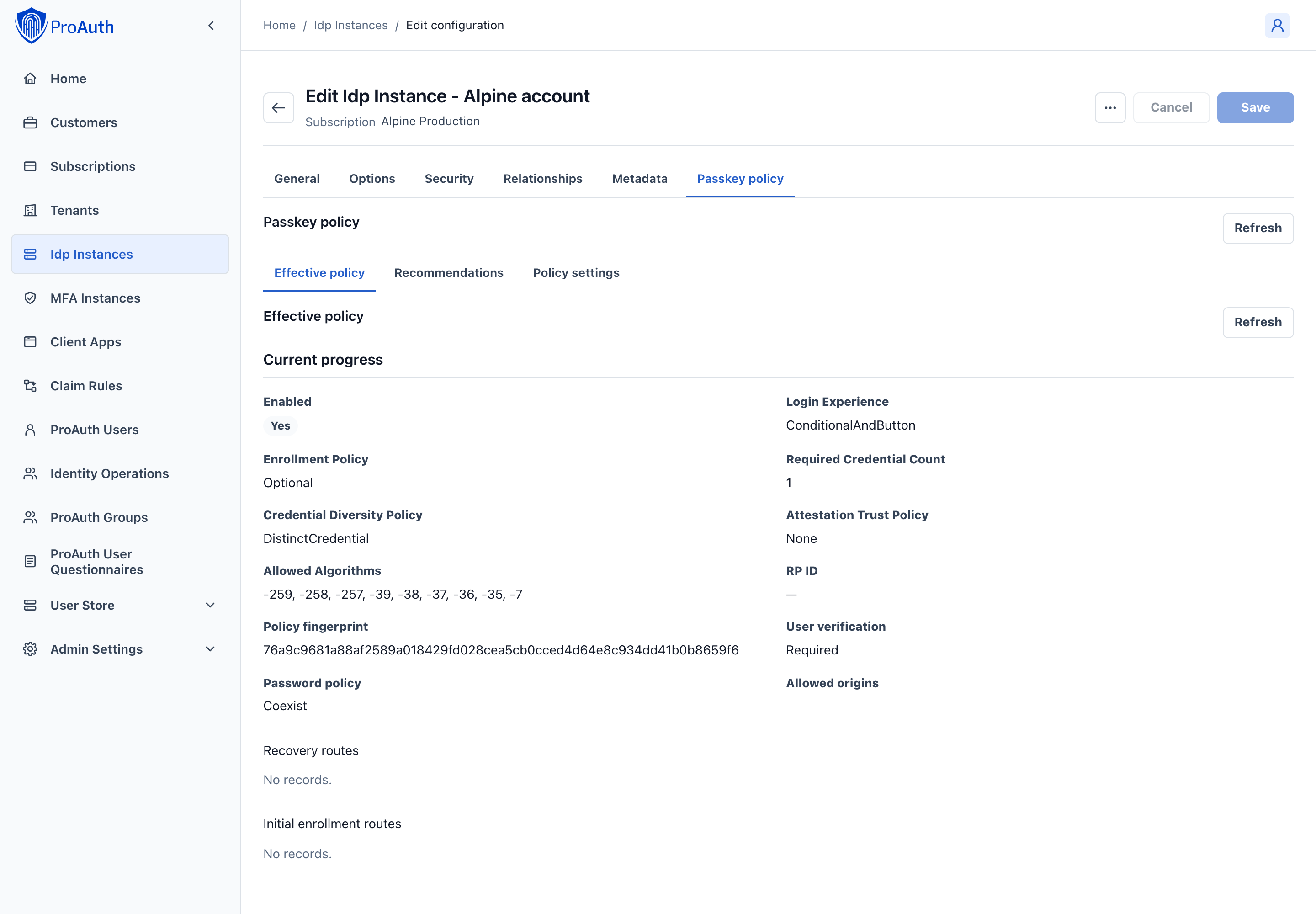
Inspect the server-resolved policy to understand the requirements currently applied to accounts. Review authentication, enrollment, recovery and trust requirements before changing an individual setting. This view is read-only; its values describe the effective result rather than an unsaved draft.
Use the effective policy to answer a support question
Check the requirement that matches the symptom: enrollment policy and required credential count for enrollment, password policy for removal, and recovery routes for loss of credentials. Then compare it with the affected user's Passwordless readiness and credential evidence.
A setting being configured does not establish that its dependency works. For example, a metadata-required trust policy still needs a usable global snapshot, and a named recovery route still needs its configured channel/provider. We recommend recording the effective policy fingerprint before a change and checking the resulting values afterward, rather than relying on a saved screenshot of an earlier draft.
Recommendations
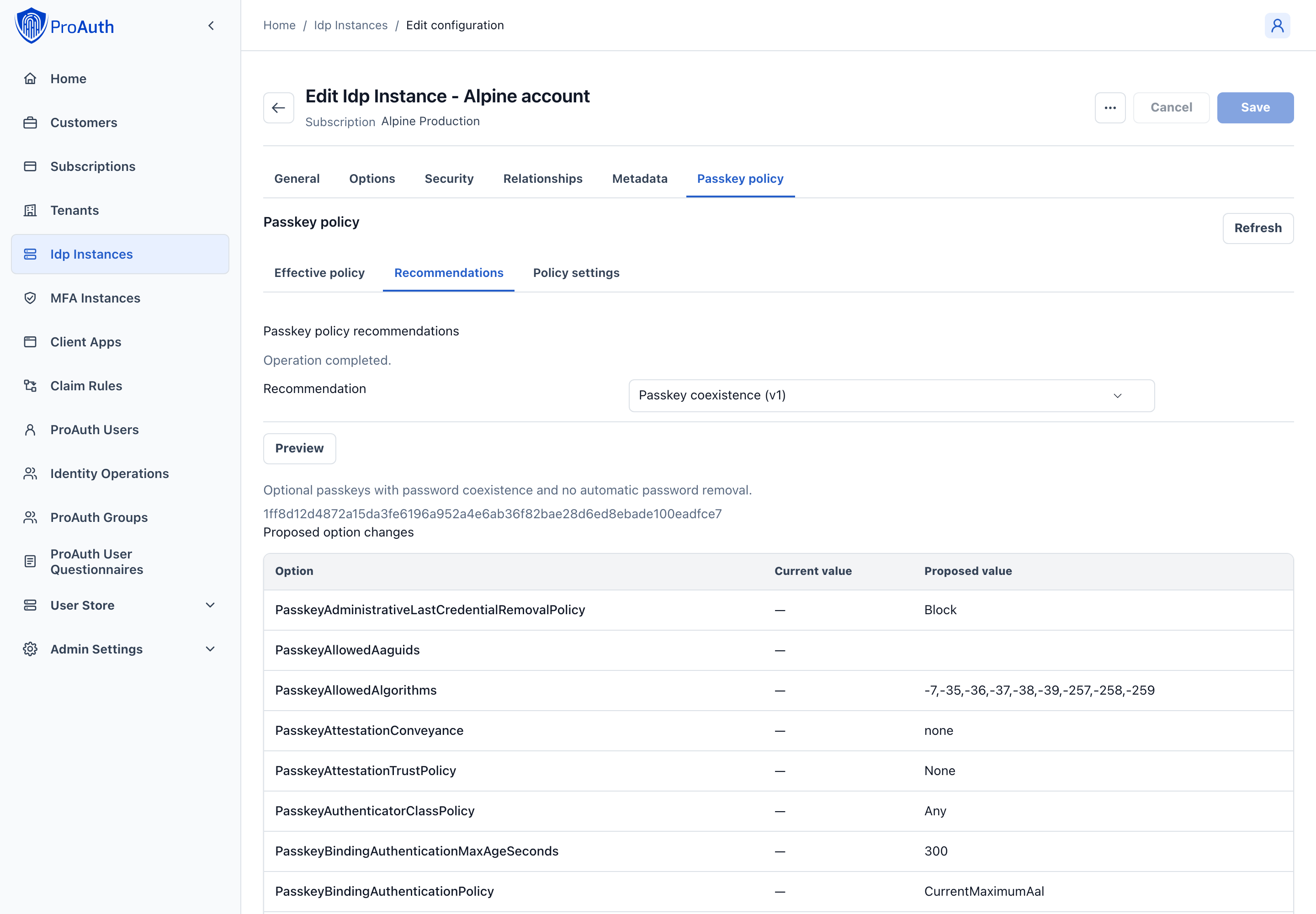
Choose a versioned recommendation and select Preview. Compare current and proposed values, then resolve validation errors and review warnings. Apply only a valid preview; if approval is required, request it and have independent operators review the exact proposal in Security Operations → Approvals before execution.
Use recommendations to establish a coherent operating model. See choosing a passkey policy and the option reference before accepting changes.
Choose a starting point
| Objective | Recommended starting point | Before applying |
|---|---|---|
| Introduce passkeys while retaining password sign-in | Passkey coexistence (PasskeyCoexistence) | Test enrollment and sign-in with the authenticators your users actually have. This is our recommended first step for an existing password-based deployment. |
| Let customers adopt passkeys and choose password removal | Consumer passkey-first (ConsumerPasskeyFirst) | Verify contact delivery and the user journey for saving primary recovery codes. |
| Move a managed workforce to passwordless sign-in | Enterprise passwordless (EnterprisePasswordless) | Prepare enrollment communications, sufficient credentials, support coverage and independent TAP approval. |
| Require attested hardware with governed recovery | Regulated hardware-bound (RegulatedHardwareBound) | Verify supported hardware, metadata trust, risk/proofing providers, notifications and independent reviewers. Use this only when those services can be operated reliably. |
These are starting points with versioned concrete values, not permanent modes. Always inspect the preview for the version offered by your deployment. The strictest recommendation is not automatically the right one for your recovery capabilities.
Preview and apply a recommendation
- Check Effective policy and choose the intended recommendation and version.
- Select Preview. Review every changed value, validation error, warning and destructive-impact indication. Pay particular attention to password removal, authenticator eligibility, recovery routes and grace periods.
- If the preview is invalid, resolve the reported configuration problem before proceeding. Do not treat a warning as approval of the business impact.
- If no approval is required, apply the valid preview when authorized. Otherwise request approval, record the request identifier and ask independent operators to review the exact request.
- Return to the request, refresh approval status and execute only when it is approved and the preview still matches. Existing recommendation requests can be selected from the recommendation view's approval list using Preview.
- Inspect Effective policy again and test representative account journeys. Applying policy does not instantly make every account ready or enroll missing credentials.
Recommendation: validate the operating model in a non-production store first, then use a planned rollout with measurable enrollment and recovery readiness. Do not repeatedly switch recommendations as a troubleshooting shortcut; each preview can change several coordinated options.
Policy settings
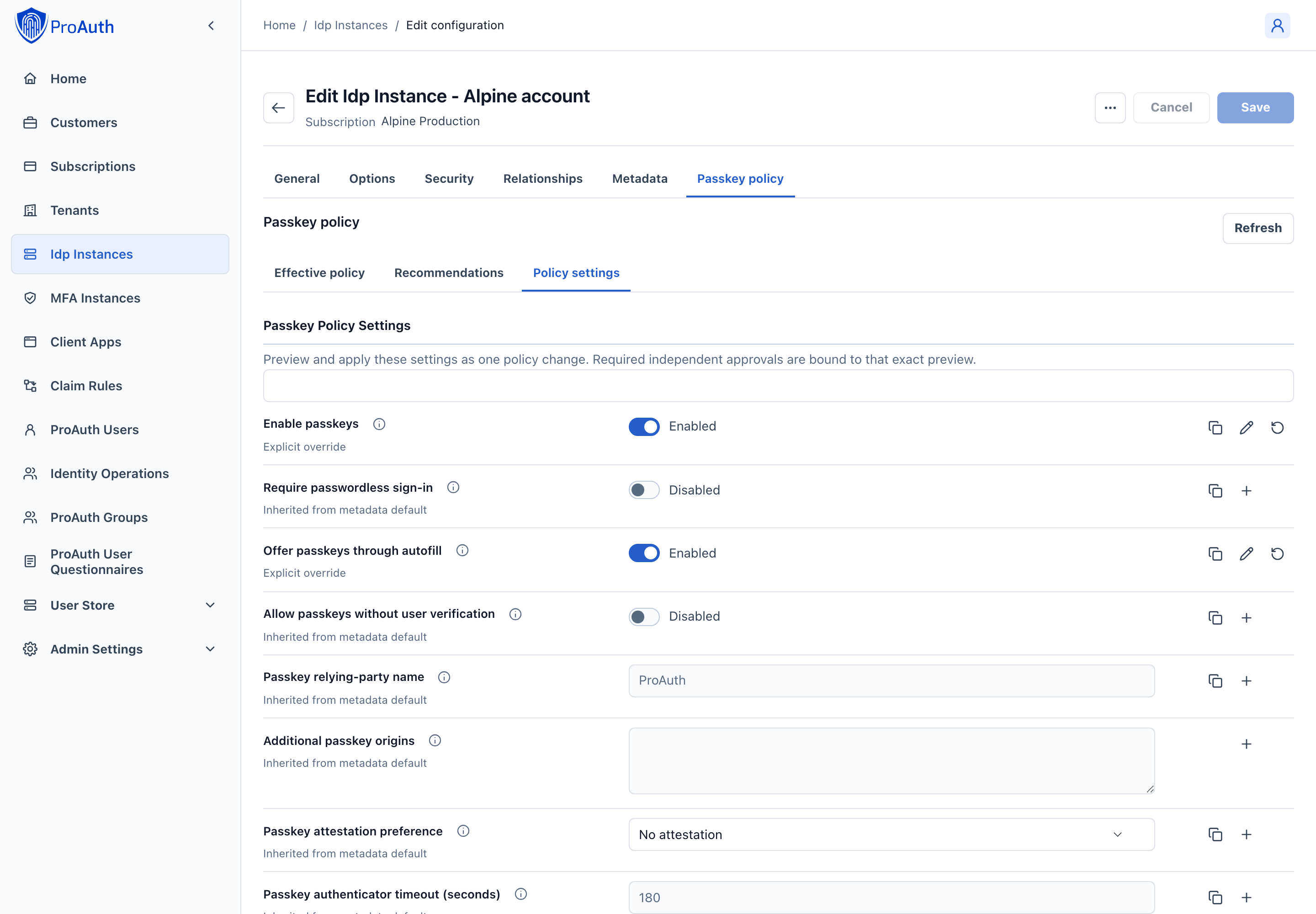
Use Policy settings for deliberate adjustments to individual passkey options and resets of existing overrides. Edit the typed fields, preview the complete change, and follow the same approval/apply process as recommendations. A reset is a policy change and requires review of the resulting value.
The identity-provider editor's ordinary Save action does not apply these passkey changes. If another administrator changes the policy during review, refresh and create a new preview.
Edit or reset individual options
Use the search field to find an option and read its help. Each row distinguishes an explicit override from an inherited metadata default. Create/edit an override to set a deliberate value; reset an override when the intended result is to inherit the default again. Resetting does not necessarily disable a feature or restore the value from your last deployment.
- Make the smallest coherent set of edits and resets needed for the approved change.
- Preview the complete resulting policy, including the values that resets would inherit.
- Resolve validation errors, then apply directly or request independent approval as required.
- Keep the review workflow available while approvals are collected. Its draft is not an automatically persisted change record; reloading or changing scope can require rebuilding the proposal.
- Refresh approval status and apply the exact reviewed proposal. Verify the effective values and affected account readiness afterward.
We recommend using Recommendations to establish the initial policy, and Policy settings for documented deviations. Record why each override is needed and when to review it. Never use ordinary option saving as an alternative route around passkey preview and approval.
User Passkey security
Open an account under User Store → Users, then select Passkey security. Use this view for help-desk investigation and account-specific incident response. Confirm the user and store before issuing a TAP or revoking a credential.
Passwordless readiness
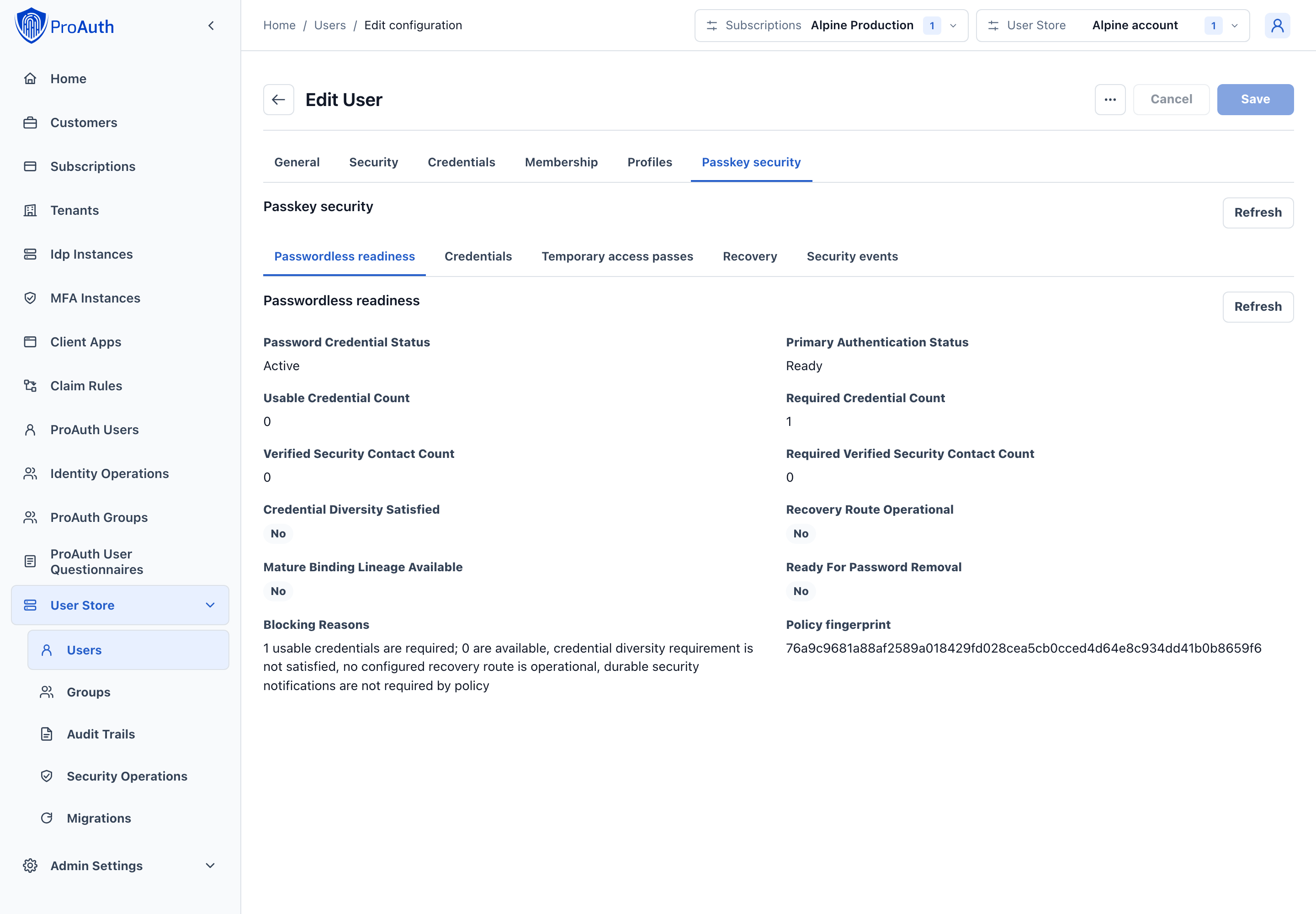
Start with Passwordless readiness when a user cannot remove their password, enroll or authenticate as expected. Review primary-authentication state, password-credential state and blocking reasons, then inspect credential diversity, contact and recovery readiness. Credential count alone does not establish readiness.
Choose the next account action
| Evidence | Recommended next step |
|---|---|
| Too few usable or sufficiently diverse credentials | Guide the user through registering an additional permitted authenticator. Two entries in the list may still fail diversity requirements. |
| A new credential is still maturing | Confirm the configured waiting period. Do not weaken the store-wide requirement simply to accelerate one user's password removal. |
| Missing verified contacts or recovery methods | Have the user complete the supported Account Management setup before attempting a destructive transition. |
| A credential is held or non-compliant | Inspect its evidence and the effective trust/risk policy. A hold is not itself proof of compromise. |
EnrollmentRequired | Direct the user through the configured initial-enrollment journey. |
RecoveryRequired | Use an approved recovery route; consider an operator-issued TAP only if that route/policy supports it. |
After the user completes the remedial step, refresh readiness. Close the support case only when the blocking reason has cleared and the intended user journey works. This tab reports readiness; it does not let an administrator manually mark an account ready or remove its password.
Credentials
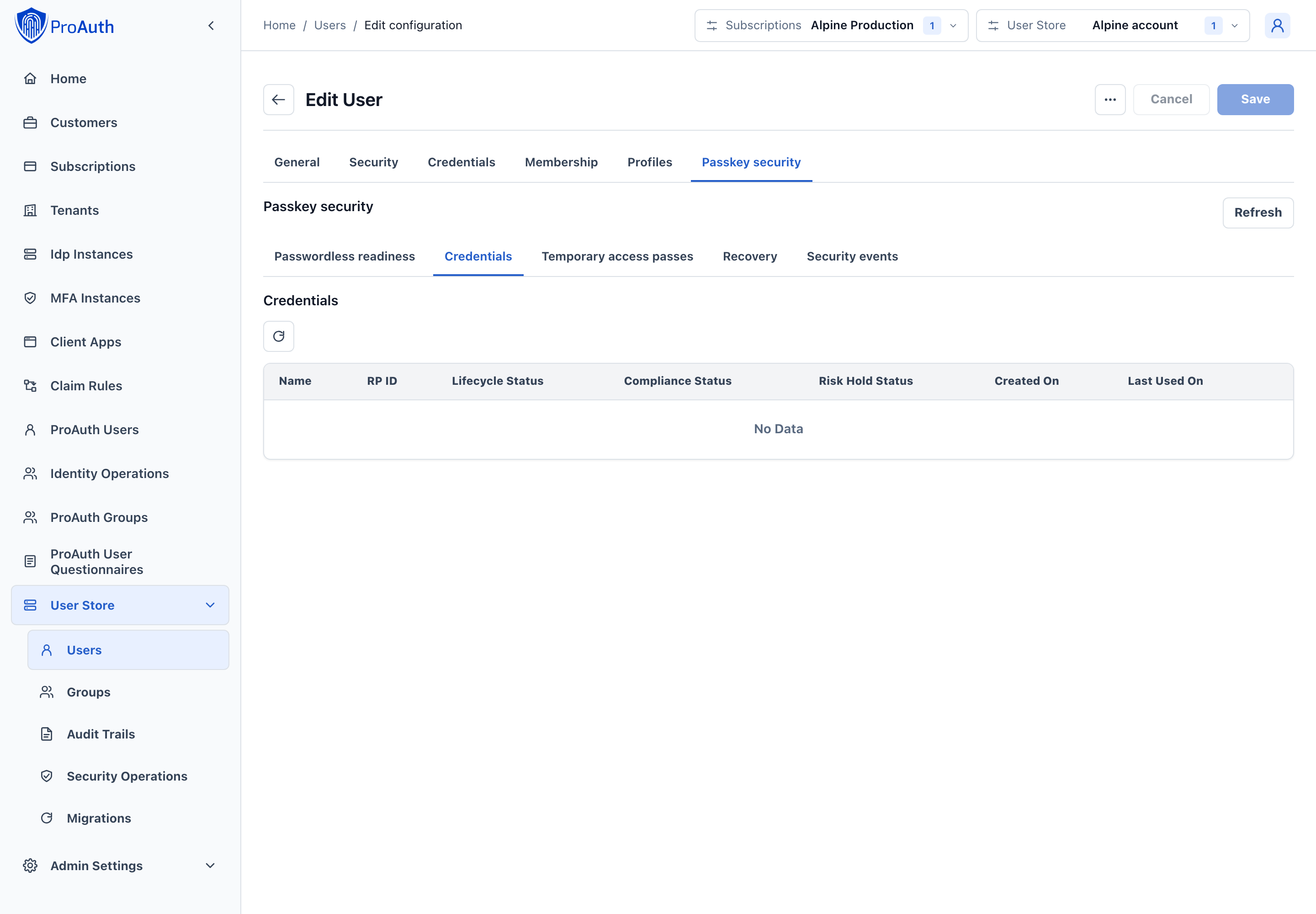
Review lifecycle, compliance, holds and last-use dates. Open details for trust, authenticator and RP evidence. Revoke a credential as compromised only after identifying the affected credential and recording the incident reason. Revocation is permanent and can require recovery if no usable credential remains. See compromise response.
Respond to a lost or compromised authenticator
- Confirm the user/store and identify the credential from its name, RP ID, lifecycle, last use and available device/trust evidence. A friendly name alone is insufficient when several credentials look similar.
- Determine whether this is a usability problem, a policy hold or a compromise. Use Revoke as compromised for the compromise response, not to clear an unrelated configuration error.
- Enter a specific reason with the incident reference, review the target and confirm revocation.
- Refresh credentials and readiness. Revocation can invalidate dependent authentication state; if no usable credential remains, help the user enter approved recovery.
- Check the resulting security events and guide the user to replace the revoked authenticator through the supported enrollment journey.
Our recommendation is to revoke a confirmed compromised credential promptly and handle any resulting recovery explicitly. Do not leave it usable solely to avoid a support interruption. This UI has no “undo compromise” action; registering a replacement credential is a separate user journey.
Temporary access passes
Review this account's requests and approval progress. To issue a pass, provide a specific reason and confirm the target and consequence. Deliver any returned one-time secret through your approved authenticated channel before dismissing the result. Existing secrets cannot be retrieved from this tab or the store-wide queue.
Issue and deliver a TAP
- Verify the person's identity using your organization's approved support procedure and confirm that TAP is an appropriate enrollment/recovery method for this account.
- Open Issue temporary access pass. Enter a reason of 1–1000 characters, such as
INC-12345: lost security key; identity verified through approved support process, and confirm the target. - Submit once. Copy the secret from the result into the approved secure delivery process before dismissing it. Record the request identifier and expiry separately from the secret.
- If approvals are required, arrange independent review in the store-wide TAP queue. Tell the user when the pass is ready for redemption; receiving the secret does not waive the approval requirement.
- Have the user complete the configured journey while the pass is valid. Verify consumption, subsequent enrollment/recovery and resulting account readiness.
The dialog asks for a reason and confirmation. Lifetime and required approvals come from policy, including relevant recovery/enrollment route requirements; they are not per-request choices in this dialog. Operators cannot issue passes for their own UserStore identity or approve their own requests.
Recommendation: issue just in time, while the user and required approvers are available. Do not issue a stockpile of passes. If the secret was lost, this UI cannot reveal it again. If it was disclosed to the wrong person, handle that as a security incident; issuing another pass must not be assumed to cancel the earlier one. The queue does not provide a TAP revocation action.
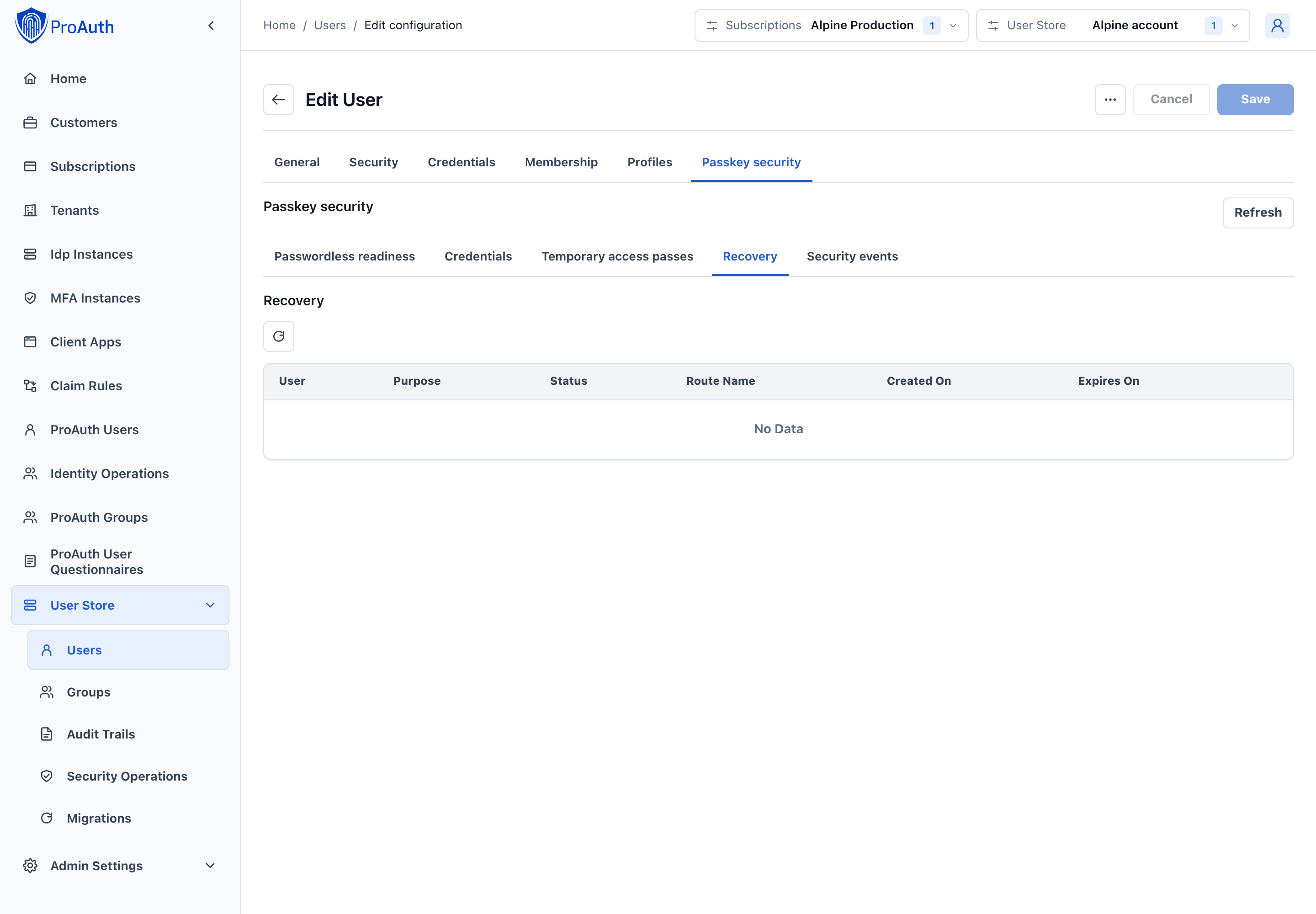
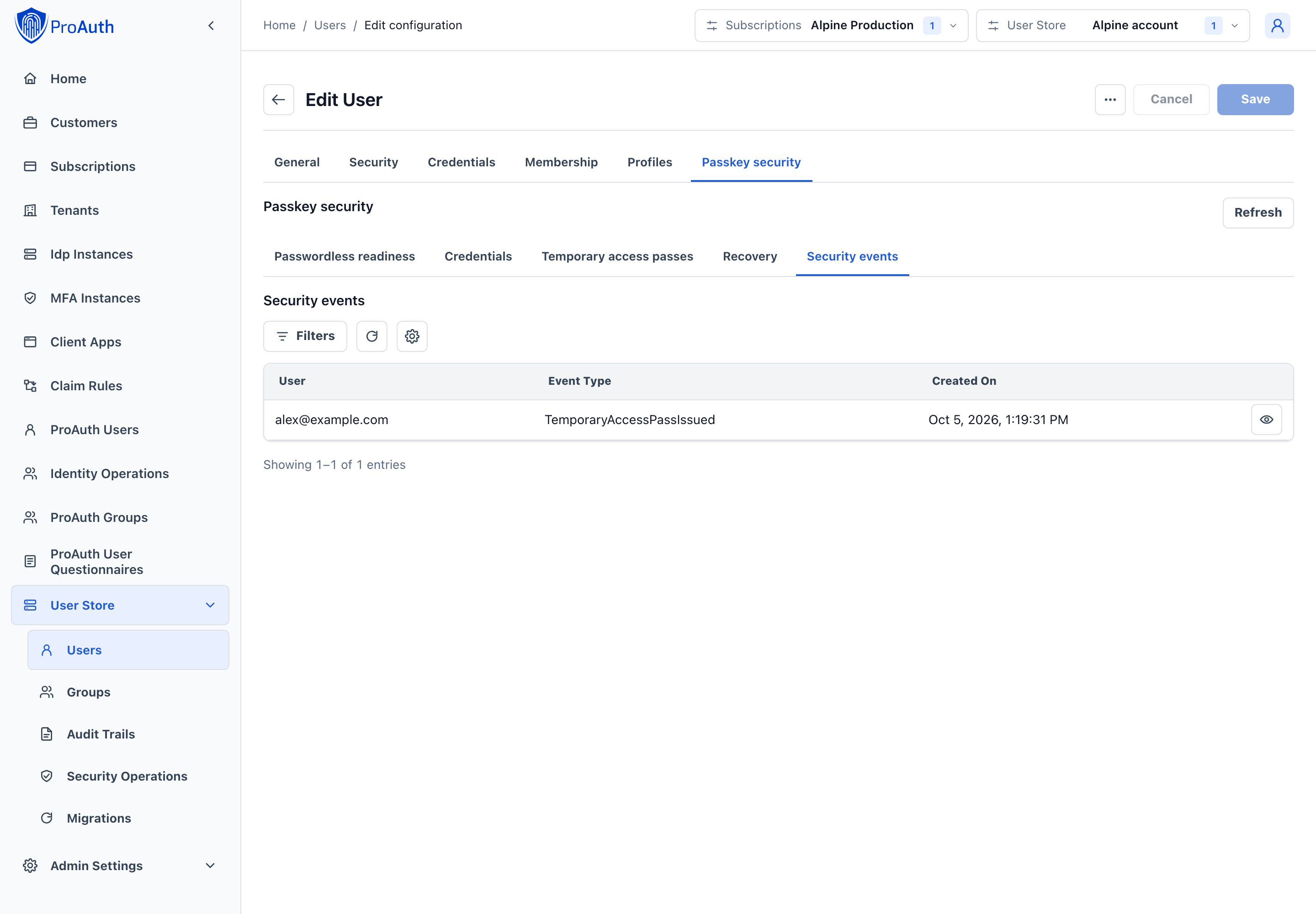
Recovery and Security events
Recovery shows only this user's transactions and proof-route progress. Security events shows the corresponding event history. Use both when investigating a failed recovery or validating the aftermath of a credential revocation. The store-wide queues provide the broader view when several users are affected.
For an individual case, correlate the transaction's creation and expiry with the user's reported steps, then check the event history for proof, enrollment and credential changes. The administrator observes and investigates here; the user performs proof and enrollment in the supported recovery journey.
We recommend checking both views after a TAP-assisted recovery or compromise response. A consumed TAP proves that the artifact was used; it does not, by itself, prove that the user completed enrollment or regained normal access.
Identity Operations
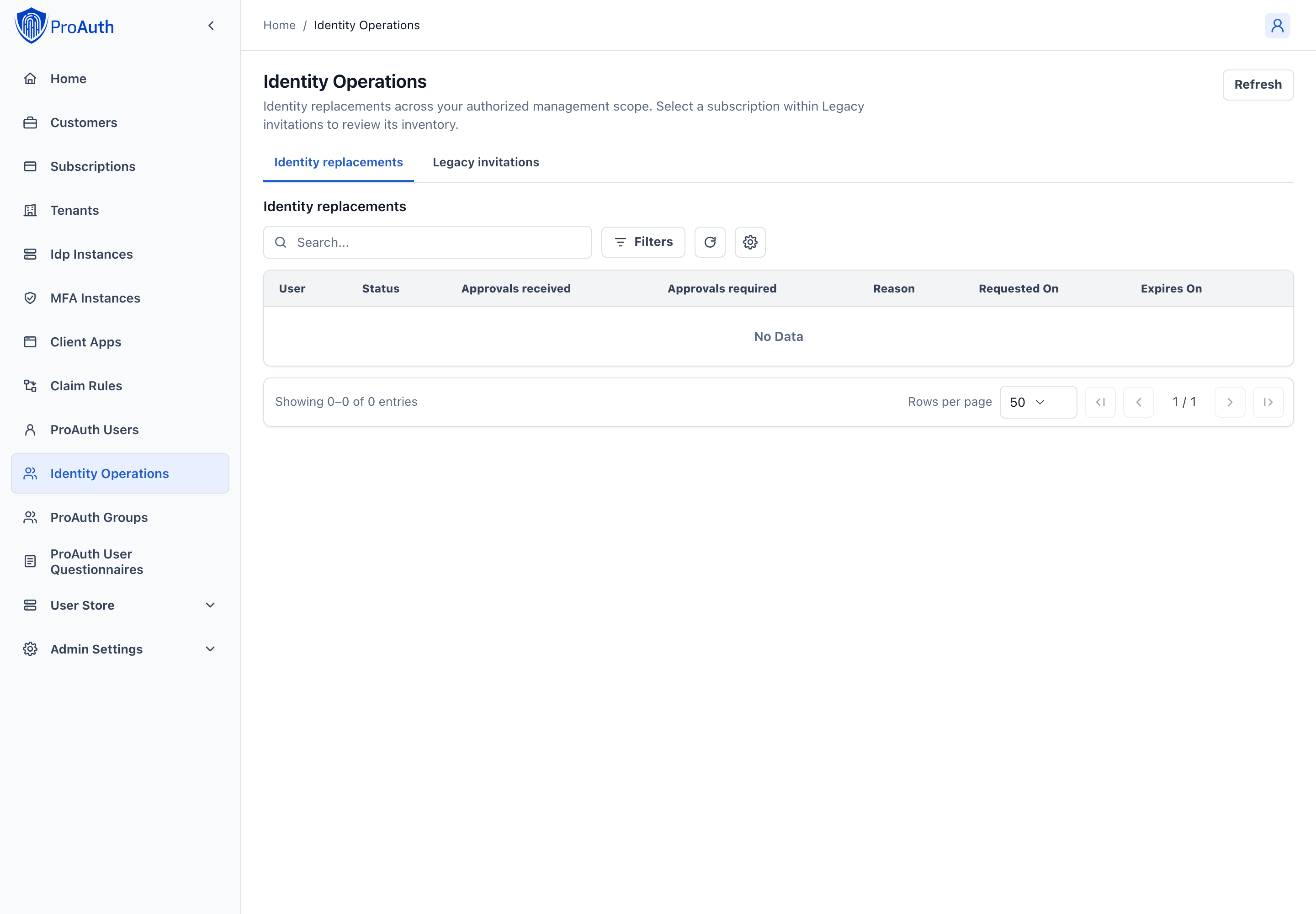
Identity replacements
Use Identity replacements to review replacement requests in your authorized management scope. This queue is independent of the selected UserStore. Inspect the target identity, proof state, reason, required approvals and expiry in details.
Approve only after checking the replacement evidence. Execution is a separate action that rechecks readiness and concurrency. Cancel a request that should no longer proceed. Do not infer that a request is executable from its approval count alone.
Review and complete a replacement
Use identity replacement when the sign-in identity must change while retaining the stable ProAuth user and outward subject. It is not a way to merge two user accounts or edit a display name.
- Create the governed request through the v2 identity-replacement workflow. This queue does not contain a create-request form.
- Have the affected user prove both the current and replacement identities through Account Management → Profile. Ordinary sign-in is not a substitute for those bound proof ceremonies.
- Open the request's details in this queue. Match the target provider/identity, reason and expiry to the approved case, and inspect both proof states.
- An independent reviewer approves when the evidence is correct. If the wrong identity was selected or the need has been withdrawn, cancel while the operation remains cancellable and start a new governed request if necessary.
- Execute only after both proofs and required approvals are present. The server rechecks expiry and concurrency; approval count alone is not sufficient.
- Refresh until the operation reaches its final outcome. If cleanup is pending, monitor the cleanup evidence rather than treating the identity switch as fully complete or starting another replacement.
| State to investigate | Operational meaning |
|---|---|
| Pending proof or approval | A required part of the evidence or independent review is still outstanding. |
| Ready | The operation can proceed subject to the execution-time checks. |
| Executing / cleanup pending | The transition or its durable revocation cleanup is still being completed. Investigate persistent cleanup failures. |
| Completed | Verify the user can authenticate with the replacement identity and no longer relies on the retired identity. |
| Cancelled / expired | The request cannot be completed as originally planned. Re-establish a valid request and proofs if the change is still needed. |
Recommendation: require a case reference and at least one independent approval for administrator-initiated replacements. After execution, the former identity is retired while the stable user, roles, consents and assignments are preserved. Do not manually reactivate the retired identity to reverse the decision; use a new replacement workflow with fresh proofs.
Legacy invitations
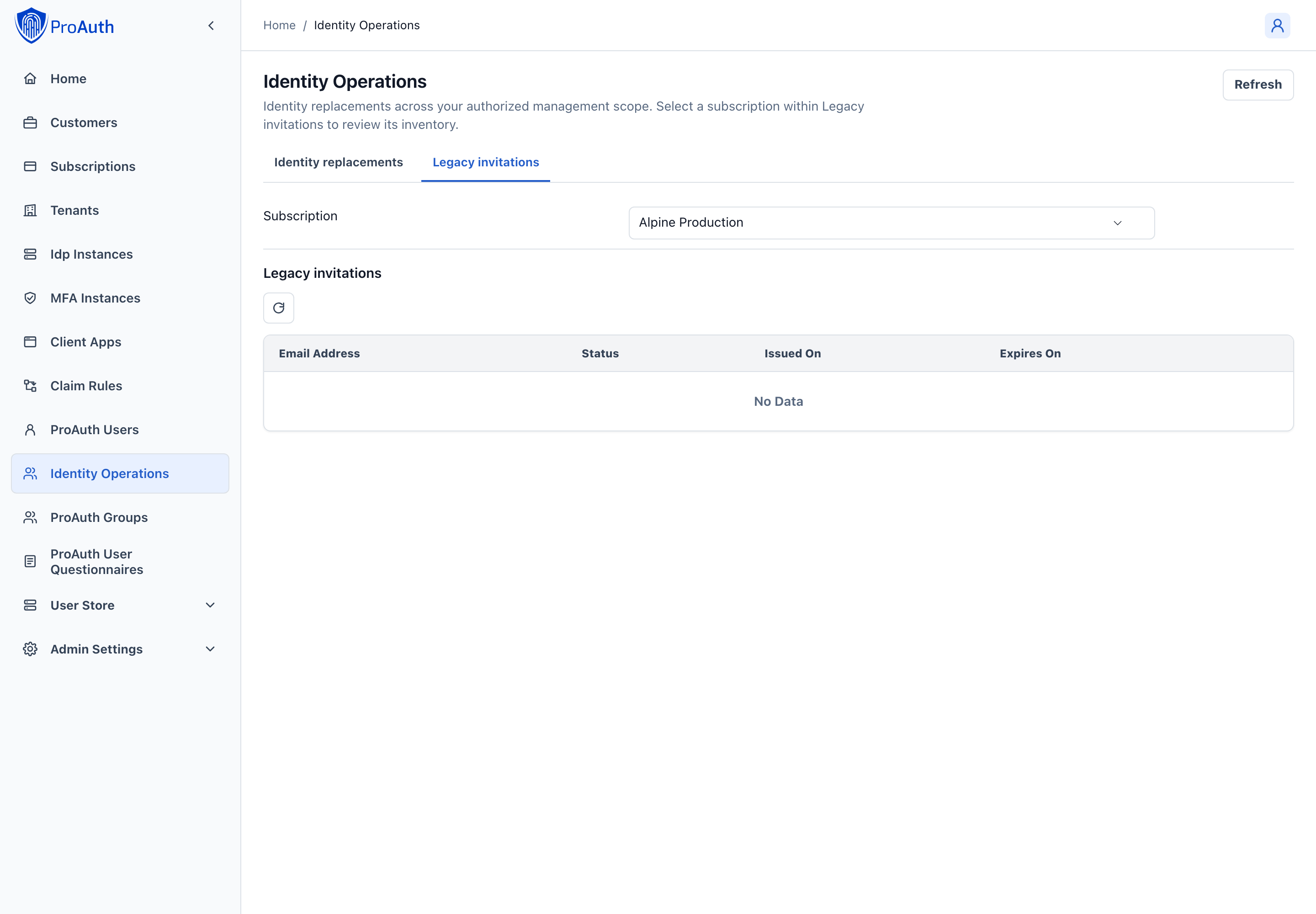
Use Legacy invitations when converting outstanding legacy bearer invitations to the unified invitation workflow. Explicitly select a subscription, then optionally filter the inventory by tenant. An empty inventory may mean that no legacy invitations remain in that scope.
Open Review and reissue for a record. Select the target client application and eligible identity providers using their lookups, set lifetime and approval requirements, and review the preview before confirming. Reissue cancels the old bearer marker and creates a unified invitation. The preview fingerprint covers the complete tenant inventory independently of paging or filters; an inventory change requires a new preview.
Choose the reissue parameters
| Field | Available choice | Recommended approach |
|---|---|---|
| Target client application | One client from the lookup | Choose the application the recipient is actually being invited to use. Verify the tenant/client relationship. |
| Eligible identity providers | One or more providers, with removal of mistaken selections | Include only the intended sign-in/enrollment routes. Do not add unrelated providers just to give the recipient more choices. |
| Invitation policy fingerprint | Required policy-provenance value; initially unified-invitation-v1 | Use the value defined by your invitation operating policy. This is distinct from the server-generated inventory preview fingerprint. |
| Lifetime (hours) | 1–2160; initially 168 (7 days) | Choose the shortest practical window for the recipient's onboarding schedule. A convenient default is not a requirement to keep an invitation open that long. |
| Required independent approvals | 0–5; initially 0 | Set the requirement from your governance policy. Prefer independent review for privileged or sensitive access rather than retaining zero without assessment. |
Convert an invitation
- Select the subscription and, where useful, the tenant filter. Confirm the recipient and the old invitation's state.
- Open Review and reissue, set the intended parameters and generate the preview.
- Review the complete-tenant inventory fingerprint and the chosen lifetime/approval requirement. If the parameters are wrong, cancel the preview and revise them before confirming.
- Reissue once. This invalidates the old bearer marker and creates a unified invitation; it does not activate the account or waive the new invitation's approval and proof requirements.
- Refresh the inventory and check the new invitation's delivery and lifecycle through the unified invitation workflow. Inform support that the old link is no longer the supported entry point.
We recommend processing a small, reviewed group first and verifying recipient onboarding before continuing with the remaining inventory. A successful reissue is not evidence of successful delivery or acceptance. If the tenant inventory changes between preview and execution, regenerate the preview; changing a grid filter does not produce a smaller approval fingerprint.
Deleting an invited user or provider
When a user or configuration is no longer needed, delete it through the management API or an available AdminApp Delete action. Central ProAuth user deletion is currently an API operation; its editor offers deactivation instead. Deletion cancels active unified invitations that depend on it, removes their delivery/proof/approval data, and retains redacted history for 90 days by default. Already completed invitations keep their final outcome. The retained record cannot be reissued or used to restore access.
This also applies to unified invitations created by Review and reissue. The legacy inventory remains a migration queue, not an archive browser. If you need to investigate a deleted invitation, retain its ID in your case record and use the authorized v2 invitation read endpoint during the retention window.
We recommend checking for an onboarding operation in progress before deleting shared providers or parent scopes. A 409 Conflict during delivery, provisioning or activation requires resolving that operation and retrying; it is not a reason to remove records directly from the database. See deletion behavior, administrator steps and retention configuration.
FIDO metadata trust
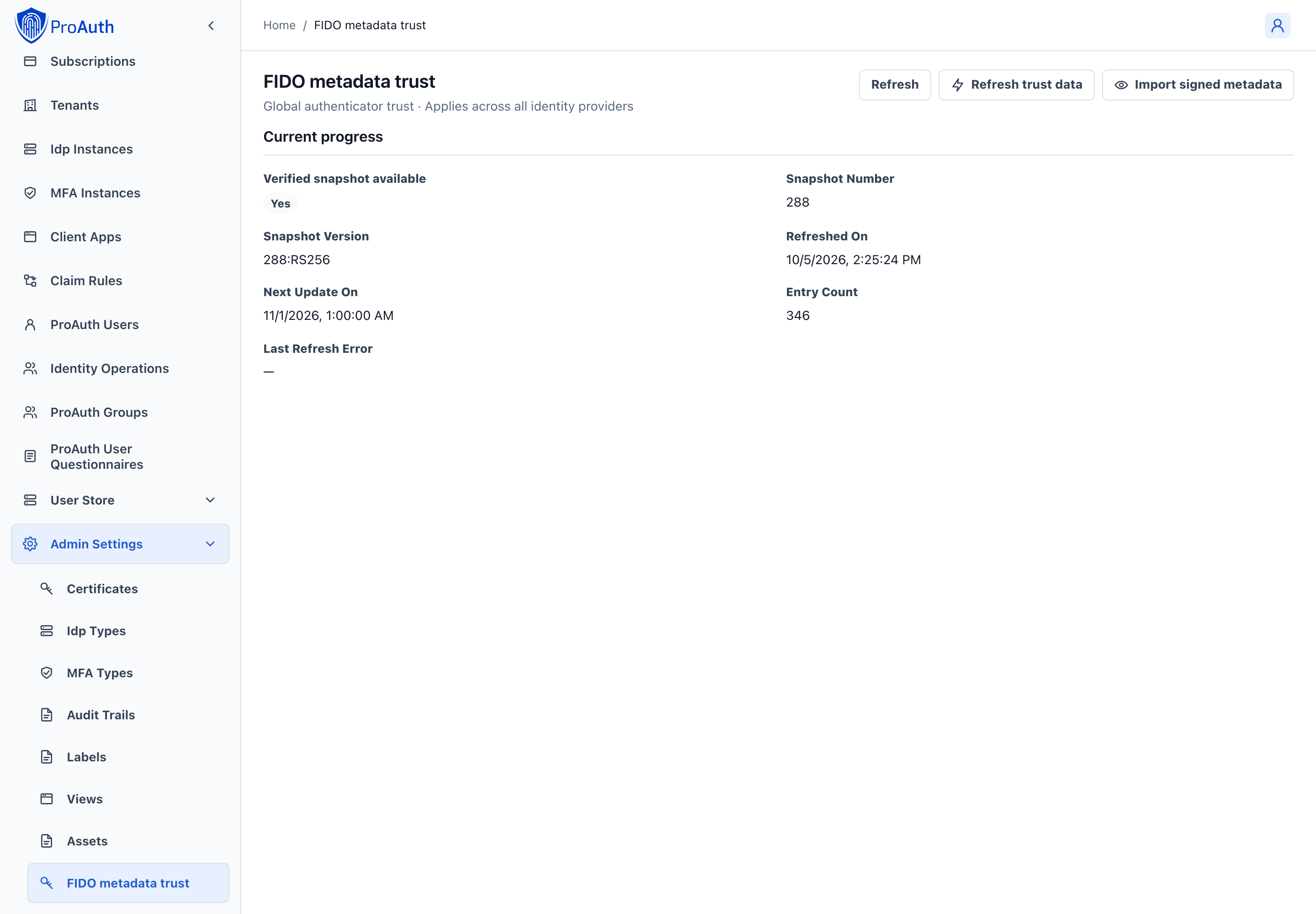
Use Admin Settings → FIDO metadata trust to investigate metadata refresh failures, prepare metadata-required policy, or install a verified offline snapshot. This affects the global trust store, not the selected UserStore.
Check whether a last-known-good snapshot exists, its number/version, entry count, refresh timestamp, next-update timestamp and last error. Refresh reloads displayed status; Refresh trust data requests a metadata refresh. A failed download retains an existing valid snapshot.
For offline operation, open Import signed metadata, provide the signed metadata blob and confirm the global operation. Signature/trust validation and freshness checks still apply; import cannot install arbitrary unsigned metadata. Refresh status afterward and investigate any validation or service error. See FIDO Metadata Service trust for deployment and monitoring guidance.
Choose between refresh and signed import
| Observation | Recommended action |
|---|---|
| Usable snapshot and no current refresh problem | Monitor freshness and use the normal online refresh path. Signed import is not required for routine online updates. |
| Last refresh failed, but a last-known-good snapshot remains | Use Refresh to inspect current health, investigate connectivity and the reported error, then use Refresh trust data when the cause is resolved. Do not discard the installed snapshot. |
| No usable snapshot before enabling metadata-required policy | Establish verified metadata first and validate the dependency before applying that policy. |
| The deployment cannot fetch metadata through its normal online path | Obtain the signed blob through your approved distribution process and use Import signed metadata. Verification still applies. |
| Import is rejected | Check the signed artifact, freshness and reported validation result. Do not edit the JWT or switch to unsigned data to make the import pass. |
For signed import, paste the complete signed metadata blob, read and acknowledge the global impact, then submit. After success, refresh the view and check the installed snapshot number/version, entry count and timestamps. Assess affected authentication behavior where your policies rely on metadata.
Recommendation: make global metadata maintenance a platform-operations responsibility. A store administrator's local incident can reveal a global dependency problem, but changing trust affects every provider that relies on the shared snapshot. Do not relax store-wide attestation requirements as the first response to a metadata download outage.
When an operation does not complete
| Result | Administrator response |
|---|---|
| Permission denied | Confirm the correct account and scope, then request the appropriate authorization. Repeating the command or choosing a different UI does not grant permission. |
| Validation error | Correct the specified inputs or unmet policy requirements and generate a fresh preview where applicable. |
| Conflict / changed fingerprint | Refresh, inspect what changed, and review a new proposal. Never assume the prior approval covers it. |
| Approval expired or incomplete | Obtain a valid independent decision for the current proposal; a disabled button is not a prompt to reduce the approval requirement. |
| Service failure or uncertain request outcome | Refresh the relevant record/events before resubmitting. The server may have completed the operation even if the browser did not receive its response. One-time plaintext cannot be recovered by repeating a read. |
| No matching records | Check the selected store/subscription, filters and date range before investigating a service failure. |
Before closing a change or support case, record the target, relevant request/event identifiers, final observed state and the user-visible outcome. Keep one-time secrets out of that record. For destructive changes, also record who reviewed the impact and how the post-change authentication/recovery path was verified.