Version v3.2.0
UserStore passkeys
ProAuth can use FIDO2/WebAuthn passkeys as the primary authenticator for UserStore users. A passkey replaces a shared password with a cryptographic credential that is bound to the ProAuth relying party. This makes the normal sign-in path resistant to credential phishing, password reuse, credential stuffing, and password-database disclosure.
This page explains why passkey policy exists, how to choose an operating model, and how to introduce it safely. For every accepted value and default, see the Passkey policy option reference. For recovery, FIDO metadata, investigations, approvals, and RP ID migration, see Passkey security operations.
Login passkeys and MFA passkeys are different
This guide covers UserStore login passkeys, which are stored with the UserStore user and can replace the password as the primary authenticator. Passkey MFA is configured separately, can protect UserStore and federated users, and does not remove a UserStore password. See Passkey MFA.
Why ProAuth uses a policy instead of one passwordless switch
Registering a passkey is only the first part of a passwordless design. If password login and weak recovery remain available, an attacker can bypass the passkey by choosing the weaker path. Removing that path too early creates the opposite problem: users can be locked out when an authenticator is lost, a device is replaced, or an authenticator becomes non-compliant.
A complete policy therefore answers several connected questions:
- When should users be invited or required to enroll?
- How many usable credentials are sufficient, and must they be independent?
- When may a password be removed, and can it ever be recreated?
- Which recovery proofs are strong enough for this population?
- Are synced passkeys acceptable, or must credentials be hardware-bound and attested?
- What should happen when trust metadata, a risk provider, or a signature counter reports a problem?
- Which destructive changes require approval by another operator?
ProAuth evaluates these controls together. Password removal is permitted only when the user's credentials, recovery methods, security contacts, authentication evidence, maturation period, and durable notifications satisfy the current policy.
Policy scope and ownership
Passkey policy is configured on each UserStore IDP instance through the normal mutable ProAuth option system. The stored options remain authoritative and can be changed at any time, subject to validation, optimistic concurrency, and any configured maker-checker approval.
A UserStore IDP can be assigned to one or more tenants. Its credential and password policy follows the UserStore IDP, so the same user receives the same primary-authentication policy wherever that IDP is used. Each sign-in and notification still carries one validated initiating tenant context. Background UserStore notifications use a neutral template when no initiating tenant exists.
Choose an operating model
Start with the outcome you need rather than individual option values.
| Requirement | Recommended starting point | Why |
|---|---|---|
| Introduce passkeys without changing password behavior | PasskeyCoexistence | Lowest migration risk; passwords and passkeys remain equivalent sign-in choices. |
| Improve consumer sign-in and allow users to become passwordless | ConsumerPasskeyFirst | Reduces password use while preserving familiar email or saved-code recovery. |
| Move a managed workforce to passwordless authentication | EnterprisePasswordless | Enforces enrollment, requires two credentials, and removes passwords only after readiness and grace periods. |
| Require attested, hardware-bound authentication with governed recovery | RegulatedHardwareBound | Adds metadata trust, external risk evidence, credential diversity, and two-person control for critical operations. |
These are versioned recommendations, not customer profiles or permanent product modes. Applying one writes a complete set of ordinary IDP option values. You can change any valid value afterward.
Passkey coexistence
Use coexistence when the immediate goal is adoption rather than password removal.
- Enrollment is optional.
- The login page offers conditional passkey suggestions and an explicit passkey button.
- User verification is required for new-policy behavior.
- Password login remains available.
- Existing credentials are grandfathered.
- No recovery route or verified security contact is required because the password remains a recovery path.
This is the safest first step for an existing deployment. It improves the sign-in path for users who choose passkeys, but it does not make their account passwordless. Continue to enforce strong password and brute-force policies.
Consumer passkey-first
Use the consumer recommendation when user experience and broad authenticator compatibility are more important than managed hardware provenance.
- Enrollment is encouraged and passkey sign-in is presented first.
- One mature passkey is sufficient.
- The user may explicitly remove the password after readiness succeeds.
- One verified security contact is required.
- Recovery can use either a verified email address or a saved primary recovery code.
- New credentials mature for 24 hours before satisfying destructive-action readiness.
This model accepts platform and synced passkeys. It is appropriate only if the security of the email channel and the user journey for securely storing recovery codes match your threat model.
Enterprise passwordless
Use the enterprise recommendation for a managed workforce with a staffed support or security function.
- Enrollment is required, with a 30-day enrollment grace period.
- Two mature credentials are required.
- Password removal is scheduled only after readiness succeeds, followed by a 7-day removal grace period.
- Password recreation is available only through recovery.
- One verified security contact is required.
- Recovery uses a saved primary recovery code or an operator-issued temporary access pass (TAP) with one independent approval.
- Initial enrollment uses an approved TAP.
Before activation, define who may issue and approve TAPs, how users prove their identity to the operator, and how emergency requests are audited outside ProAuth.
Regulated hardware-bound
Use the regulated recommendation only when the organization can operate the supporting trust and recovery services.
- Passwords are prohibited after the migration and removal windows.
- Enrollment is required, with a 30-day migration grace period and a 7-day password-removal window.
- Two attested, device-bound credentials with distinct trust roots are required.
- Existing credentials that do not meet the new policy receive a grace period and are then restricted.
- Two verified security contacts are required.
- FIDO Metadata Service trust and an external risk provider are required.
- Binding and deletion require phishing-resistant authentication.
- Critical changes require two independent approvers.
- Recovery requires either two independent proofs, a dual-approved TAP, or qualified identity reproofing.
DANGER
Do not apply this recommendation merely because it is the strictest. If FIDO metadata, the external risk provider, identity proofing, notification delivery, hardware inventory, or the maker-checker operating model is not ready, enrollment or recovery can be blocked by design.
Recommended rollout
For an existing UserStore, use a staged rollout even when the final target is enterprise or regulated passwordless.
- Prepare operations. Confirm notification delivery, Account Management access, help-desk ownership, supported authenticators, recovery routes, and monitoring.
- Inventory and backfill. Run the additive legacy backfill only after every serving node runs the new release. Review credentials whose RP ID, algorithm, attestation, or metadata evidence could not be derived.
- Enable coexistence. Allow registration and measure enrollment, browser coverage, authenticator types, and support demand without changing password behavior.
- Encourage or require enrollment. Set an enrollment policy and a grace period appropriate for the population. Ensure newly provisioned password-prohibited users have an initial-enrollment route.
- Make recovery operational. Verify security contacts, recovery codes, TAP approvals, or identity-proofing integration. Exercise recovery with representative users.
- Activate password removal. Preview the exact option impact. Start with a non-zero credential maturation period and password-removal grace period.
- Tighten trust deliberately. Before changing attestation, authenticator class, AAGUID, risk, or diversity requirements, inspect how many existing credentials would become held or non-compliant.
WARNING
Activating destructive passkey modes while old and new ProAuth nodes serve traffic together is unsupported. Complete the rolling deployment first. A committed password-hash removal cannot be reversed by rolling the application back.
Apply a recommendation safely
In AdminApp, open the User Store IDP instance and select Passkey policy → Recommendations. Under Passkey policy recommendations, choose a recommendation and select Preview. Compare the current and proposed values before requesting approval or applying the change. Independent approvers open the same instance, select a request in Approvals, and preview the exact proposal before approving or rejecting it. The requester refreshes the approval status before executing an approved change.
Use Passkey policy settings on the same tab to edit individual options. These settings are previewed and applied together; resetting an override is also part of that reviewed policy change. Saving the surrounding IDP form does not apply pending passkey policy changes.
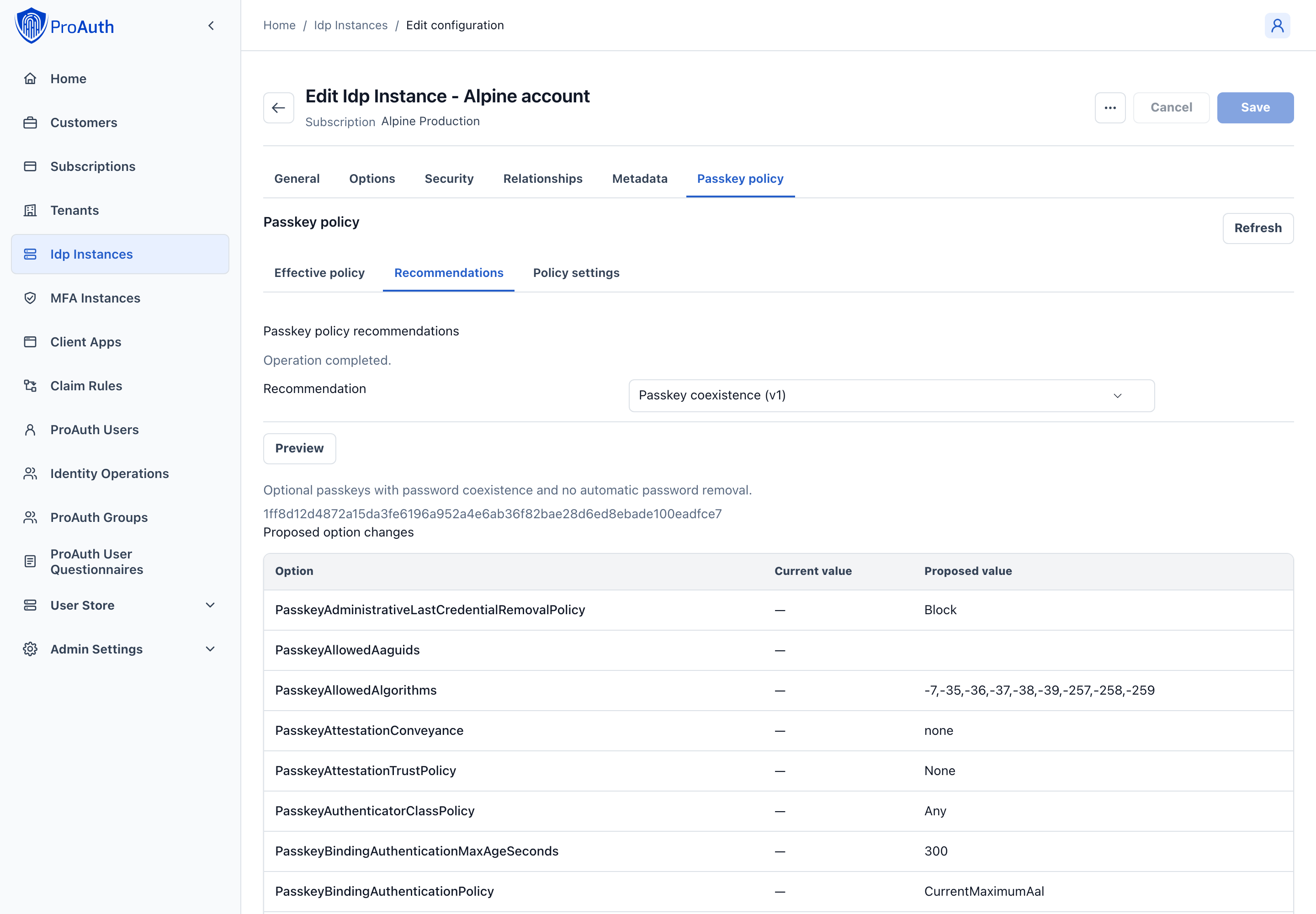
You can apply recommendations in AdminApp or through Management API v2. Both use the same server-side workflow:
- List the available recommendation IDs and versions.
- Preview a recommendation against the current IDP options.
- Review every changed value, validation error, warning, destructive impact, and required approval count.
- If approval is required, create an approval request and obtain the required independent approvals.
- Apply the recommendation with the recommendation fingerprint and preview fingerprint returned by the preview.
text
GET  /api/management/v2/idpinstances/{idpInstanceId}/passkey-policy/recommendations
POST /api/management/v2/idpinstances/{idpInstanceId}/passkey-policy/recommendations/{recommendationId}/versions/{version}/preview
POST /api/management/v2/idpinstances/{idpInstanceId}/passkey-policy/recommendations/approvals
POST /api/management/v2/idpinstances/{idpInstanceId}/passkey-policy/recommendations/apply
The two fingerprints protect different state:
- The recommendation fingerprint identifies the exact versioned recommendation definition.
- The preview fingerprint binds the proposed operation to the current option values and concurrency state.
If either changes, ProAuth rejects the apply request. Preview again instead of retrying stale input.
The apply request uses only values returned by the selected recommendation and its latest preview:
json
{
  "recommendationId": "EnterprisePasswordless",
  "version": 1,
  "recommendationFingerprint": "<fingerprint returned by list or get>",
  "previewFingerprint": "<fingerprint returned by preview>",
  "approvalRequestId": null
}
Set approvalRequestId to the approved request ID when the preview reports independent approvals. Do not substitute an approval created for another preview.
Customize a policy
Use the effective-policy endpoint before editing individual values:
text
GET  /api/management/v2/idpinstances/{idpInstanceId}/passkey-policy
POST /api/management/v2/idpinstances/{idpInstanceId}/passkey-policy/preview
POST /api/management/v2/idpinstances/{idpInstanceId}/passkey-policy/approvals
POST /api/management/v2/idpinstances/{idpInstanceId}/passkey-policy/apply
Always preview and apply coordinated changes through the policy endpoints. They validate the complete resulting policy and report whether an operation is a policy weakening, trust-overlay change, or destructive password activation. ProAuth writes remain ordinary IDP options; the endpoints add validation, impact analysis, concurrency protection, and approval enforcement.
For example, preview a coordinated consumer policy change instead of updating the options independently:
json
{
  "options": {
    "PasskeyPasswordPolicy": "UserRemovable",
    "PasskeyRequiredVerifiedSecurityContactCount": "1",
    "PasskeySecurityNotificationMode": "Required",
    "PasskeyRecoveryRoutes": "{\"Version\":1,\"Routes\":[{\"Name\":\"VerifiedEmail\",\"Requirements\":[{\"TrustClass\":\"VerifiedAddress\",\"Count\":1,\"RequiredApprovals\":0,\"ProviderCapability\":null}]}]}"
  },
  "removeOptionIds": []
}
The option values are strings because they use the standard ProAuth option architecture. The effective-policy response converts them into typed values for inspection.
Do not copy a recommendation's current values into long-lived deployment logic without retaining its version and fingerprint. Recommendation contents can evolve in a later release.
Password and authentication lifecycle
Password state and primary-authentication readiness are intentionally separate. For example, both a newly provisioned passwordless user and a user who lost every passkey have no password, but they require different handling.
Password removal never occurs merely because a passkey exists. At commit time, ProAuth reevaluates all readiness conditions under optimistic concurrency. A successful commit atomically:
- clears the password hash;
- invalidates password-reset material;
- clears password-expiry state;
- advances the user's authentication security epoch;
- records a correlated security event and durable notification intent.
Removing passkeys later cannot restore the previous hash. If the last usable passkey is compromised, revocation still proceeds and the user enters restricted recovery.
What counts as ready
The Account Management portal and UserStore API expose a server-evaluated readiness result. Depending on policy, readiness includes:
- the required number of active, mature, compliant, non-held passkeys;
- the required credential diversity;
- enough verified security contacts;
- at least one currently operational recovery route;
- mature binding lineage or a fresh independent recovery proof;
- authentication that satisfies the binding policy and maximum age;
- explicit user confirmation;
- required durable notification delivery capability.
Do not reproduce this calculation in a client or UI. Display blockingReasons from the v2 API and let the server remain authoritative.
Enrollment, replacement, and deletion
Users manage login passkeys through Account Management. They can register and rename credentials, see policy compliance and readiness, replace a credential, manage recovery methods, and request password removal when allowed.
Self-service deletion of the final usable passkey is always blocked. The user is guided to register and mature a replacement first. Administrative compromise revocation is different: security takes precedence over availability, so a confirmed compromised credential can always be permanently revoked.
Revoked credentials become non-reactivatable tombstones until the configured retention period expires. A credential with the same identifier cannot be silently restored.
Recovery is part of authentication policy
ProAuth supports saved primary recovery codes, verified contacts, governed TAPs, multiple independent proofs, and pluggable asynchronous identity proofing. The policy defines one or more named routes; satisfying every requirement in any one route is sufficient.
Recovery does not immediately create a normal sign-in session. It creates a short-lived restricted session that can only bind a new policy-compliant primary authenticator. Completion revokes pre-recovery sessions, renewable grants, and one-time artifacts.
A credential placed on a risk hold cannot complete recovery or initial enrollment. The restricted registration is rejected without completing the transaction or revoking the remaining recovery artifacts. Resolve the risk condition and start a new registration ceremony while the restricted session remains valid.
Primary recovery codes are independent from MFA recovery codes. They are displayed once, stored as hashes, single-use, and intended specifically for recovery of primary UserStore authentication.
See Passkey security operations before enabling a password-removing policy.
OIDC assurance
ProAuth derives ACR and AMR values from the complete authentication evidence rather than the selected UI path:
https://proauth.net/acr/baselinerepresents baseline ProAuth assurance.https://proauth.net/acr/mfarepresents ProAuth multi-factor assurance.- Standard
phris emitted only when the complete chain is phishing-resistant. - Registered AMR values such as
pwd,pop,user, andmfaare emitted only when supported by evidence. An enrolled but incomplete factor, or an MFA recovery code, does not establish completed additional-factor evidence.
The built-in passkey path does not currently retain verified key-protection evidence. It therefore does not emit phrh, hwk, or swk, and discovery does not advertise phrh. Trusted attestation and a non-backup-eligible credential do not by themselves prove hardware protection. A configured alias for phrh cannot make this unsupported assurance available.
Tenant-scoped ACR aliases can map business-facing values to canonical assurance requirements. Reserved values and mappings that would inflate assurance are rejected.
acr_values is an ordered list of voluntary preferences. If none can be satisfied, ProAuth emits the assurance actually earned. An essential claims.id_token.acr value or values constraint instead requires an exact permitted output value. For example, a user-verified passkey can satisfy a request for baseline assurance and emit the requested baseline identifier or configured alias. An unsupported essential value fails rather than being replaced with a different value. prompt=none returns login_required when the existing session cannot satisfy the essential request.
Refresh retains the original authentication time and selected ACR. Changing claim disclosure does not change that evidence. Keep alias meanings stable; revoke affected sessions and renewable grants when changing an existing alias's meaning or applying stronger requirements to existing authorizations.
Routing is not encoded in acr_values. New integrations use proauth_tenant, proauth_idp, proauth_hidden_idp, proauth_invitation, and the standard ui_locales parameter. Conflicting dedicated and legacy routing values fail with invalid_request.
Upgrade compatibility
An upgrade does not enable passkeys, remove passwords, invalidate reset material, or remove credentials. When replacement options are absent, ProAuth preserves legacy behavior for:
PasskeyConditionalUiEnabled;PasskeyEnforcePasswordless;PasskeyAllowLoginWithoutUserVerification;- per-user
PasskeyRequirePasskeyLogin.
New-option presence takes precedence. The per-user PasskeyRequirePasskeyLogin value remains compatibility-read-only and is never converted automatically into password removal.
Legacy passkeys are backfilled only where RP ID and COSE algorithm can be proven. Missing historical attestation evidence becomes UnknownLegacy; it cannot satisfy new regulated trust requirements unless an explicit policy permits grandfathering.
Next steps
- Use the Passkey policy option reference when reviewing or customizing concrete values.
- Prepare support, recovery, trust, monitoring, and migration with Passkey security operations.
- Review the end-user experience in Account Management.
- Keep password defenses enabled for coexistence deployments with UserStore brute-force protection.
Requested authentication context
Applications can send a space-separated, ordered acr_values list. ProAuth returns the first requested context that the authentication evidence satisfies. An explicitly configured tenant alias is returned under that exact name. Unknown values are not treated as aliases. If none of these voluntary preferences can be satisfied, ProAuth returns the session's strongest achieved canonical context.
To require an exact context, request acr as an essential ID-token claim using claims.id_token.acr with value or values. ProAuth must return a satisfied value from that request or fail authentication. It does not replace an essential exact value with an unrequested context merely because it is considered stronger.
Selecting an ACR does not change the underlying authentication evidence or amr methods. Phishing-resistant and hardware-protected contexts require the corresponding verified passkey evidence; a tenant alias cannot grant assurance that was not achieved.
For voluntary ACR preferences, ProAuth first evaluates claims.id_token.acr in the client's specified order, then acr_values in its specified order. If neither list has a satisfied value, the session's strongest achieved canonical context is used. Differing voluntary lists are accepted. Essential ACR constraints take priority and never allow a fallback outside their requested values. Explicit tenant aliases use the same verified requirements as canonical contexts; selecting an alias does not change the underlying authentication evidence or amr.