Appearance
Custom Assets
View customization often requires additional style sheets and images. Due to our "same site" security restrictions, it is not possible to reference them from another host. Therefore, all the required assets can be uploaded to ProAuth. The custom assets are managed in different levels as it is in the view customization. Each asset gets a unique URL which can be used in the view customization.
Overridable levels:
- Global assets (only SystemAdmins and only on the API)
- Subscription
- ClientApp
- Tenant
Create new custom asset
Steps to create a new custom asset:
Navigate to the ProAuth Admin UI and authenticate with a user with is at least a
TenantAdminNavigate to
Admin Settings, then toAssetsand click onCreate asset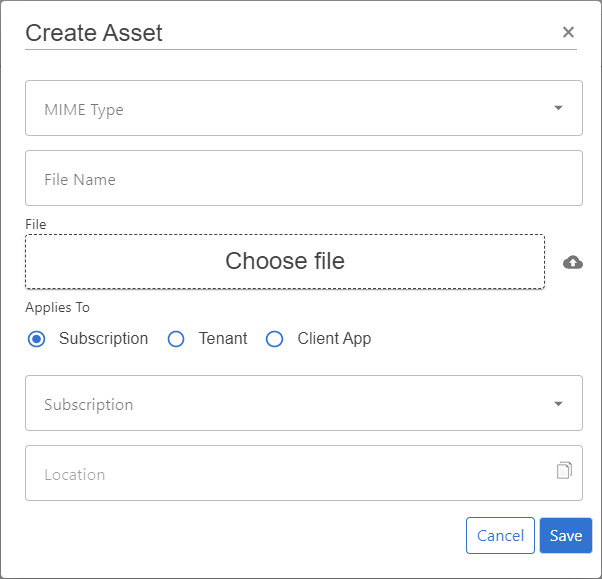
Choose "upload" to upload a file via a file dialog or drag and drop a file to the corresponding area.
Verify the mime type and the filename. The dialog automatically sets the filename and mime type according to the uploaded file.
Select the level to which you want to associate the asset. The chosen level with the corresponding id will be part of the path.
- Subscription
- ClientApp
- Tenant
Click
Save
The location field shows the fully qualified relative path of the asset. This path is used to reference it from the customized views.
Edit custom assets
Existing custom assets can be updated / modified as long as the mime type is not change respective as long as the updated content matches the existing mime type.
Depending on the mime type, the custom asset is either shown in the text editor with syntax highlighting or as a preview rendering if it is an image. Other binary content will not be rendered in the preview.
The custom asset can always be updated by uploading a new version of the file by using the file upload dialog or by dragging and dropping the file to the corresponding area.
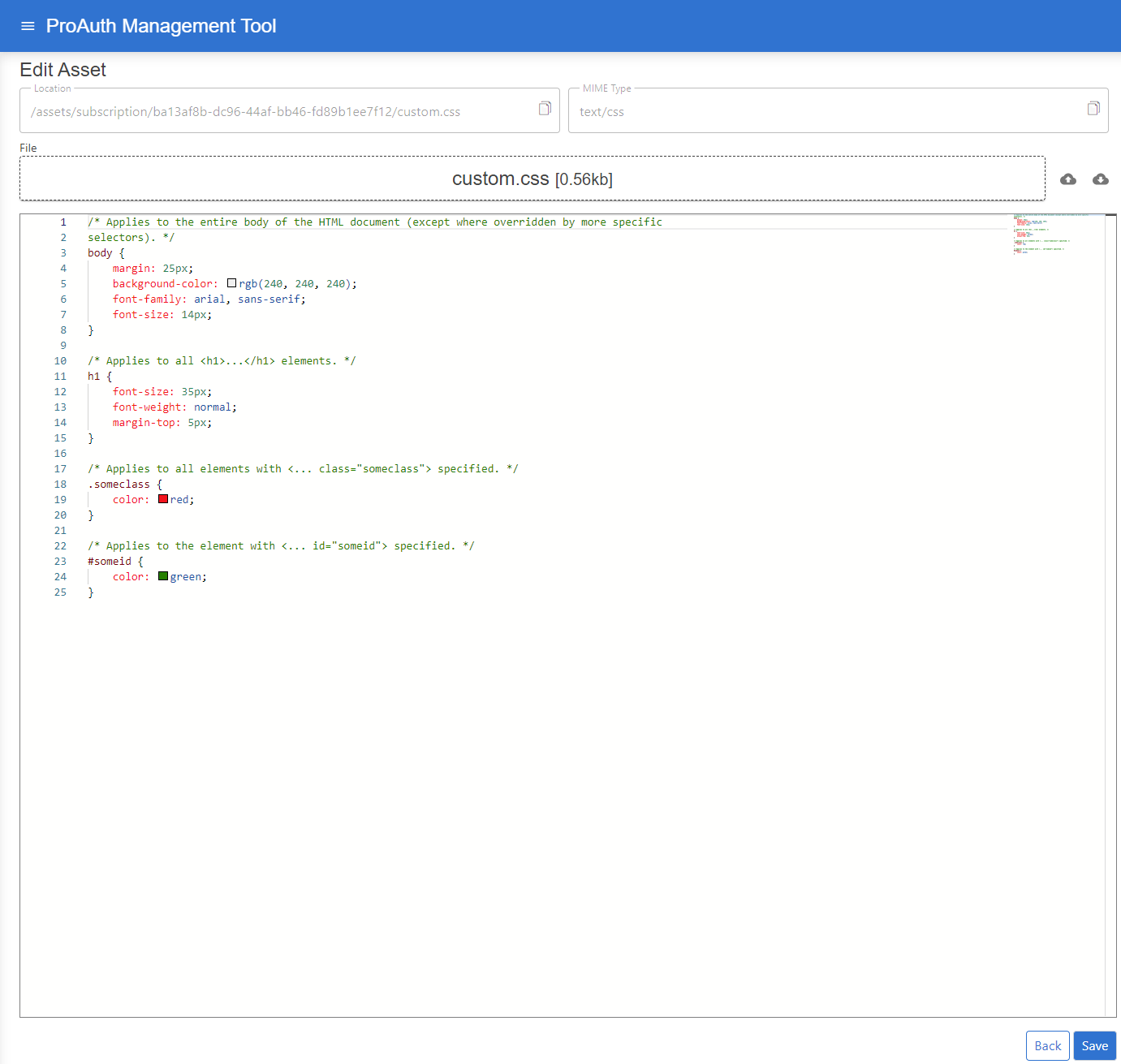
The location field shows the fully qualified relative URL. This relative URL is used to reference the asset in your customized views.