Version v3.2.4
Multi-factor authentication
A multi-factor authentication is an extra layer of security for ProAuth designed to ensure that you're the only person who can access your account, even if someone knows your password.
E-Mail
E-Mail MFA is a security verification procedure, which is triggered through a user logging into a website, software or application. In the log-in process, the user is automatically sent an E-Mail containing a unique numeric code. This 'token-code' is then inputted by the individual, verifying themselves as the user logging into the online account.
Create new MFA
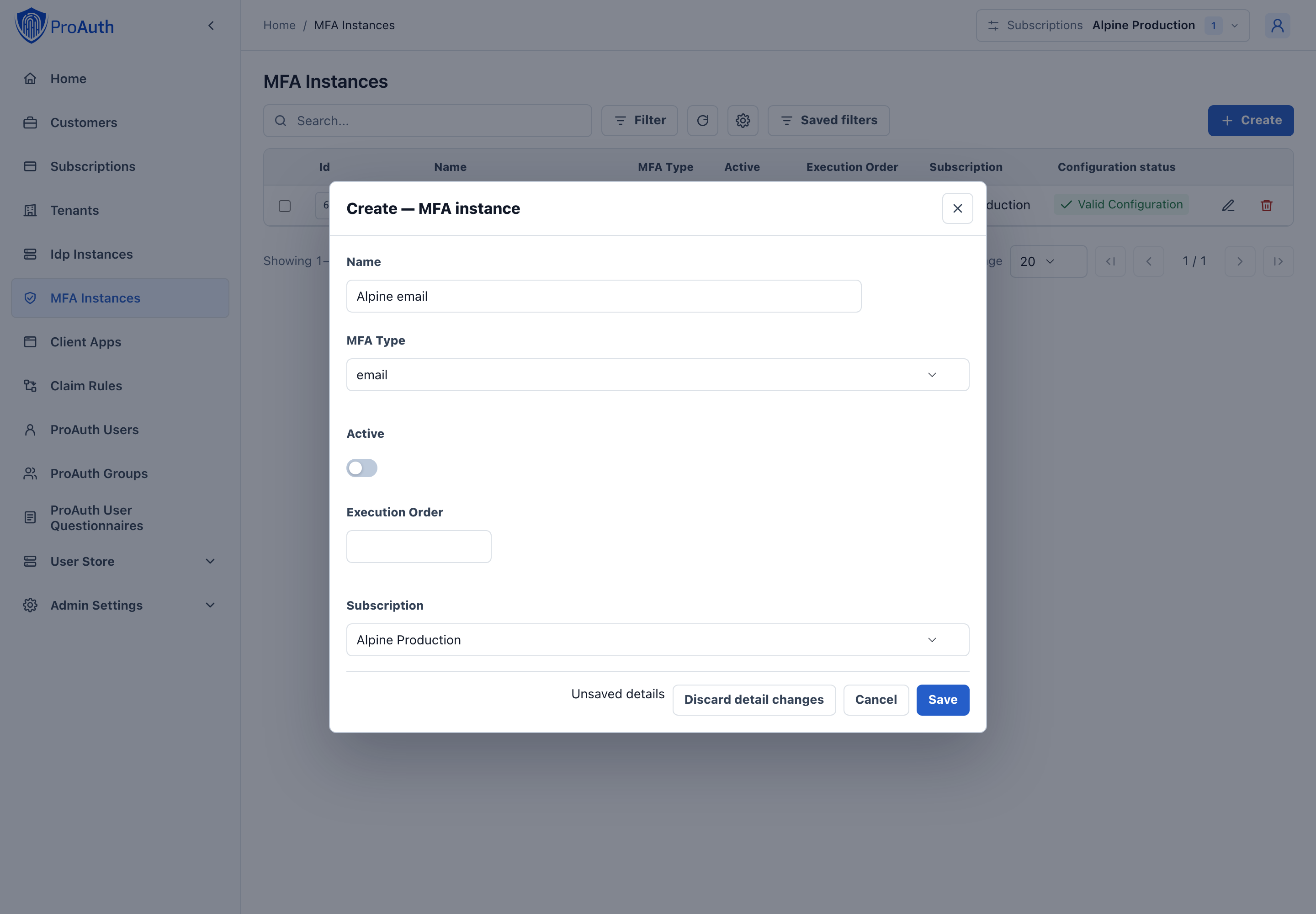
Steps to create a new MFA instance:
- Navigate to the ProAuth Admin UI and login with a user with in minimum is a
SubscriptionAdmin - Navigate to
MFA Instancesand click onCreate MFA Instance - Choose the MFA Type
email - Enable the flag
Active - Choose the proper Subscription
- Click
Save
Configure new MFA
After the creation of the MFA instance in the step before, it's now necessary to configure the MFA instance. Invalid MFA instances aren't available in ProAuth.
Steps to complete the configuration of the MFA instance:
- Open the MFA instance in the extended edit view
- Configure the mandatory service options (details below)
- In order for the MFA instance to be applied, assign the MFA instance to the required Tenants, IDPs, Client Applications or ProAuth Users
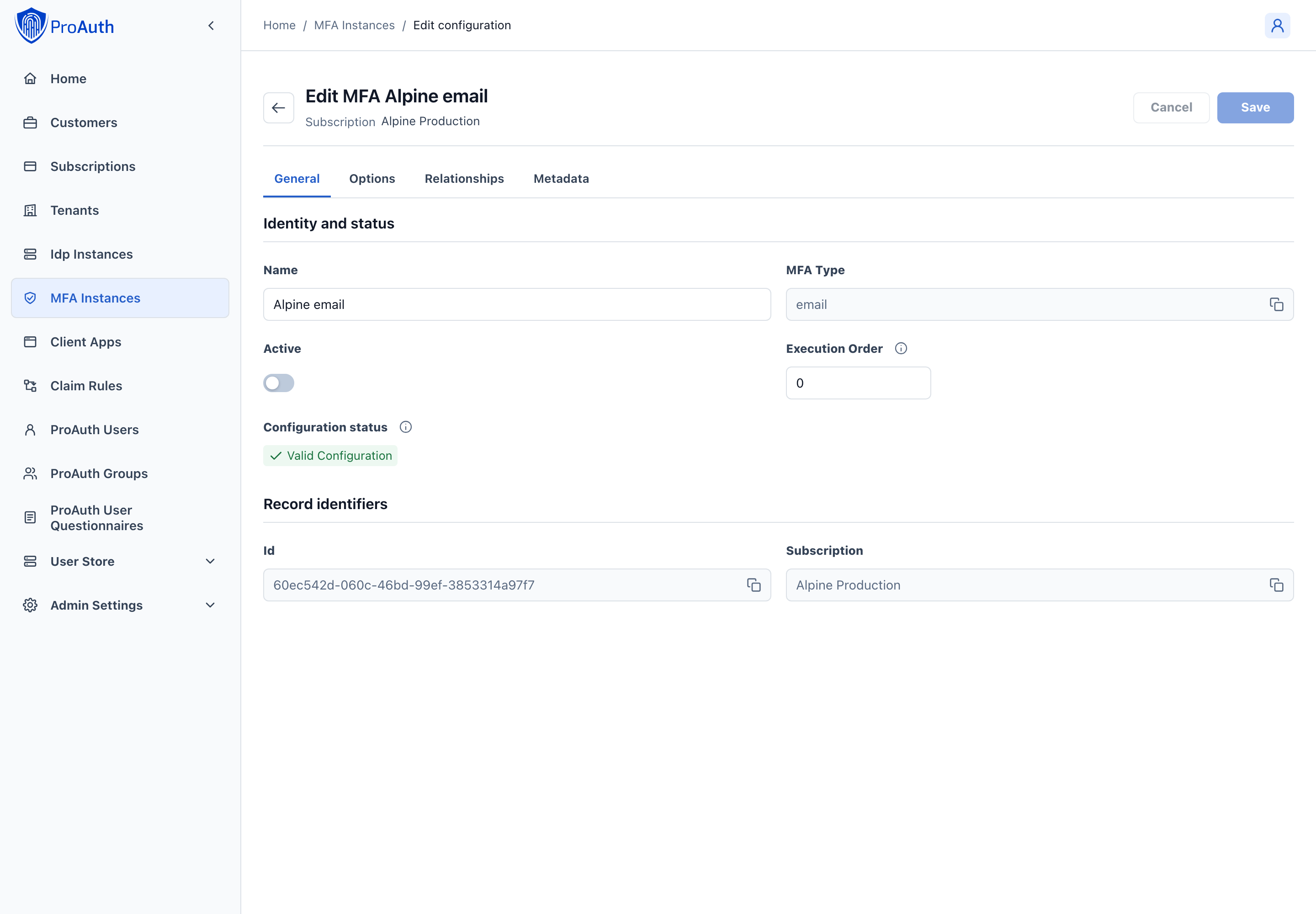
Configure mandatory Options, if they are not already provided by the ProAuth base service settings:
- Set the
EMailSenderAddress - Set the
MailServerConfig
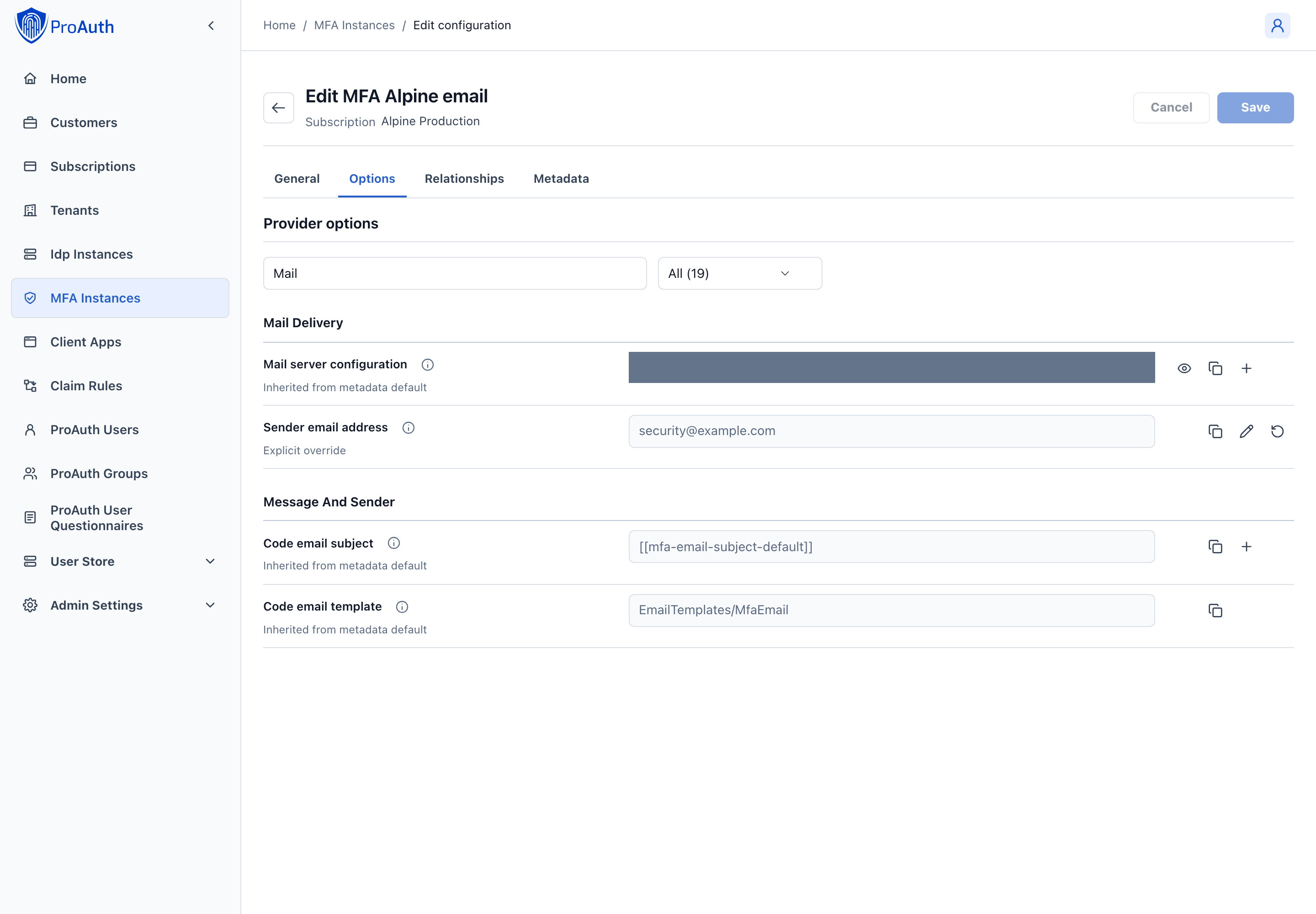
MailServerConfiguration sample data for SMTP Server:
json
{
    "MailType": "SMTP",
    "Host": "<smtp-host-address>",
    "Port": 465,
    "EnableSSL": true,
    "UserName": "<smtp-username>",
    "Password": "<smtp-password>",
    "Timeout": 20000
}
MailServerConfiguration sample data for Microsoft365:
json
{
    "MailType": "M365",
    "ClientId": "<aad-app-clientid>",
    "ClientSecret": "<aad-app-clientsecret>",
    "TenantId": "<aad-app-tenantid>",
    "UserId": "<aad-user-objectid>"
}
SMS
SMS MFA is a security verification procedure, which is triggered through a user logging into a website, software or application. In the log-in process, the user is automatically sent an SMS to their mobile number containing a unique numeric code. This 'token-code' is then inputted by the individual, verifying themselves as the user logging into the online account.
Create new MFA
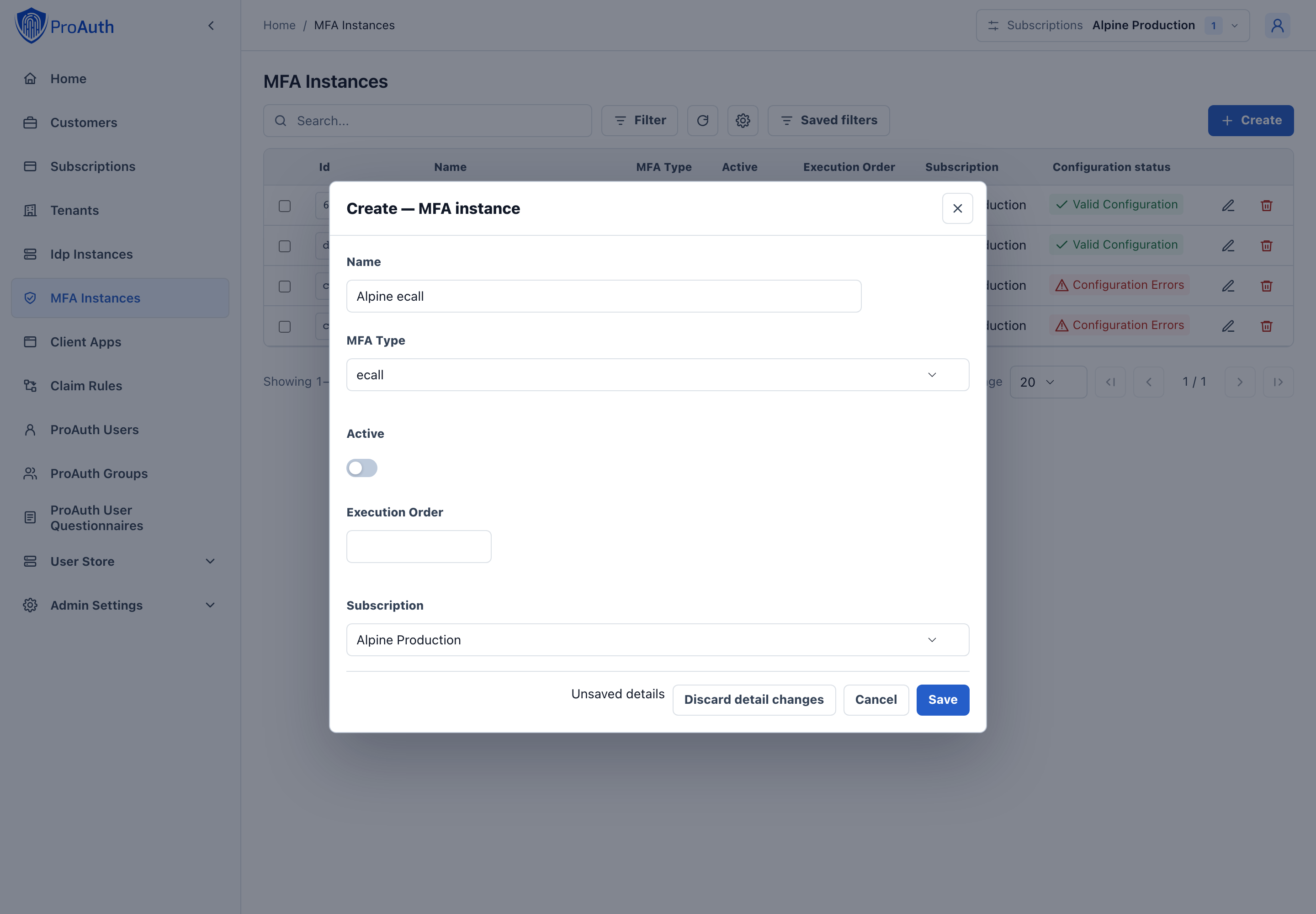
Steps to create a new MFA instance:
- Navigate to the ProAuth Admin UI and login with a user with in minimum is a
SubscriptionAdmin - Navigate to
MFA Instancesand click onCreate MFA Instance - Choose the MFA Type
ecall - Enable the flag
Active - Choose the proper Subscription
- Click
Save
Configure new MFA
After the creation of the MFA instance in the step before, it's now necessary to configure the MFA instance. Invalid MFA instances aren't available in ProAuth.
Steps to complete the configuration of the MFA instance:
- Open the MFA instance in the extended edit view
- Configure the mandatory service options (details below)
- In order for the MFA instance to be applied, assign the MFA instance to the required Tenants, IDPs, Client Applications or ProAuth Users
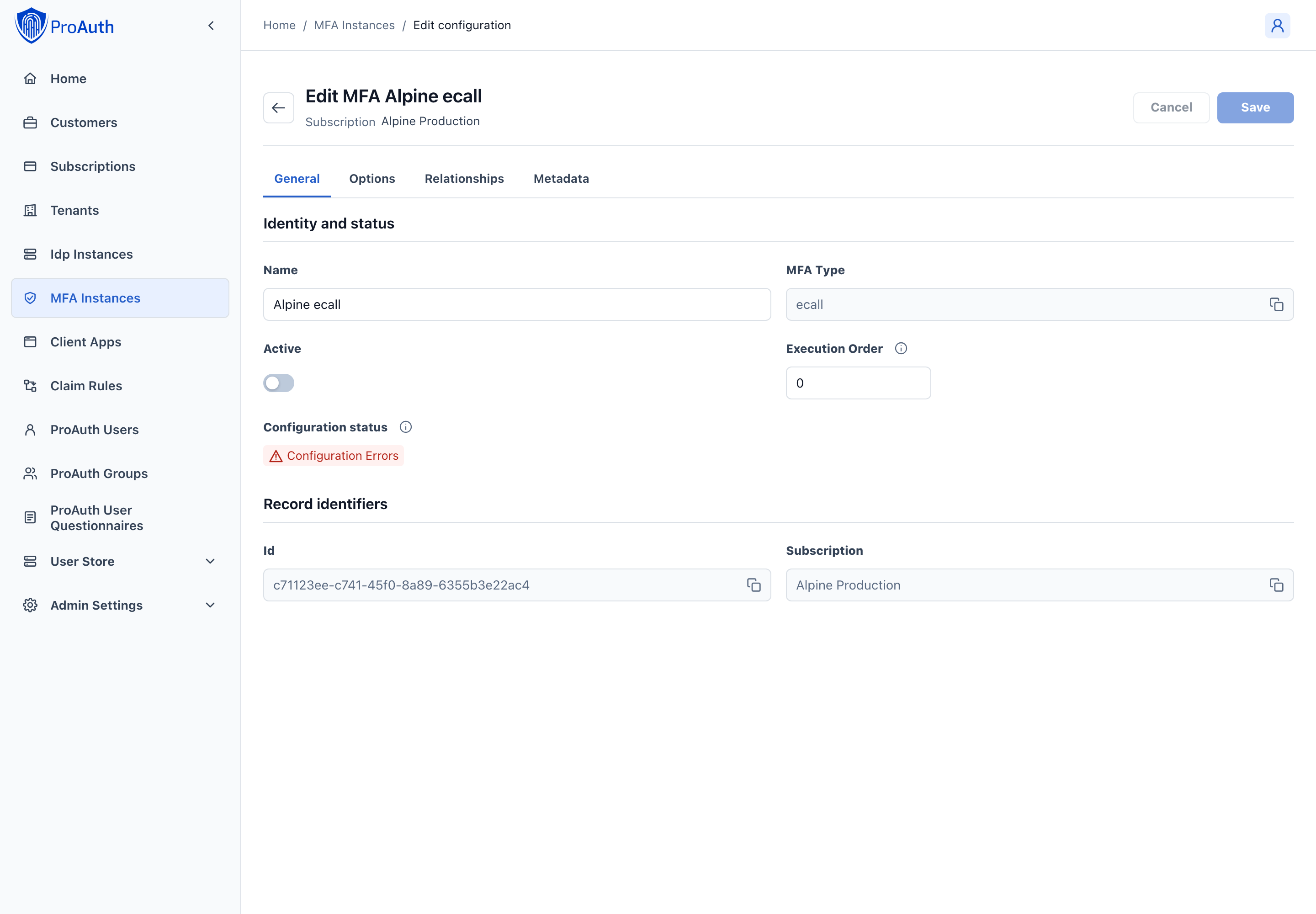
Configure mandatory Service Options:
- Set the
ECallAccountName - Set the
ECallAccountPassword - Set the
ECallAccountFromNumber
You can get the Service Option values from your eCall account.
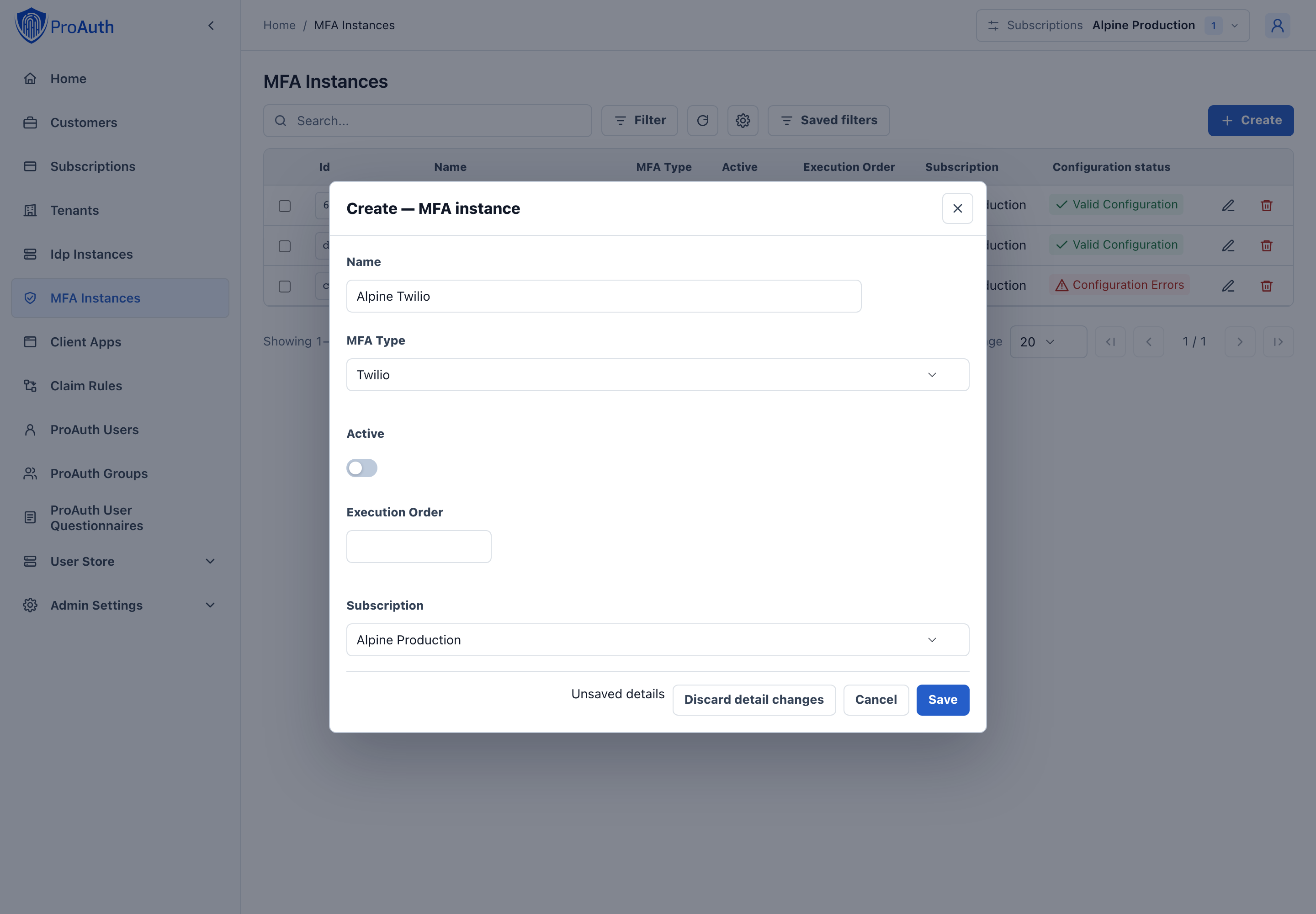
Create new MFA
Steps to create a new MFA instance:
- Navigate to the ProAuth Admin UI and login with a user with in minimum is a
SubscriptionAdmin - Navigate to
MFA Instancesand click onCreate MFA Instance - Choose the MFA Type
Twilio - Enable the flag
Active - Choose the proper Subscription
- Click
Save
Configure new MFA
After the creation of the MFA instance in the step before, it's now necessary to configure the MFA instance. Invalid MFA instances aren't available in ProAuth.
Steps to complete the configuration of the MFA instance:
- Open the MFA instance in the extended edit view
- Configure the mandatory service options (details below)
- In order for the MFA instance to be applied, assign the MFA instance to the required Tenants, IDPs, Client Applications or ProAuth Users
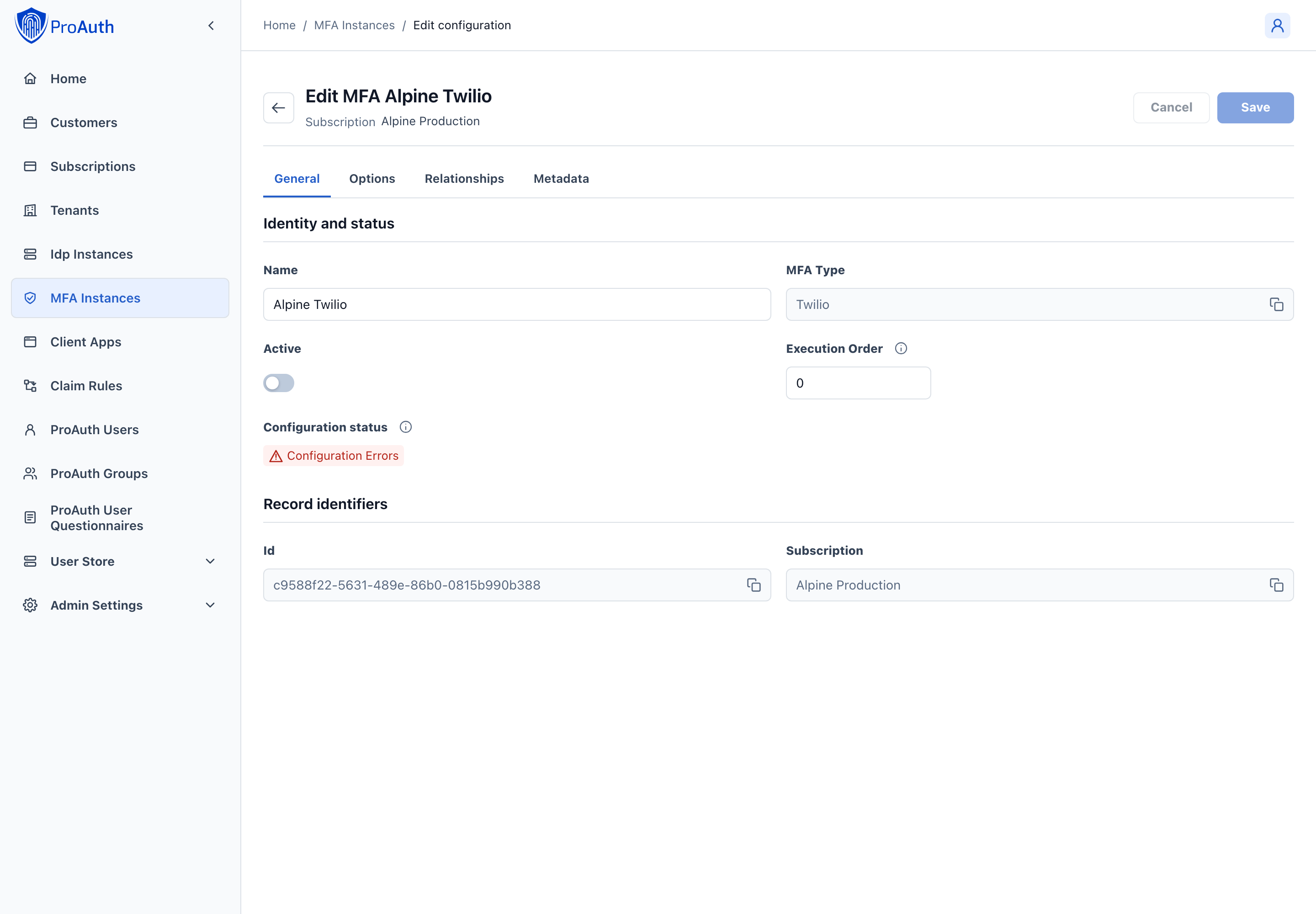
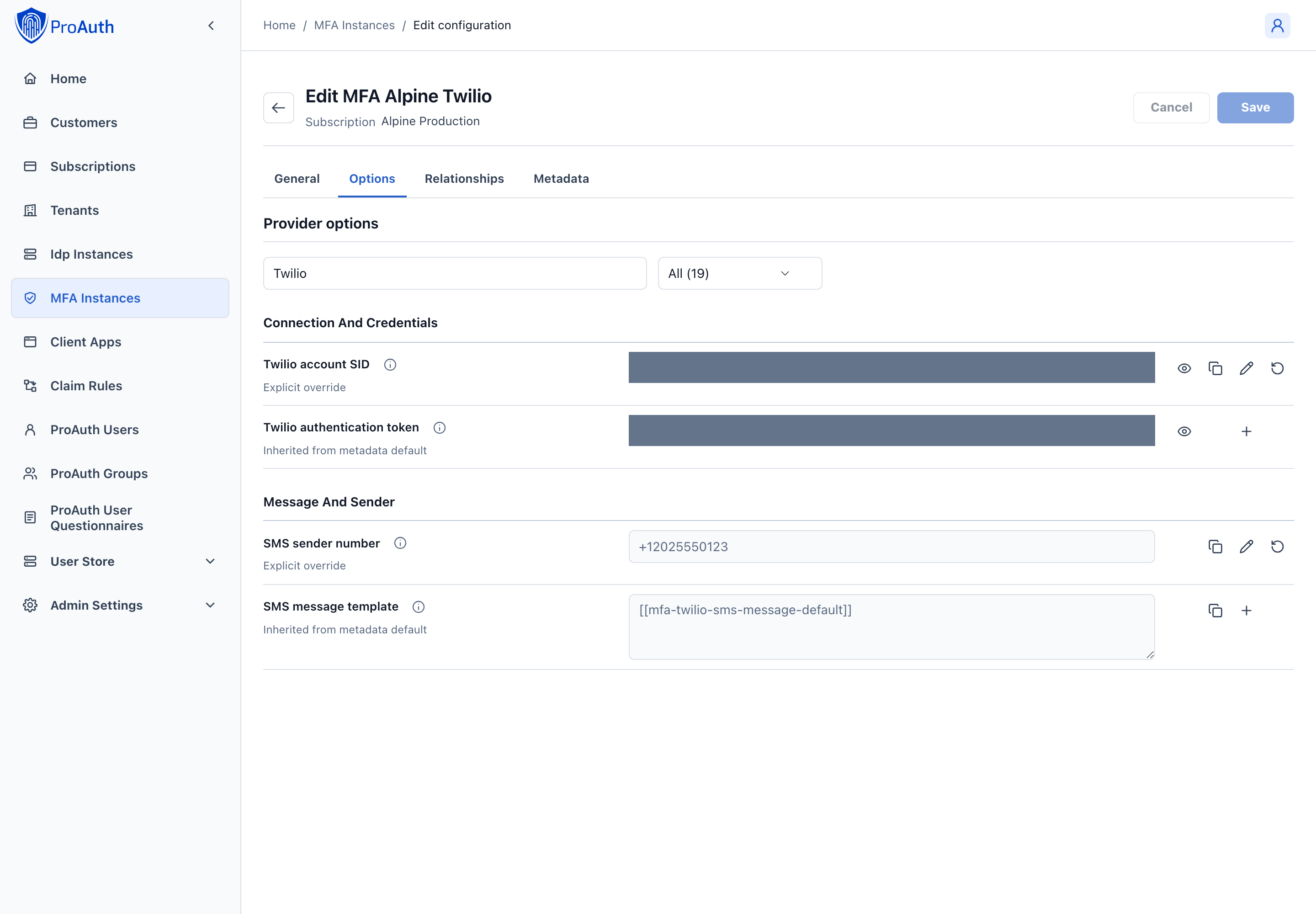
Configure mandatory Service Options:
- Set the
TwilioAccountSid - Set the
TwilioAuthToken - Set the
TwilioSmsFromNumber
You can get the Service Option values from your Twilio account.
TOTP
TOTP stands for Time-based One-Time Passwords and is a common form of multi-factor authentication (MFA). Unique numeric passwords are generated with a standardized algorithm that uses the current time as an input. The time-based passwords are available offline and provide user friendly, increased account security when used as an MFA factor.
TOTP is also known as app based authentication, software tokens, or soft tokens. Authentication apps like Microsoft Authenticator and Google Authenticator support the TOTP standard.
Create new MFA
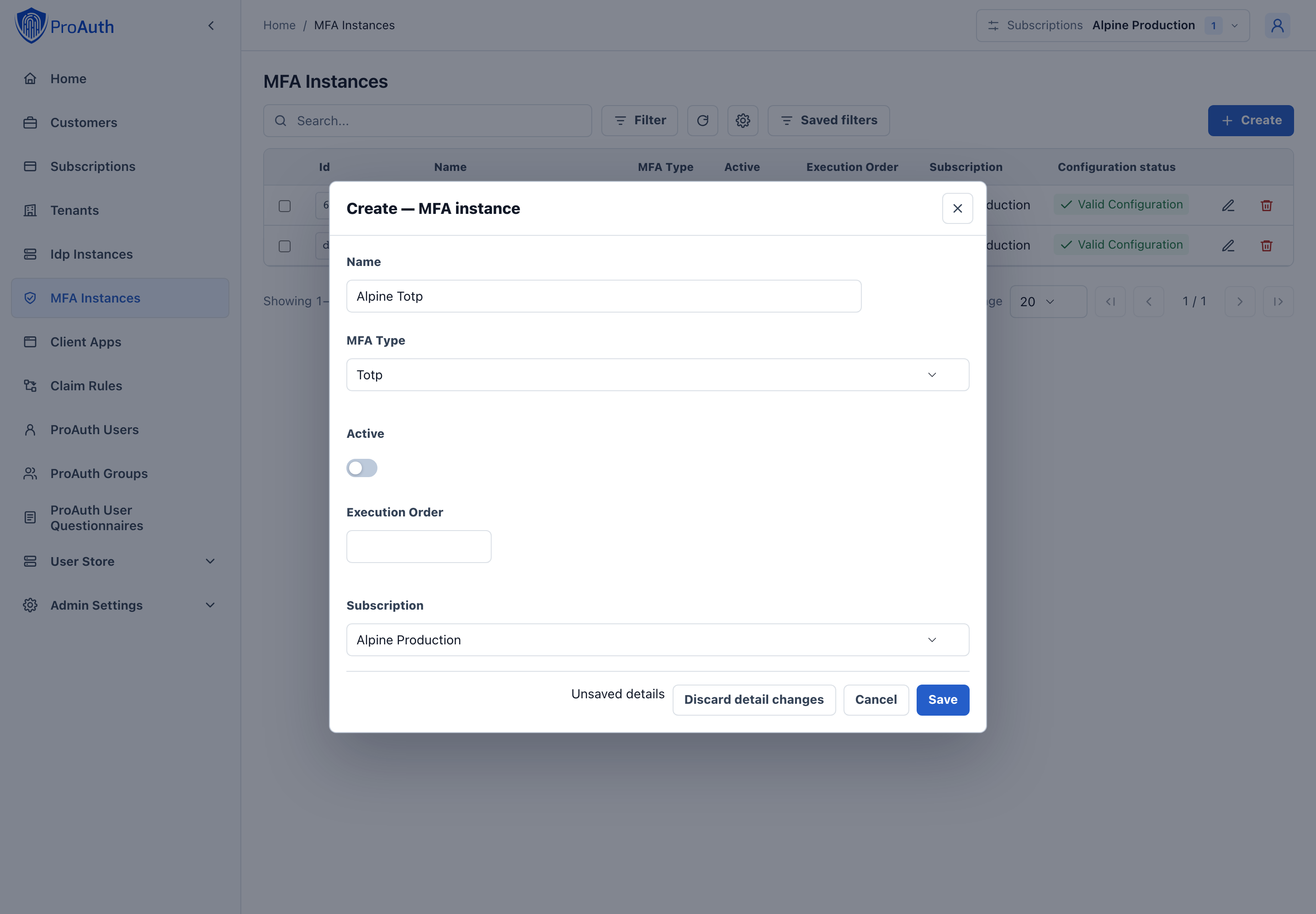
Steps to create a new MFA instance:
- Navigate to the ProAuth Admin UI and login with a user with in minimum is a
SubscriptionAdmin - Navigate to
MFA Instancesand click onCreate MFA Instance - Choose the MFA Type
Totp - Enable the flag
Active - Choose the proper Subscription
- Click
Save
Configure new MFA
After the creation of the MFA instance in the step before, it's now necessary to configure the MFA instance. Invalid MFA instances aren't available in ProAuth.
Steps to complete the configuration of the MFA instance:
- Open the MFA instance in the extended edit view
- In order for the MFA instance to be applied, assign the MFA instance to the required Tenants, IDPs, Client Applications or ProAuth Users
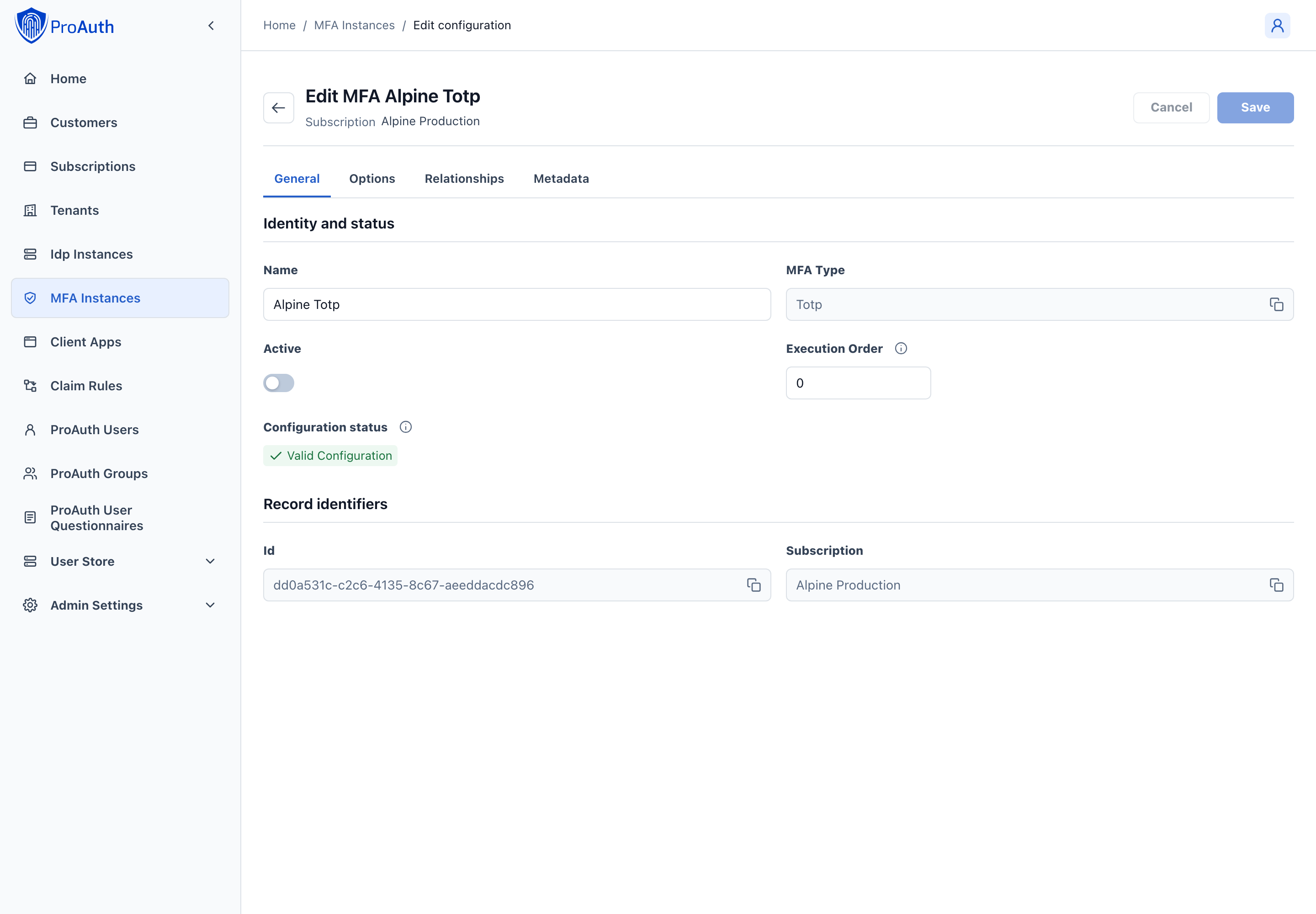
You can safely use the default values for Service Option values.
Passkeys (FIDO2 / WebAuthn)
Passkeys provide phishing-resistant MFA using the WebAuthn standard (FIDO2). Instead of entering a one-time code, the user authenticates with a hardware security key (e.g., YubiKey), a platform authenticator (e.g., Windows Hello, Touch ID, Face ID), or a passkey synced through a password manager.
ProAuth uses the cryptography functionality provided through .NET and the operating system for passkeys. EdDSA/Ed25519 credentials are not supported and are not offered when registering a new passkey.
MFA passkey registration and verification must run in a top-level ProAuth page. Cross-origin iframe ceremonies are rejected; adding a parent origin to the allowed-origin list does not enable embedding. Empty stored challenges and inconsistent authenticator backup flags (BS=true with BE=false) are rejected. These checks do not require a credential-storage migration or re-registration of supported, valid passkeys.
When used as an MFA factor, passkeys operate with userVerification: "discouraged" — the first factor (password) already established identity, so the passkey only needs to prove possession of the credential (User Presence).
INFO
MFA passkeys are stored in the ProAuth database (in the ProAuthUserMfaFactor entity), separate from login passkeys which are stored in the User Store database. This allows MFA passkeys to work with both User Store and federated identity providers (e.g., Google, Entra ID).
TIP
The first MFA passkey is registered during the initial MFA challenge. Users can register additional passkeys and manage existing ones through the Account Management portal.
Create Passkey MFA Instance
Steps to create a new Passkey MFA instance:
- Navigate to the ProAuth Admin UI and log in with a user that has at minimum
SubscriptionAdminrole - Navigate to MFA Instances and click Create MFA Instance
- Choose the MFA Type Passkey
- Enable the Active flag
- Choose the proper Subscription
- Click Save
Configure Passkey MFA
After creating the MFA instance, complete the configuration:
- Open the MFA instance in the extended edit view
- Assign the MFA instance to the required Tenants, IDPs, Client Applications, or ProAuth Users
WARNING
The Passkey MFA module derives the WebAuthn RP ID from BaseServiceSettings:HostUrl. The PasskeyRpName option on the MFA instance controls the relying-party display name for clients that expose it.
How Passkey MFA Works
Differences from TOTP
| Feature | TOTP | Passkey |
|---|---|---|
| Phishing resistance | ❌ Codes can be phished | ✅ Bound to origin |
| User interaction | Enter 6-digit code | Touch authenticator |
| Requires device | Authenticator app | Security key or platform authenticator |
| Offline support | ✅ Works offline | ✅ Works offline |
| Code entry | Manual | Automatic |
Brute Force Protection for MFA
ProAuth provides brute force protection for MFA verification. Two mechanisms are available: temporary locking and progressive throttling. These are configured per MFA instance and protect against automated attacks on the verification step.
INFO
MFA brute force protection is independent from UserStore brute force protection. They use separate counters and separate configuration. For first factor (password) protection, see UserStore Brute Force Protection.
Temporary Locking
When enabled, MFA verification is temporarily locked after a configurable number of consecutive failed attempts. While locked, all verification attempts are rejected. The lock is automatically lifted after the configured duration.
Configuration
| Option | Description | Default |
|---|---|---|
MfaTemporaryLockEnabled | Enable or disable temporary locking. | false |
MfaTemporaryLockThreshold | Failed attempts before lock is applied. | 10 |
MfaTemporaryLockDurationSeconds | Lock duration in seconds. | 3600 (1 hour) |
Progressive Throttling
Throttling introduces a progressively increasing delay before each verification response. The delay grows exponentially with consecutive failed attempts.
Configuration
| Option | Description | Default |
|---|---|---|
MfaThrottlingEnabled | Enable or disable progressive throttling. | false |
MfaThrottlingBaseDelayMs | Base delay in milliseconds after first failed attempt. | 1000 |
MfaThrottlingMaxDelayMs | Maximum delay cap in milliseconds. | 30000 |
Delay Formula
The delay is calculated using exponential backoff:
$$\text{delay} = \min!\bigl(\text{BaseDelayMs} \times 2^{(\text{failedAttempts} - 1)},; \text{MaxDelayMs}\bigr)$$
Best Practices
Recommended Configuration
| Option | Recommended Value |
|---|---|
MfaThrottlingEnabled | true |
MfaThrottlingBaseDelayMs | 1000 |
MfaThrottlingMaxDelayMs | 30000 |
MfaTemporaryLockEnabled | true |
MfaTemporaryLockThreshold | 5 to 10 |
MfaTemporaryLockDurationSeconds | 300 to 900 |
TIP
Enable both throttling and temporary locking for defense in depth. Throttling provides gradual slowdown while temporary locking stops persistent attacks.
Code Resend Protection
ProAuth also limits how frequently verification codes can be resent to prevent flooding. This is configured via MfaMaxCodeResends and MfaCodeResendCooldownSeconds options per MFA instance.
Monitoring
ProAuth exposes OpenTelemetry metrics for MFA security events:
| Metric | Description |
|---|---|
mfa_temporary_lock_total | Temporary locks applied |
Configure alerts for elevated lock rates to detect potential attacks or misconfigured thresholds.
Configuration via Management API
These settings can be managed in the Admin UI, through the Management API or the generated .NET management client packages, and as configuration as code through ProAuth CLI YAML imports.
If you automate through the Management API, options are configured per MFA instance through the standard option resource:
http
POST /api/management/v2/option
Content-Type: application/json

{
  "name": "MfaThrottlingEnabled",
  "value": "true",
  "applyToMfaInstanceId": "<mfa-instance-id>"
}| Option Name | Type | Example Value |
|---|---|---|
MfaTemporaryLockEnabled | boolean | true |
MfaTemporaryLockThreshold | integer | 10 |
MfaTemporaryLockDurationSeconds | integer | 3600 |
MfaThrottlingEnabled | boolean | true |
MfaThrottlingBaseDelayMs | integer | 1000 |
MfaThrottlingMaxDelayMs | integer | 30000 |
CAPTCHA Protection
In addition to throttling and locking, ProAuth supports CAPTCHA challenges for MFA verification. CAPTCHA adds an additional layer of protection against automated attacks on the MFA verification step.
Supported Providers
ProAuth integrates with three privacy-focused CAPTCHA providers. All providers are GDPR-compliant.
| Provider | Description |
|---|---|
| Cloudflare Turnstile | Free, privacy-focused, invisible challenges. Default provider. |
| hCaptcha | Privacy-focused alternative to reCAPTCHA. |
| Friendly Captcha | EU-based, proof-of-work based, no cookies. |
For detailed provider information and setup instructions, see UserStore CAPTCHA Protection.
Activation Modes
CAPTCHA for MFA verification supports three activation modes:
| Mode | Description |
|---|---|
Disabled | CAPTCHA is never shown during MFA verification. Default. |
Always | CAPTCHA is required on every verification attempt. |
AfterFailures | CAPTCHA is required after consecutive failed verification attempts. |
Configuration
CAPTCHA for MFA is configured per MFA instance. Register with your chosen CAPTCHA provider to obtain credentials.
| Option | Description | Default |
|---|---|---|
MfaCaptchaActivationMode | When CAPTCHA is required: Disabled, Always, or AfterFailures. | Disabled |
MfaCaptchaFailureThreshold | Failed verification attempts before CAPTCHA is required (for AfterFailures mode). | 3 |
MfaCaptchaProvider | Provider: Turnstile, HCaptcha, or FriendlyCaptcha. | Turnstile |
MfaCaptchaSiteKey | Public site key from your CAPTCHA provider. | — |
MfaCaptchaSecretKey | Secret key for server-side verification. | — |
Configuration via Management API
The same management options apply here: Admin UI, Management API or generated .NET management client packages, and ProAuth CLI YAML.
http
POST /api/management/v2/option
Content-Type: application/json

{
  "name": "MfaCaptchaActivationMode",
  "value": "AfterFailures",
  "applyToMfaInstanceId": "<mfa-instance-id>"
}| Option Name | Type | Example Value |
|---|---|---|
MfaCaptchaActivationMode | string | AfterFailures |
MfaCaptchaFailureThreshold | integer | 3 |
MfaCaptchaProvider | string | Turnstile |
MfaCaptchaSiteKey | string | 0x4AAA... |
MfaCaptchaSecretKey | string | 0x4AAA... |
Integration with Other Protections
CAPTCHA operates alongside throttling and temporary locking:
- Temporary lock — if active, reject immediately
- CAPTCHA — if required, verify challenge before code verification
- Throttling — apply progressive delay
- Code verification — validate the MFA code
- Counter update — update failed attempts, check lock thresholds
TIP
For high-security deployments, enable CAPTCHA in AfterFailures mode with a threshold of 2–3, combined with throttling and temporary locking. This provides defense in depth against automated MFA bypass attempts.