Appearance
Multi-factor authentication
A multi-factor authentication is an extra layer of security for ProAuth designed to ensure that you're the only person who can access your account, even if someone knows your password.
E-Mail
E-Mail TwoFactor Authentication is a security verification procedure, which is triggered through a user logging into a website, software or application. In the log-in process, the user is automatically sent an E-Mail containing a unique numeric code. This 'token-code' is then inputted by the individual, verifying themselves as the user logging into the online account.
Create new TwoFactor
Steps to create a new IDP:
- Navigate to the ProAuth Admin UI and login with a user with in minimum is a
SubscriptionAdmin - Navigate to
TwoFactor Instancesand click onCreate TwoFactor Instance - Choose the IDP Type
email - Enable the flag
Active - Choose the proper Subscription
- Click
Save
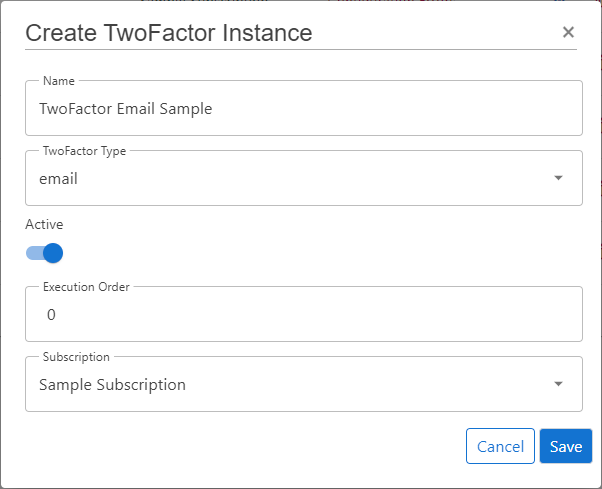
Configure new TwoFactor
After the creation of the TwoFactor instance in the step before, it's now necessary to configure the TwoFactor. Invalid TwoFactors aren't available in ProAuth.
Steps to complete the configuration of the TwoFactor:
- Open the TwoFactor in the extended edit view
- Configure the mandatory service options (details below)
- In order for the TwoFactor instance to be applied, assign the TwoFactor to the required Tenants, IDPs, Client Applications or ProAuth Users
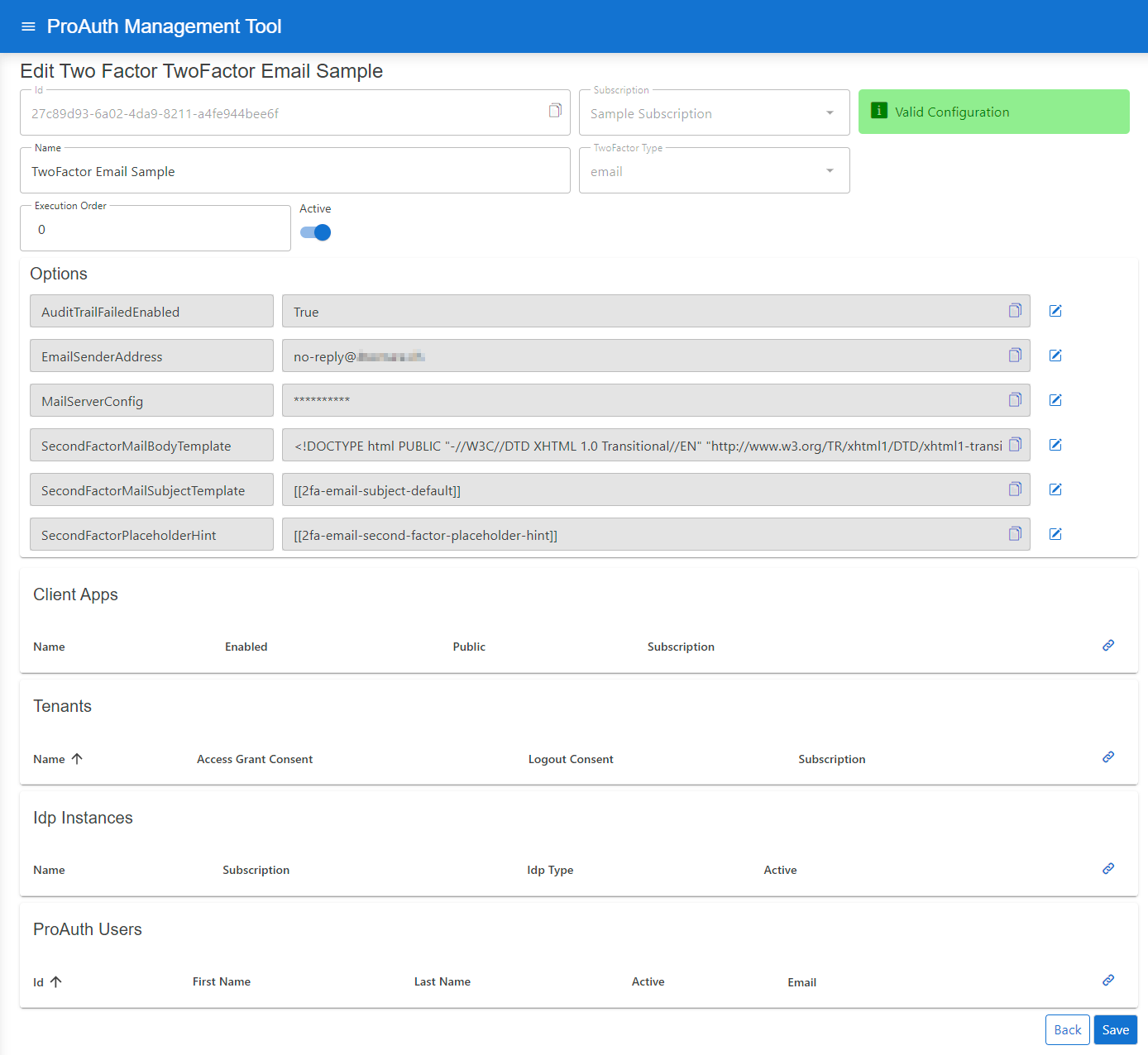
Configure mandatory Options, if they are not already provided by the ProAuth base service settings:
- Set the
EMailSenderAddress - Set the
MailServerConfig

MailServerConfiguration sample data for SMTP Server:
json
{
    "MailType": "SMTP",
    "Host": "<smtp-host-address>",
    "Port": 465,
    "EnableSSL": true,
    "UserName": "<smtp-username>",
    "Password": "<smtp-password>",
    "Timeout": 20000
}
MailServerConfiguration sample data for Microsoft365:
json
{
    "MailType": "M365",
    "ClientId": "<aad-app-clientid>",
    "ClientSecret": "<aad-app-clientsecret>",
    "TenantId": "<aad-app-tenantid>",
    "UserId": "<aad-user-objectid>"
}
SMS
SMS TwoFactor Authentication is a security verification procedure, which is triggered through a user logging into a website, software or application. In the log-in process, the user is automatically sent an SMS to their mobile number containing a unique numeric code. This 'token-code' is then inputted by the individual, verifying themselves as the user logging into the online account.
Create new TwoFactor
Steps to create a new TwoFactor:
- Navigate to the ProAuth Admin UI and login with a user with in minimum is a
SubscriptionAdmin - Navigate to
TwoFactor Instancesand click onCreate TwoFactor Instance - Choose the TwoFactor Type
ecall - Enable the flag
Active - Choose the proper Subscription
- Click
Save
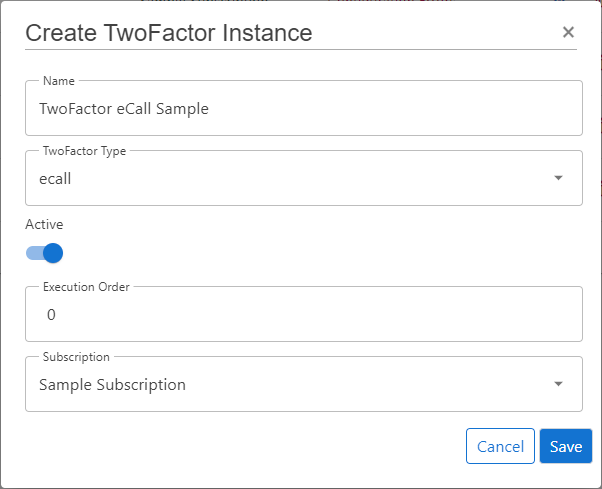
Configure new TwoFactor
After the creation of the TwoFactor instance in the step before, it's now necessary to configure the TwoFactor. Invalid TwoFactors aren't available in ProAuth.
Steps to complete the configuration of the TwoFactor:
- Open the TwoFactor in the extended edit view
- Configure the mandatory service options (details below)
- In order for the TwoFactor instance to be applied, assign the TwoFactor to the required Tenants, IDPs, Client Applications or ProAuth Users
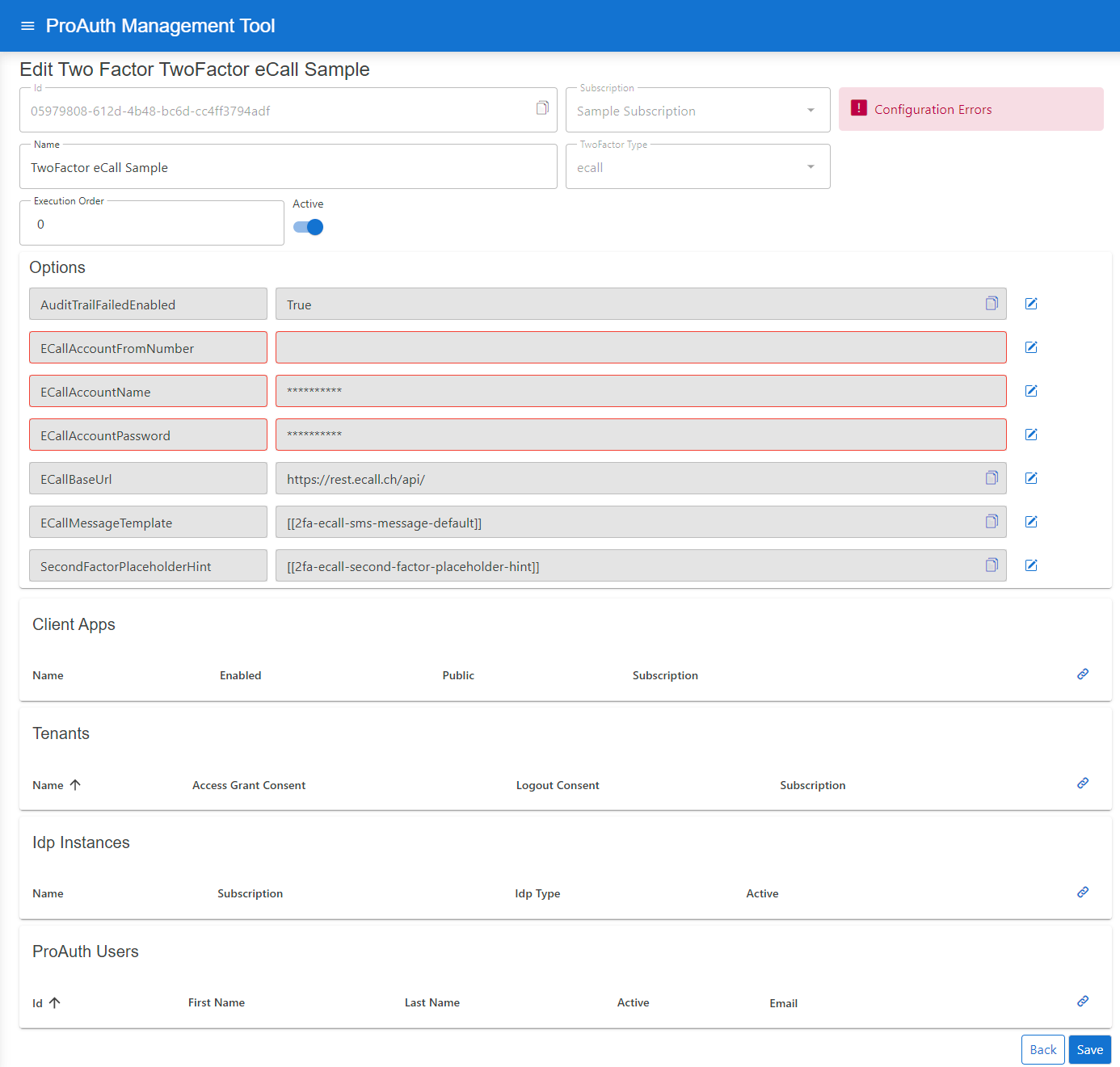
Configure mandatory Service Options:
- Set the
ECallAccountName - Set the
ECallAccountPassword - Set the
ECallAccountFromNumber
You can get the Service Option values from your eCall account.
Create new TwoFactor
Steps to create a new TwoFactor:
- Navigate to the ProAuth Admin UI and login with a user with in minimum is a
SubscriptionAdmin - Navigate to
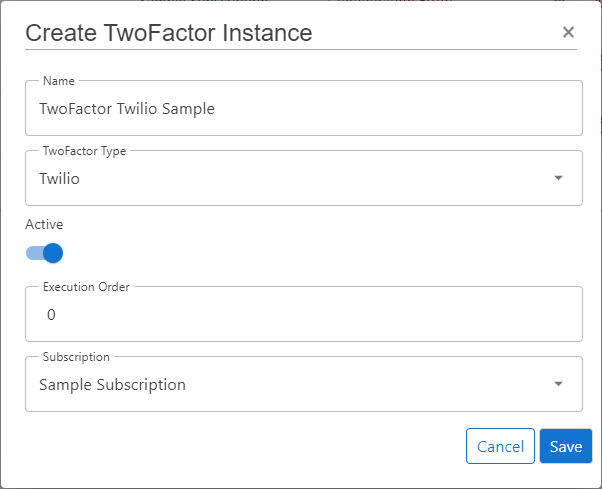
TwoFactor Instancesand click onCreate TwoFactor Instance - Choose the TwoFactor Type
email - Enable the flag
Active - Choose the proper Subscription
- Click
Save
Configure new TwoFactor
After the creation of the TwoFactor instance in the step before, it's now necessary to configure the TwoFactor. Invalid TwoFactors aren't available in ProAuth.
Steps to complete the configuration of the TwoFactor:
- Open the TwoFactor in the extended edit view
- Configure the mandatory service options (details below)
- In order for the TwoFactor instance to be applied, assign the TwoFactor to the required Tenants, IDPs, Client Applications or ProAuth Users
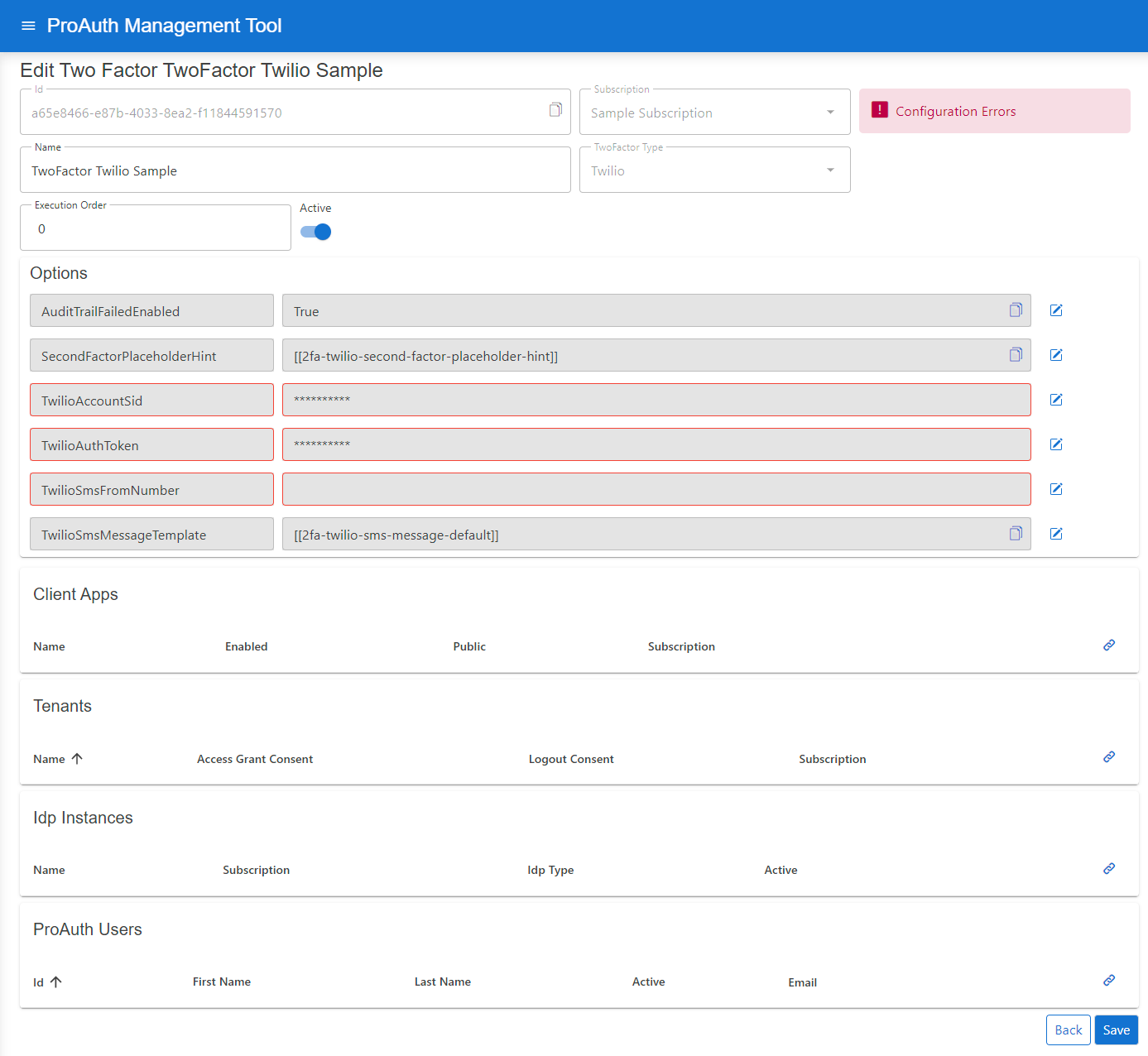
Configure mandatory Service Options:
- Set the
TwilioAccountSid - Set the
TwilioAuthToken - Set the
TwilioSmsFromNumber
You can get the Service Option values from your Twilio account.
FIDO
::: note Not yet supported :::
Brute Force Protection for Second Factor
ProAuth provides brute force protection for second factor (2FA) verification. Two mechanisms are available: temporary locking and progressive throttling. These are configured per TwoFactor instance and protect against automated attacks on the verification step.
INFO
Second factor brute force protection is independent from UserStore brute force protection. They use separate counters and separate configuration. For first factor (password) protection, see UserStore Brute Force Protection.
Temporary Locking
When enabled, second factor verification is temporarily locked after a configurable number of consecutive failed attempts. While locked, all verification attempts are rejected. The lock is automatically lifted after the configured duration.
Configuration
| Option | Description | Default |
|---|---|---|
TwoFactorTemporaryLockEnabled | Enable or disable temporary locking. | false |
TwoFactorTemporaryLockThreshold | Failed attempts before lock is applied. | 10 |
TwoFactorTemporaryLockDurationSeconds | Lock duration in seconds. | 3600 (1 hour) |
Progressive Throttling
Throttling introduces a progressively increasing delay before each verification response. The delay grows exponentially with consecutive failed attempts.
Configuration
| Option | Description | Default |
|---|---|---|
TwoFactorThrottlingEnabled | Enable or disable progressive throttling. | false |
TwoFactorThrottlingBaseDelayMs | Base delay in milliseconds after first failed attempt. | 1000 |
TwoFactorThrottlingMaxDelayMs | Maximum delay cap in milliseconds. | 30000 |
Delay Formula
The delay is calculated using exponential backoff:
$$\text{delay} = \min!\bigl(\text{BaseDelayMs} \times 2^{(\text{failedAttempts} - 1)},; \text{MaxDelayMs}\bigr)$$
Best Practices
Recommended Configuration
| Option | Recommended Value |
|---|---|
TwoFactorThrottlingEnabled | true |
TwoFactorThrottlingBaseDelayMs | 1000 |
TwoFactorThrottlingMaxDelayMs | 30000 |
TwoFactorTemporaryLockEnabled | true |
TwoFactorTemporaryLockThreshold | 5 to 10 |
TwoFactorTemporaryLockDurationSeconds | 300 to 900 |
TIP
Enable both throttling and temporary locking for defense in depth. Throttling provides gradual slowdown while temporary locking stops persistent attacks.
Code Resend Protection
ProAuth also limits how frequently verification codes can be resent to prevent flooding. This is configured via TwoFactorMaxCodeResends and TwoFactorCodeResendCooldownSeconds options per TwoFactor instance.
Monitoring
ProAuth exposes OpenTelemetry metrics for second factor security events:
| Metric | Description |
|---|---|
twofactor_temporary_lock_total | Temporary locks applied |
Configure alerts for elevated lock rates to detect potential attacks or misconfigured thresholds.
Configuration via Management API
Options are configured per TwoFactor instance through the Management API:
http
PUT /api/v1/options
Content-Type: application/json

{
  "name": "TwoFactorThrottlingEnabled",
  "value": "true",
  "applyToTwoFactorInstanceId": "<twofactor-instance-id>"
}| Option Name | Type | Example Value |
|---|---|---|
TwoFactorTemporaryLockEnabled | boolean | true |
TwoFactorTemporaryLockThreshold | integer | 10 |
TwoFactorTemporaryLockDurationSeconds | integer | 3600 |
TwoFactorThrottlingEnabled | boolean | true |
TwoFactorThrottlingBaseDelayMs | integer | 1000 |
TwoFactorThrottlingMaxDelayMs | integer | 30000 |
CAPTCHA Protection
In addition to throttling and locking, ProAuth supports CAPTCHA challenges for second factor verification. CAPTCHA adds an additional layer of protection against automated attacks on the 2FA verification step.
Supported Providers
ProAuth integrates with three privacy-focused CAPTCHA providers. All providers are GDPR-compliant.
| Provider | Description |
|---|---|
| Cloudflare Turnstile | Free, privacy-focused, invisible challenges. Default provider. |
| hCaptcha | Privacy-focused alternative to reCAPTCHA. |
| Friendly Captcha | EU-based, proof-of-work based, no cookies. |
For detailed provider information and setup instructions, see UserStore CAPTCHA Protection.
Activation Modes
CAPTCHA for second factor verification supports three activation modes:
| Mode | Description |
|---|---|
Disabled | CAPTCHA is never shown during 2FA verification. Default. |
Always | CAPTCHA is required on every verification attempt. |
AfterFailures | CAPTCHA is required after consecutive failed verification attempts. |
Configuration
CAPTCHA for 2FA is configured per TwoFactor instance. Register with your chosen CAPTCHA provider to obtain credentials.
| Option | Description | Default |
|---|---|---|
TwoFactorCaptchaActivationMode | When CAPTCHA is required: Disabled, Always, or AfterFailures. | Disabled |
TwoFactorCaptchaFailureThreshold | Failed verification attempts before CAPTCHA is required (for AfterFailures mode). | 3 |
TwoFactorCaptchaProvider | Provider: Turnstile, HCaptcha, or FriendlyCaptcha. | Turnstile |
TwoFactorCaptchaSiteKey | Public site key from your CAPTCHA provider. | — |
TwoFactorCaptchaSecretKey | Secret key for server-side verification. | — |
Configuration via Management API
http
PUT /api/v1/options
Content-Type: application/json

{
  "name": "TwoFactorCaptchaActivationMode",
  "value": "AfterFailures",
  "applyToTwoFactorInstanceId": "<twofactor-instance-id>"
}| Option Name | Type | Example Value |
|---|---|---|
TwoFactorCaptchaActivationMode | string | AfterFailures |
TwoFactorCaptchaFailureThreshold | integer | 3 |
TwoFactorCaptchaProvider | string | Turnstile |
TwoFactorCaptchaSiteKey | string | 0x4AAA... |
TwoFactorCaptchaSecretKey | string | 0x4AAA... |
Integration with Other Protections
CAPTCHA operates alongside throttling and temporary locking:
- Temporary lock — if active, reject immediately
- CAPTCHA — if required, verify challenge before code verification
- Throttling — apply progressive delay
- Code verification — validate the 2FA code
- Counter update — update failed attempts, check lock thresholds
TIP
For high-security deployments, enable CAPTCHA in AfterFailures mode with a threshold of 2–3, combined with throttling and temporary locking. This provides defense in depth against automated 2FA bypass attempts.