Appearance
Basic Configuration
Customers
A customer is the root entity in ProAuth, every entry is pending below a customer. When you run ProAuth on-prem, the customer typically represents the company. When you run ProAuth as a Service, then the customer typically represents the Service Company.
Create Customer
To create a new customer, you need a ProAuthUser or a ClientApp which has assigned at least the SystemAdmin role.
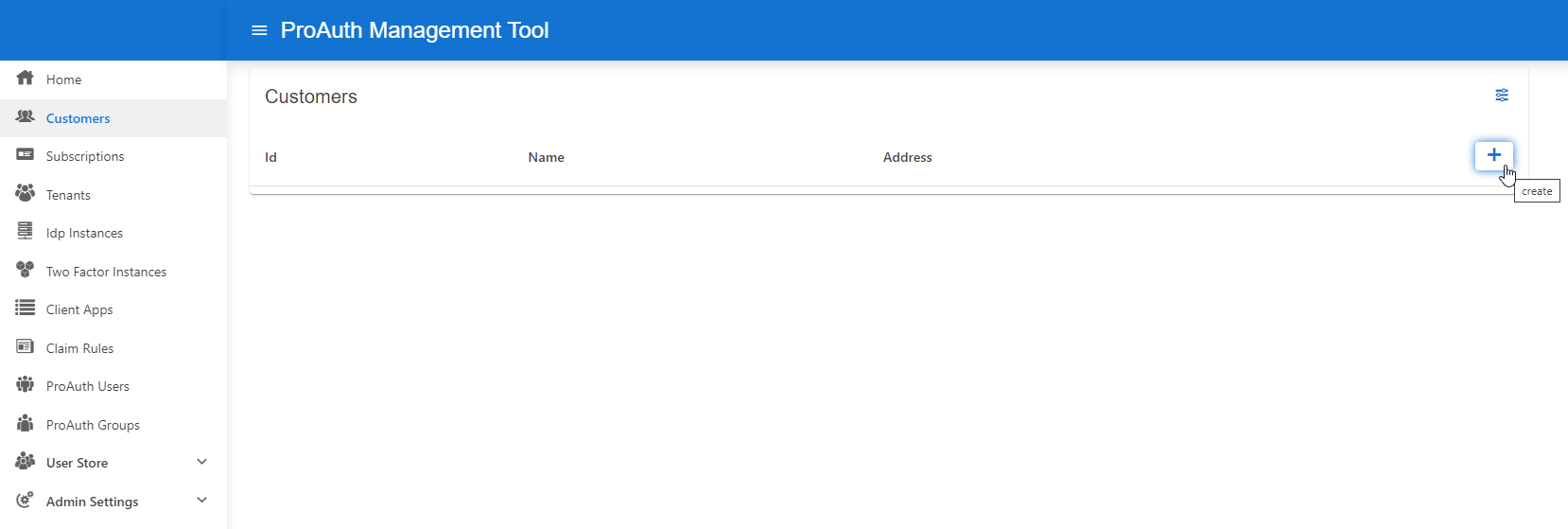
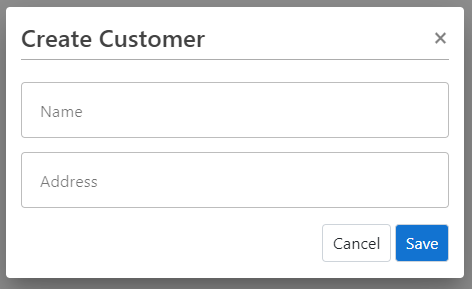
Steps to create a new Customer:
- Navigate to the ProAuth Admin UI and login with a user assigned to role
SystemAdminor higher - Navigate to
Customersand click onCreate Customer
Edit Customer
To edit a new customer, you need a ProAuthUser or a ClientApp which has benn assigned the SystemAdmin role.
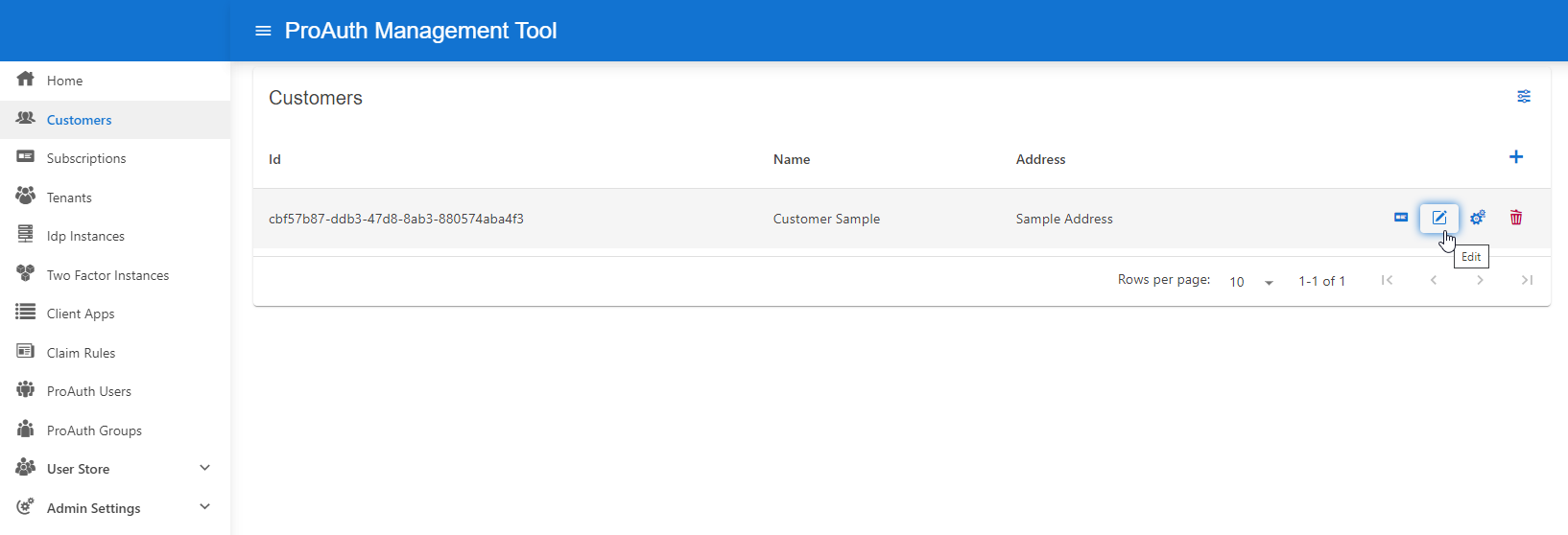
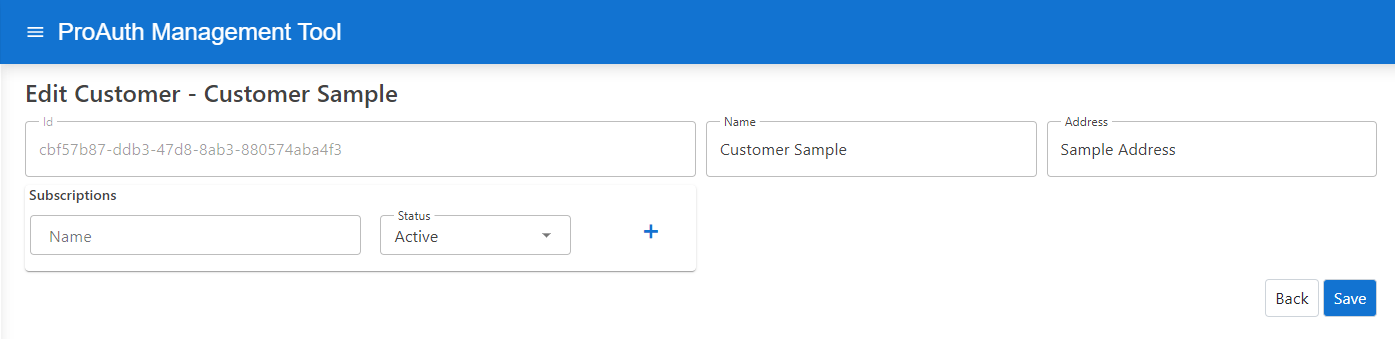
Steps to create a new Customer:
- Navigate to the ProAuth Admin UI and login with a user assigned to role
SystemAdminor higher - Navigate to
Customersand click onEdit Customer- on the extended edit view, you can edit all the customer dependencies
Subscriptions
Every customer can have multiple subscriptions, at least one. When you run ProAuth on-prem, the subscription typically represents a service, product or application. When you run ProAuth as a Service, then the subscription typically represents your customers.
Create Subscription
To create a new subscription, you need a ProAuthUser or a ClientApp which has been assigned at least the CustomerAdmin role.
Steps to create a new Subscription:
- Navigate to the ProAuth Admin UI and login with a user assigned to role
CustomerAdminor higher - Navigate to
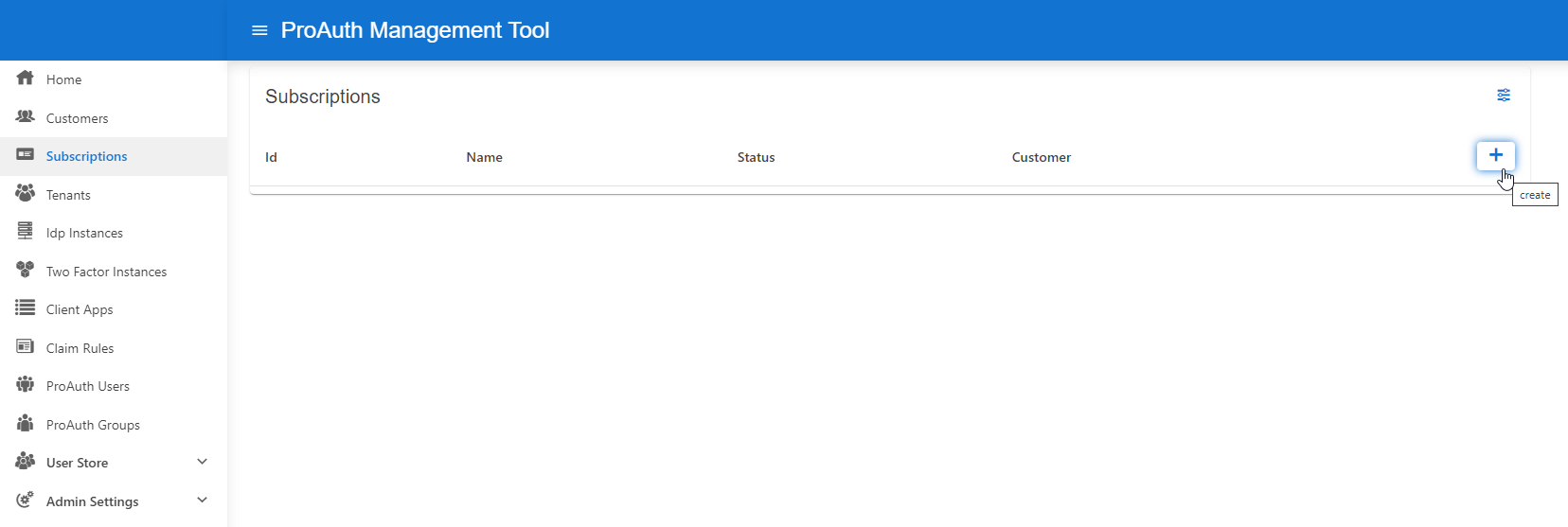
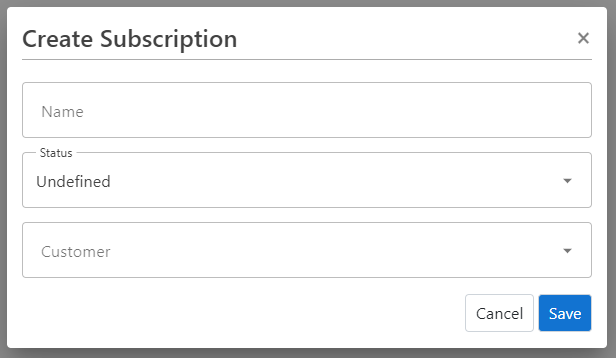
Subscriptionsand click onCreate Subscription
Edit Subscription
To edit a new subscription, you need a ProAuthUser or a ClientApp which has been assigned the CustomerAdmin role.
Steps to create a new Subscription:
- Navigate to the ProAuth Admin UI and login with a user assigned to role
CustomerAdminor higher - Navigate to
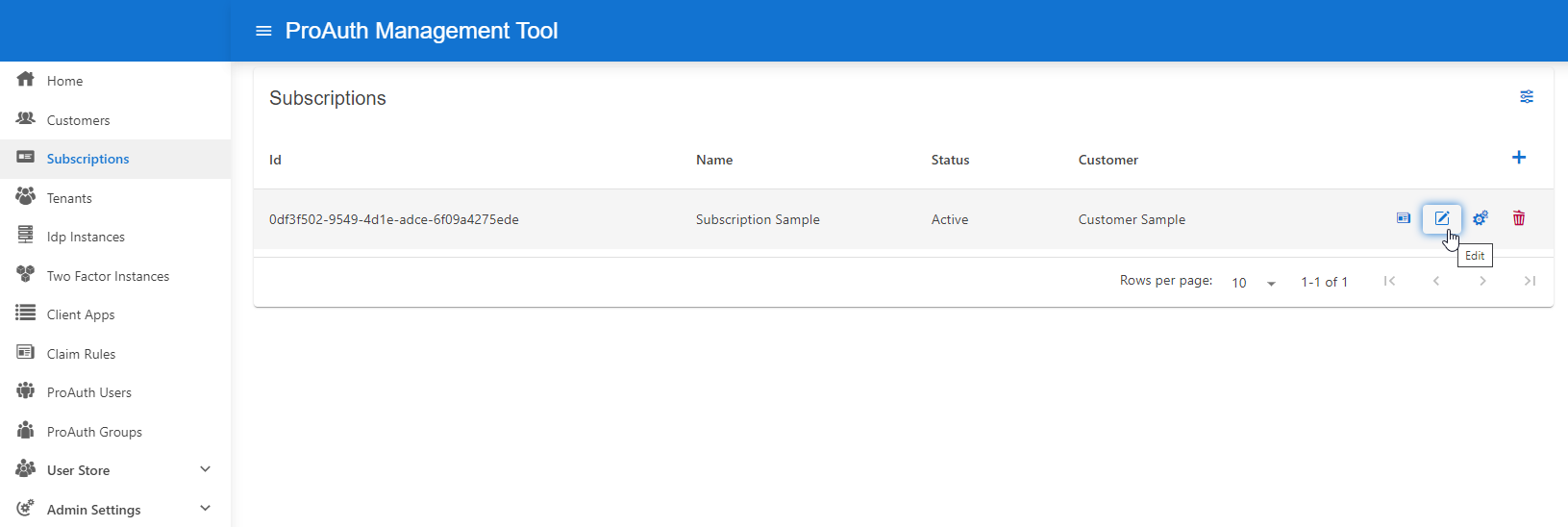
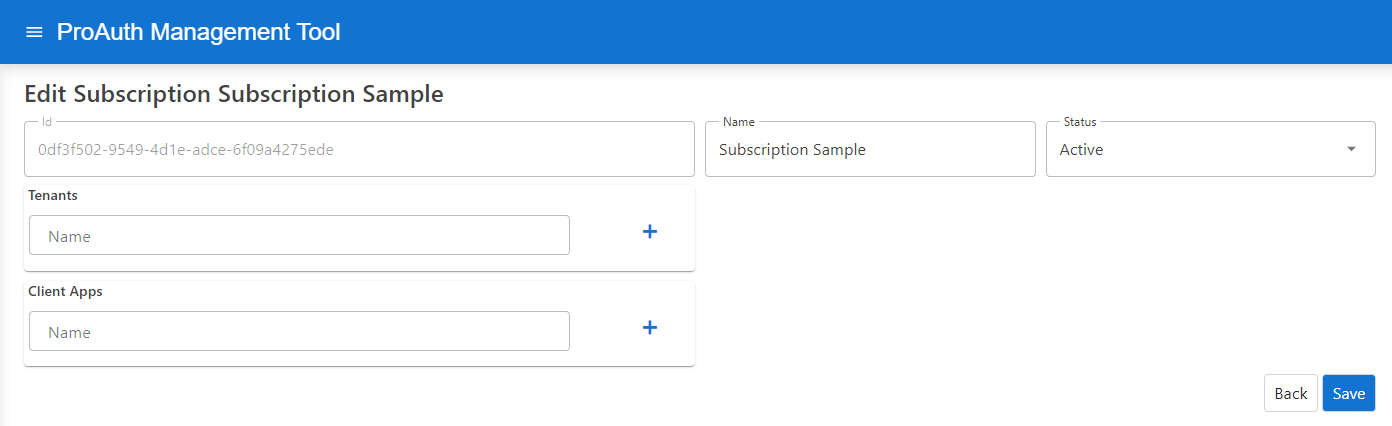
Subscriptionsand click onEdit Subscription- on the extended edit view, you can edit all the subscription dependencies
Delete Subscription
To delete a subscription, no more dependent types must be referenced to the subscription.
Before a subscription can be deleted, the following types assigned to this subscription must be deleted, otherwise an error will show up:
- Tenants
- IDP Instances
- TwoFactor Instances
- Client Applications
- Claim Rules
- ProAuth User Questionnaire
- Certificates
Tenants
Every subscription can have multiple tenants, at least one. When you run ProAuth on-prem, the tenant typically represents a specific service of the product or application. When you run ProAuth as a Service, then the tenant typically represents your customers service or application.
Create Tenant
To create a new tenant, you need a ProAuthUser or a ClientApp which has been assigned at least the SubscriptionAdmin role.
Steps to create a new Tenant:
- Navigate to the ProAuth Admin UI and login with a user assigned to role
SubscriptionAdminor higher - Navigate to
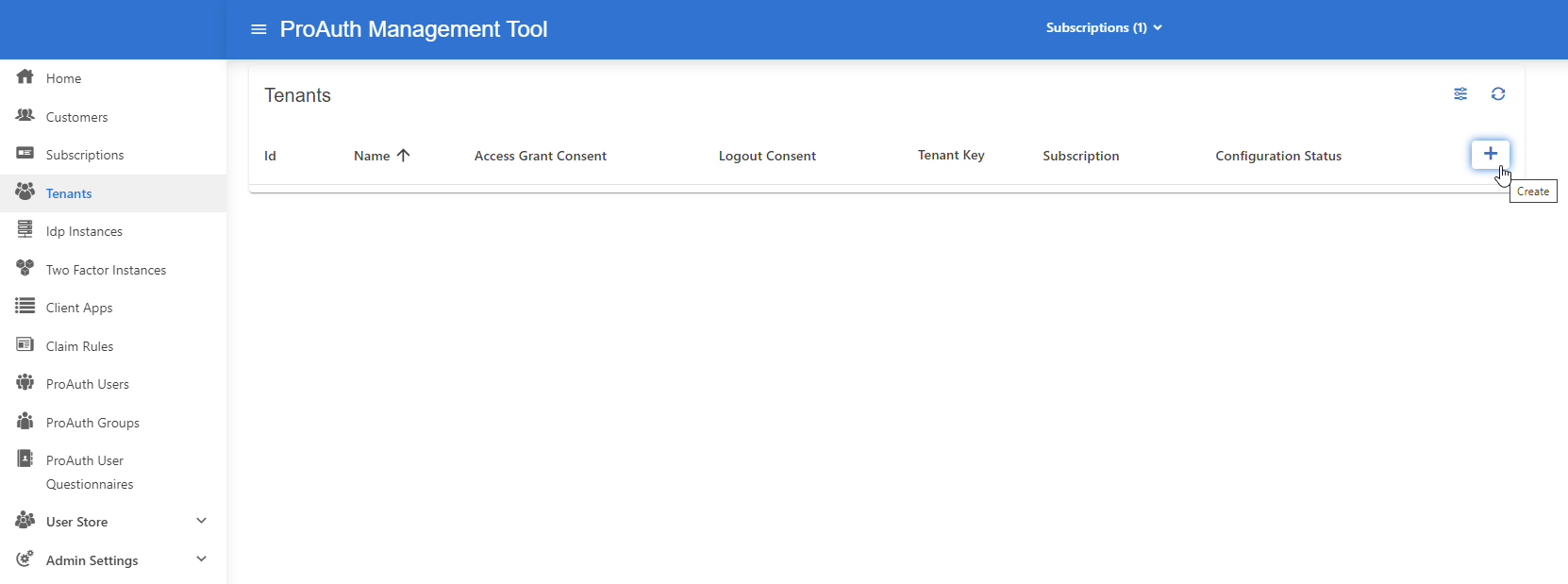
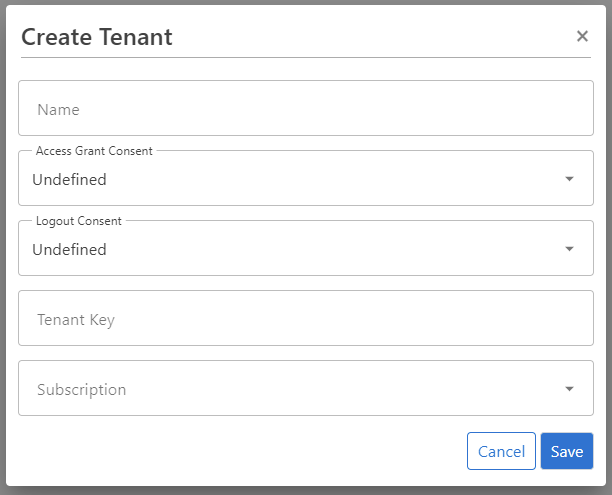
Tenantsand click onCreate Tenant
Configure Tenant
To edit a new tenant, you need a ProAuthUser or a ClientApp which has been assigned the SubscriptionAdmin role.
Steps to create a new Tenant:
- Navigate to the ProAuth Admin UI and login with a user assigned to role
SubscriptionAdminor higher - Navigate to
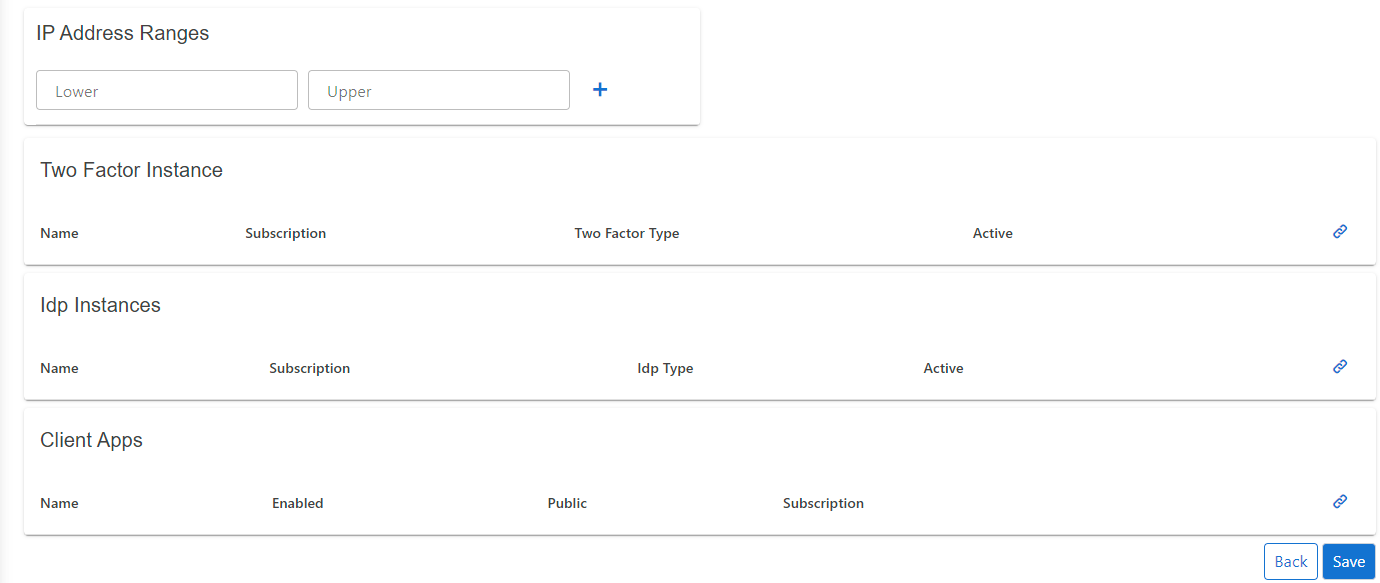
Tenantsand click onEdit Tenant- on the extended edit view, you can edit the tenant options and all tenant dependencies

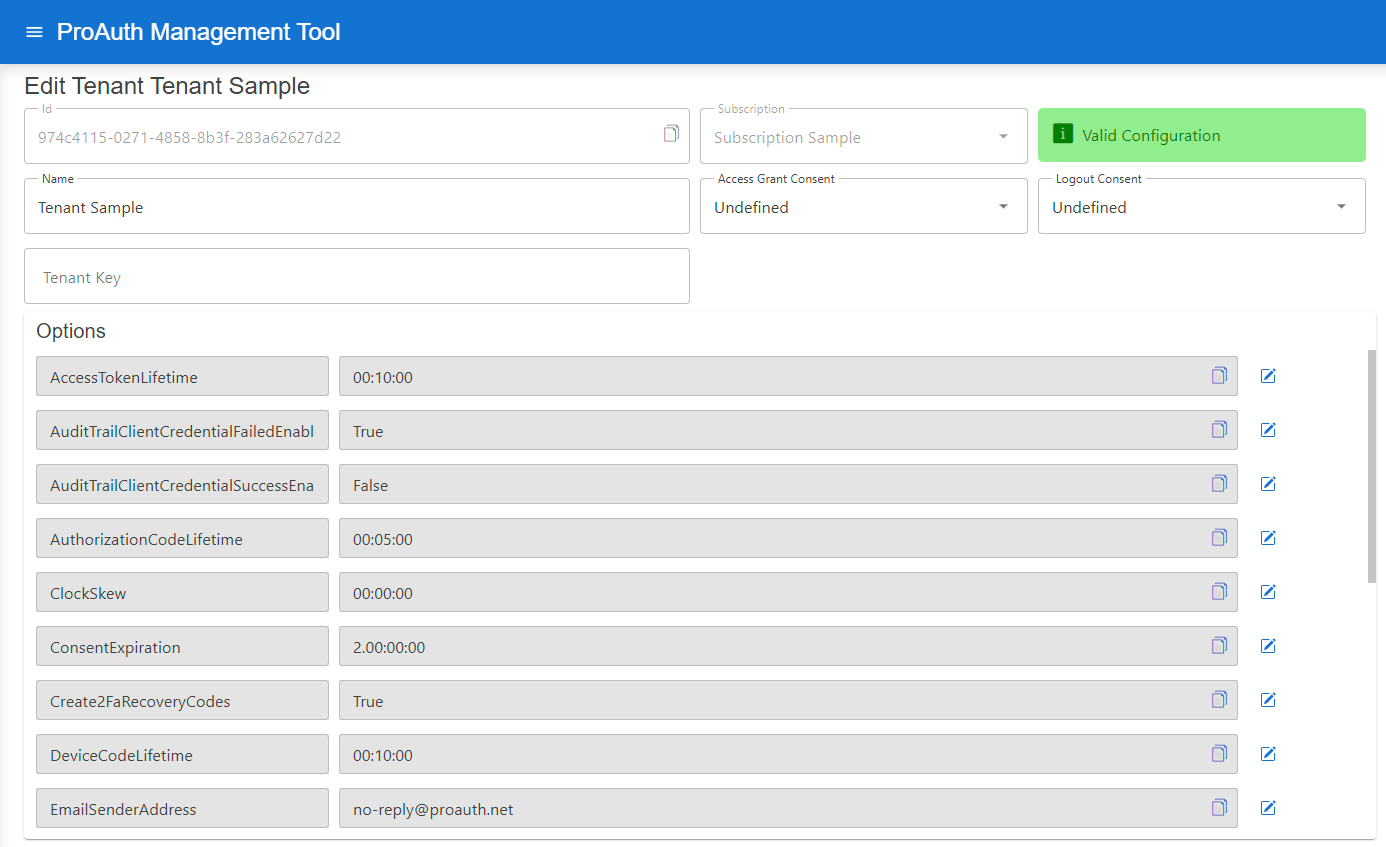
Configure mail setting Options for sending ProAuth User Invitations:
- Set the
EMailSenderAddress - Set the
MailServerConfig


MailServerConfiguration sample data for SMTP Server:
json
{
    "MailType": "SMTP",
    "Host": "<smtp-host-address>",
    "Port": 465,
    "EnableSSL": true,
    "UserName": "<smtp-username>",
    "Password": "<smtp-password>",
    "Timeout": 20000
}
MailServerConfiguration sample data for Microsoft365:
json
{
    "MailType": "M365",
    "ClientId": "<aad-app-clientid>",
    "ClientSecret": "<aad-app-clientsecret>",
    "TenantId": "<aad-app-tenantid>",
    "UserId": "<aad-user-objectid>"
}
Enable reset of the second factor
By default, a second factor can only be reset when using a recovery key during the verification of the two factor code. By enabling the option Second Factor Reset Enabled you enable the possibility to reset a second factor on the regular verification of the two factor code.

Tenant AuditTrail
By default, failed login attempts with client credential grant type are audited in ProAuth. Optionally, all successful logins to ProAuth can also be audited.
The auditing of logins with client credential grant type can be controlled by following Tenant options:

Tenant specific Issuer
Usually the ProAuth root issuer is used to issue tokens to the clients. However, each OIDC endpoint is available with a tenant specific URL which contains either the tenant id or the tenant key as the first token in the URL path.
The pattern is defined as following:
<ProAuth Root URI>/<Tenant ID><ProAuth Root URI>/<Tenant Key>
Sample:
| Setting | Value |
|---|---|
| ProAuth URI | https://idp.sample.com |
| Tenant.Id | 00000000-0000-0000-0000-000000000000 |
| Tenant.Key | tenant-123 |
Possible Authority URL:
- https://idp.sample.com/
- https://idp.sample.com/00000000-0000-0000-0000-000000000000
- https://idp.sample.com/tenant-123
Each of the above URLs will have a dedicated issuer assigned.
Tenant specific Issuer with Root Issuer
In multi-tenancy scenarios, where the clients aren't able to set the ACR values in the query parameters of the request, it's possible to use the ProAuth Root Issuer within the Tenant specific Issuer routes. The main use case for this scenario is to authenticate devices which always belong to a single tenant. Multi-tenant web application should always use tenant-specific URLs or ACR values.
This behavior is controlled by the Tenant option UseTenantSpecificIssuerOnTenantSpecificEndpoints:

WARNING
If the Tenant option UseTenantSpecificIssuerOnTenantSpecificEndpoints is switched off, this no longer corresponds to the Openid Connect standard for discovery endpoints. The standard implies that the issuer needs to be exactly the same as the URL in front of /.well-known/openid-configuration. However, many client libraries ignore the additional path. The critical part of identity token validation is not at risk because the issuer in the discovery document and the token issuer match. The use of this option is at your own risk that the client library can handle it correctly. If the client has implemented a corresponding validation, validation errors may occur.
Tenant Pipeline identification
To define a specific tenant pipeline for the Client Application to authenticate, there exists several possibilities.
By ACR Value
By providing an ACR value to the authentication request, you can define the Tenant ID for the current flow.
The ACR value should be defined as following:
acr_values=tenant:<Tenant ID>
By route value
All the OIDC endpoints are available as tenant specific URLs. To use this, either add the tenant id or the tenant key as the first path token of the URL.
The pattern is defined as following:
<ProAuth Root URI>/<Tenant ID><ProAuth Root URI>/<Tenant Key>
By redirect URI
To identify tenant by tenant specific URLS (i.e. tenantkey.myapp.com), you can define a client application return URI with a placeholder containing the tenant id or using the predefined tenant key. This is commonly used for multi-tenant web applications.
The tenant specific parts of the redirect URI can be expressed by inserting the following placeholders in your redirect URI.
- Tenant ID:
- Tenant Key:
Multi-tenant enabled web applications will be loaded with a tenant specific URL. The authentication request will most probably contain this tenant specific URL as the redirect URI. If this is the case, ProAuth will identify the tenant automatically.
Sample:
Client Application redirect URI in ProAuth:
https://myapp.sample.com//signin-oidc
or
https://.myapp.sample.com/signin-oidc
Redirect URI in authentication request:
https://myapp.sample.com/00000000-0000-0000-0000-000000000000/signin-oidc
or
https://my-tenant-key.myapp.sample.com/signin-oidc
Security Roles
To administer ProAuth, different security roles are available and required depending on the area. These security roles are determined based on the logged-in ProAuthUser or ClientApp. The security roles can be assigned either directly to a ProAuthUser, ProAuthGroup or ClientApp. Each ProAuthUser automatically inherits the security roles of the groups it belongs to.
A security role implicit inherit all the lower security roles.
Available AdminRoles:
SystemAdmin
- CustomerAdmin
- SubscriptionAdmin
- TenantAdmin
- UserStoreAdmin
- SubscriptionAdmin
- CustomerAdmin
AuditTrailReader
UserAdmin
ApplicationDataReader
SystemAdmin
With the SystemAdmin role, you are a super admin and allowed to proceed any change in ProAuth.
WARNING
Keep care about assigning this role
CustomerAdmin
A CustomerAdmin can manage its owned customers, all its subscriptions and the depending items.
SubscriptionAdmin
A SubscriptionAdmin can manage its owned subscriptions, all its tenants and the depending items.
TenantAdmin
A TenantAdmin can manage its owned tenants and all its depending items.
UserStoreAdmin
A UserStoreAdmin can manage its owned UserStore IDPs and all its depending items.
AuditTrailReader
An AuditTrailReader has read only access to all audit trail entries. In general, audit trail entries can only be read as system admin or with this role. This is due to all the sensitive data which is logged by audit trail.
INFO
This special role was introduced to grant ProAuthUsers or ClientApps only to read AuditTrail data without grant SystemAdmin permissions.
UserAdmin
A UserAdmin can manage its own ProAuthUser information.
ApplicationDataReader
The ApplicationDataReader role allows to retrieve data from the ApplicationUser and ApplicationGroup API.
INFO
This special role was introduced to grant ProAuthUsers or ClientApps only to read application user and group information without grant any permissions to modify data.